
Customer Gender Identification
Setting up Gender Identification Feature
Let Nector identify your customers' likely gender from their names, so you can build segments and run targeted campaigns. This guide covers turning the feature on, checking and correcting gender, finding it in Shopify and turning it off.
1. Open Customer Gender Identification
Go to https://merchant.nector.io/ and click Features in the left menu. Under Data Capture, click the Customer Gender Identification card.
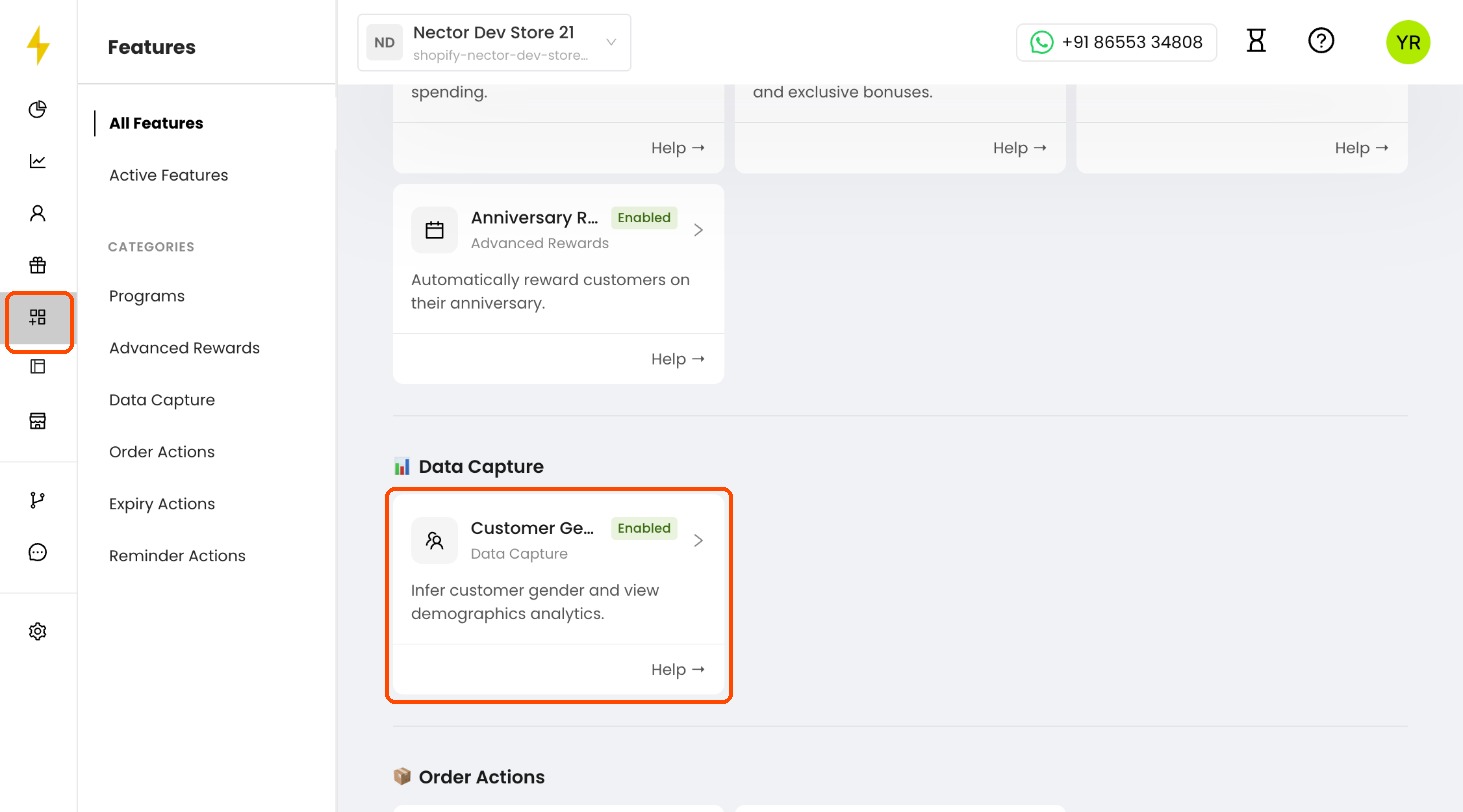
2. Turn on gender identification
Under Customer Gender Identification Status, switch on the Status toggle (Enable gender analysis).
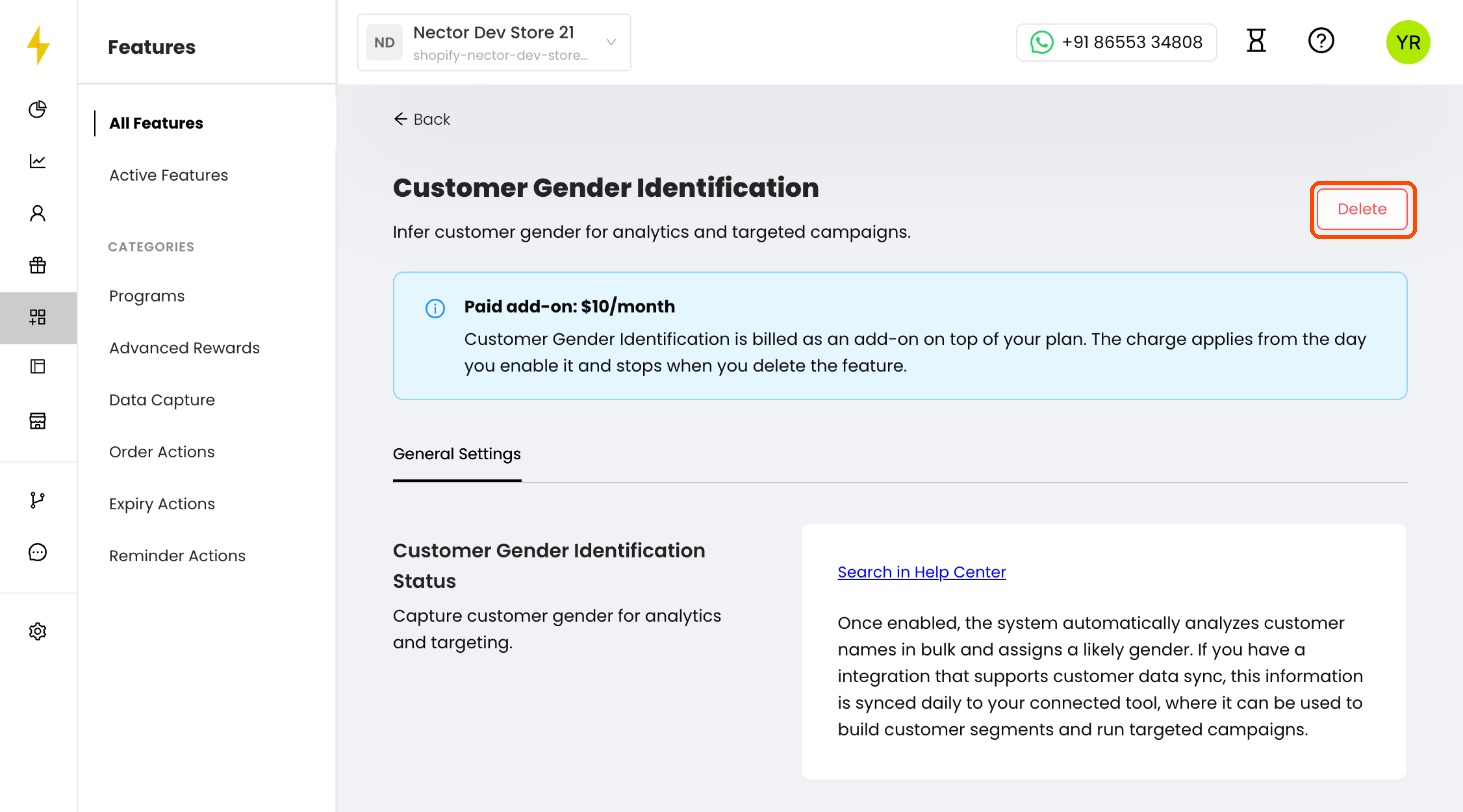
This is a paid add-on at $10/month on top of your plan. Billing starts the day you turn it on.
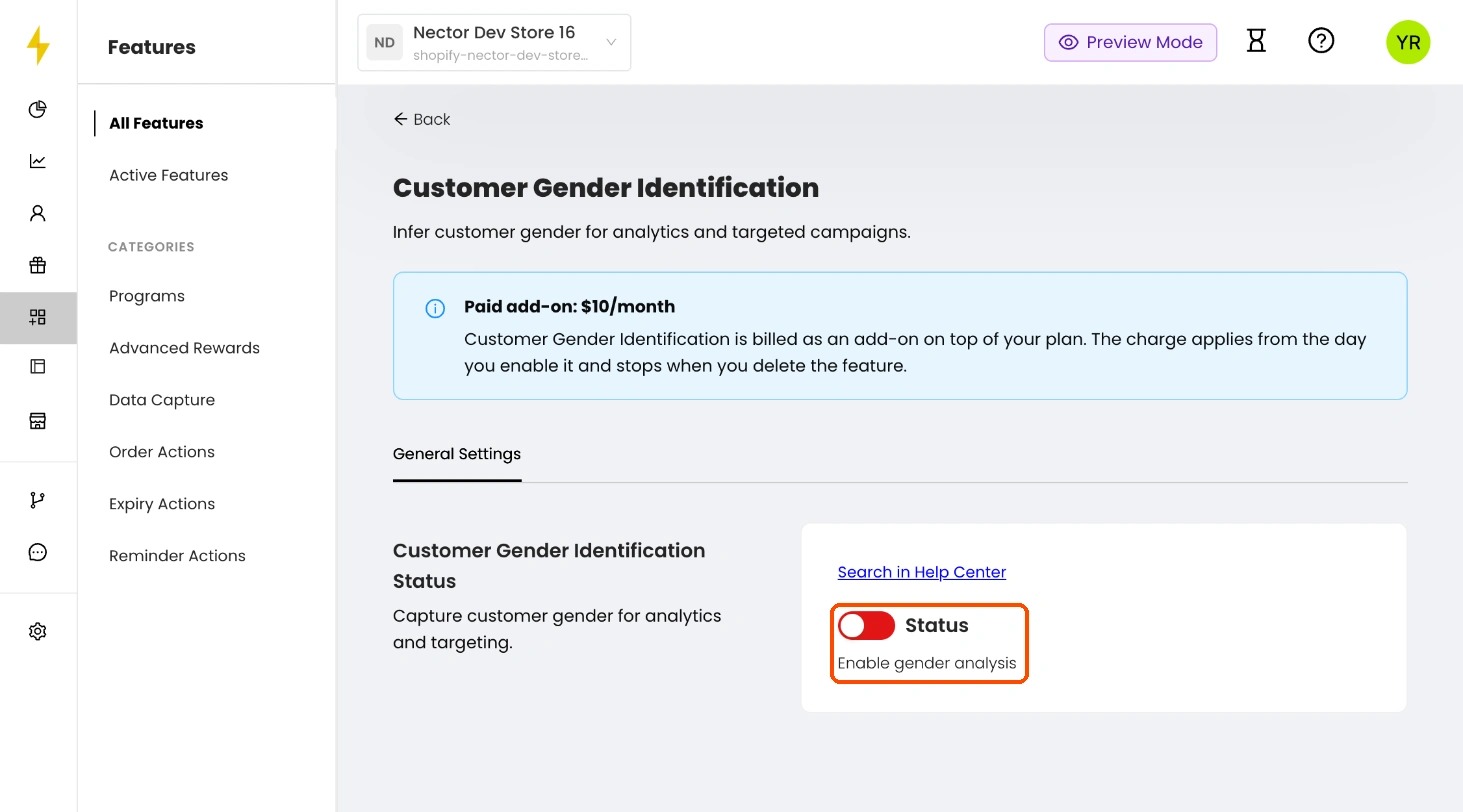
3. Check that it's running
Once it's on, Nector analyzes your customers' names in bulk and assigns each one a likely gender. If you use an integration that supports customer data sync, gender is synced to that tool daily, so you can use it to build segments and run targeted campaigns.
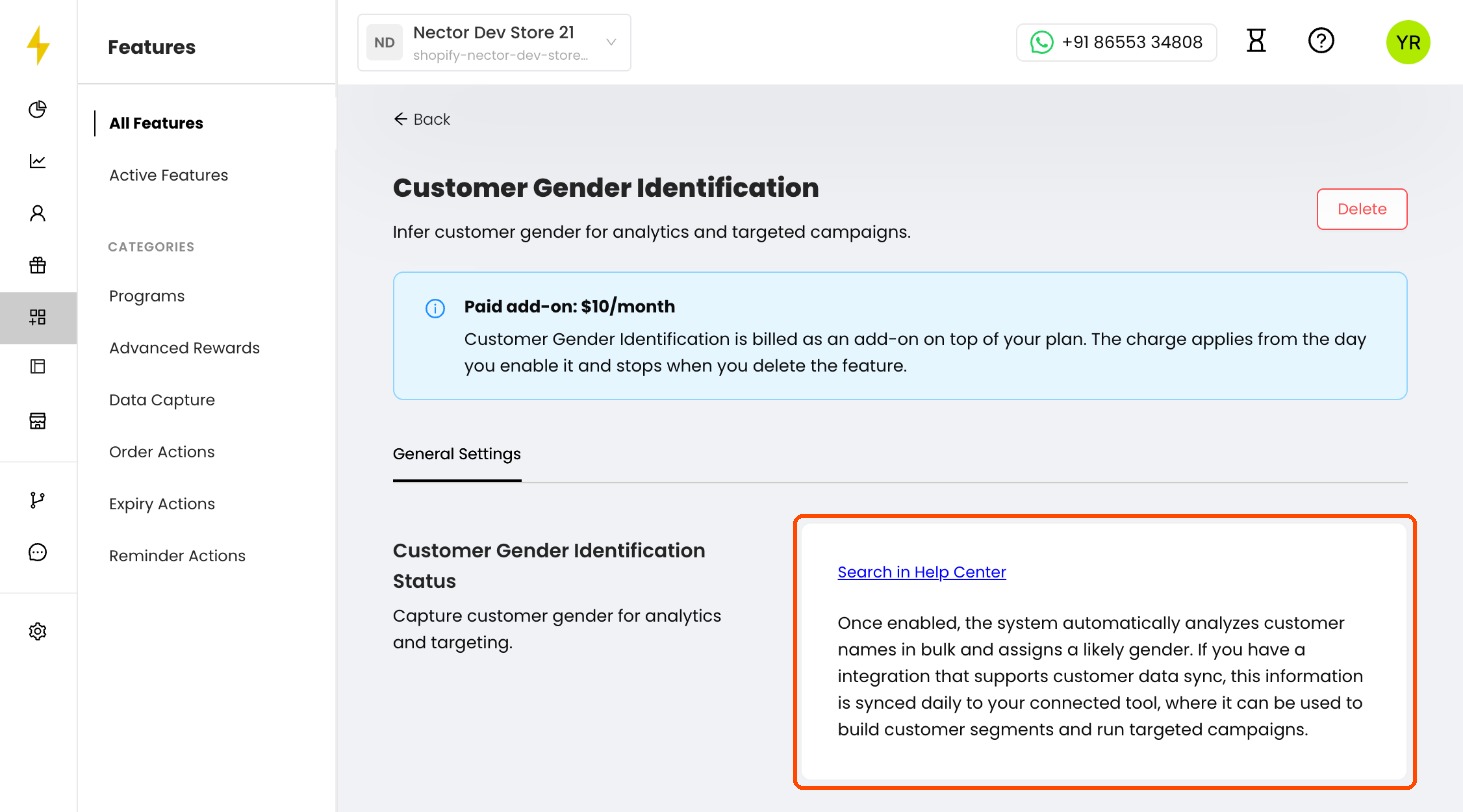
4. See gender in your customer list
Click Customers in the left menu. Each customer now shows a Gender label (Male, Female or Other) next to their name.
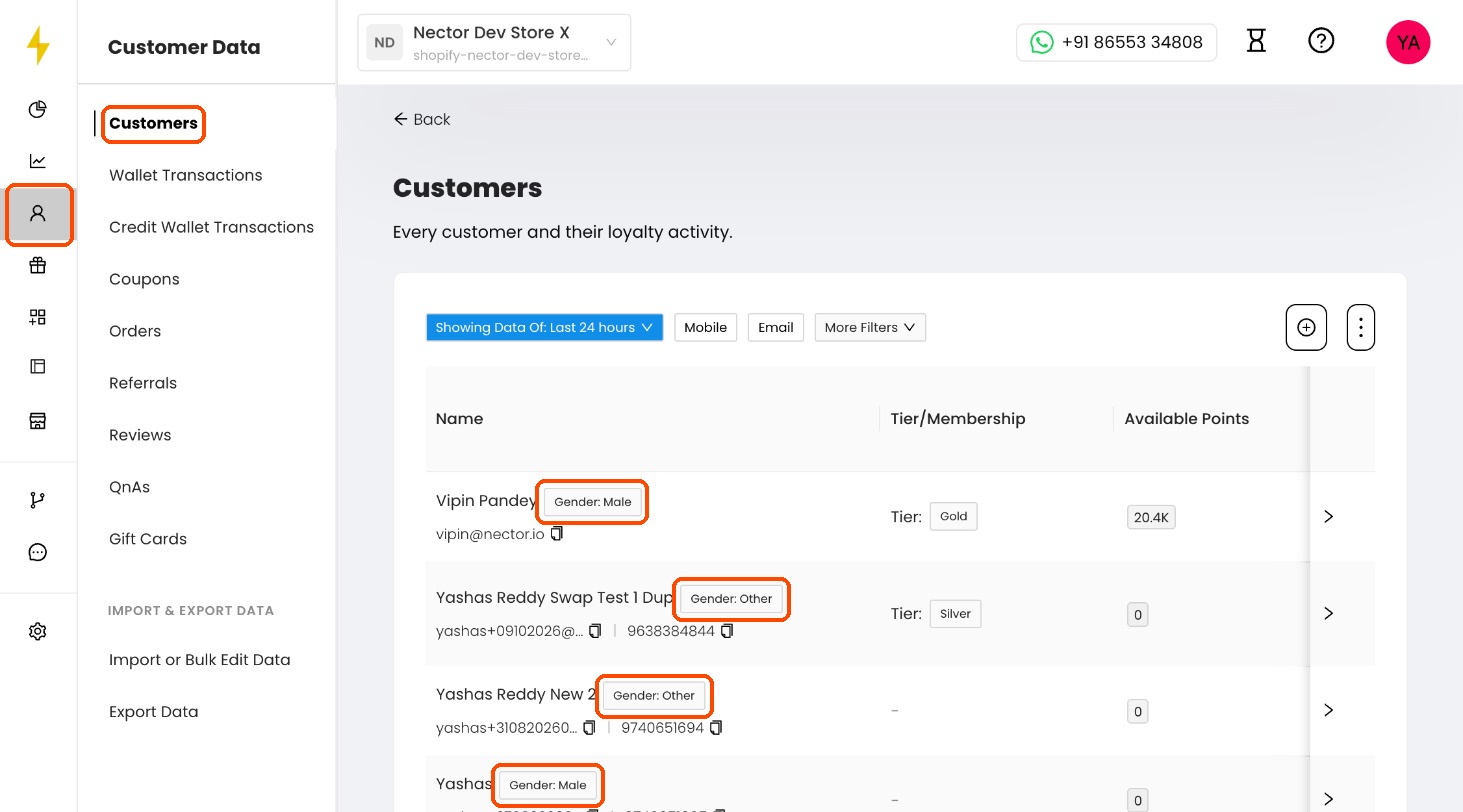
5. Check or change a customer's gender
Click a customer to open their profile. Under Edit Details, the Gender field shows the assigned gender. To correct it, pick Male, Female or Other from the list and click Save.
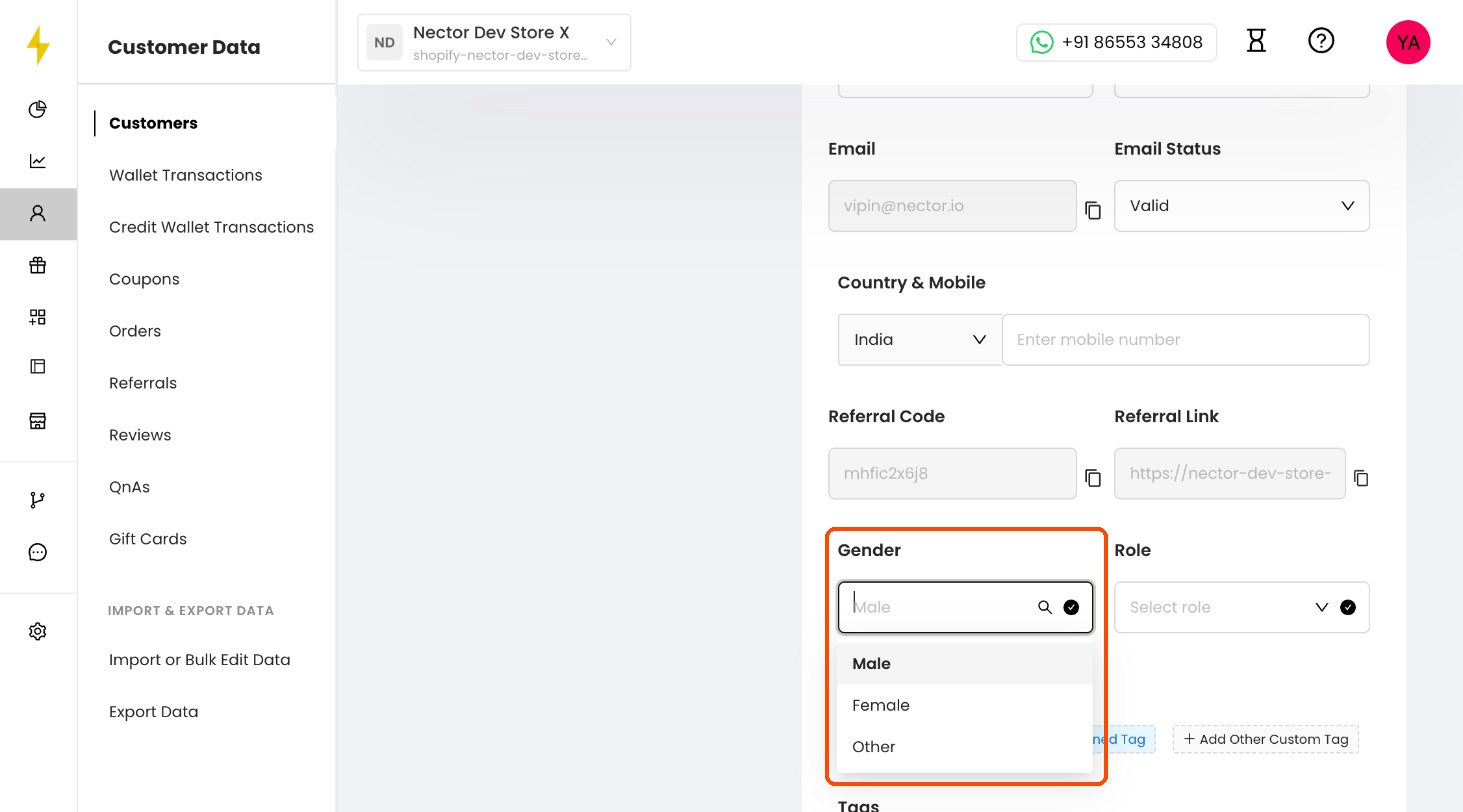
Tip: 💡 Tip: Gender is guessed from the customer's name, so it may not always be right. You can correct it on the customer's profile at any time.
6. Find gender in Shopify
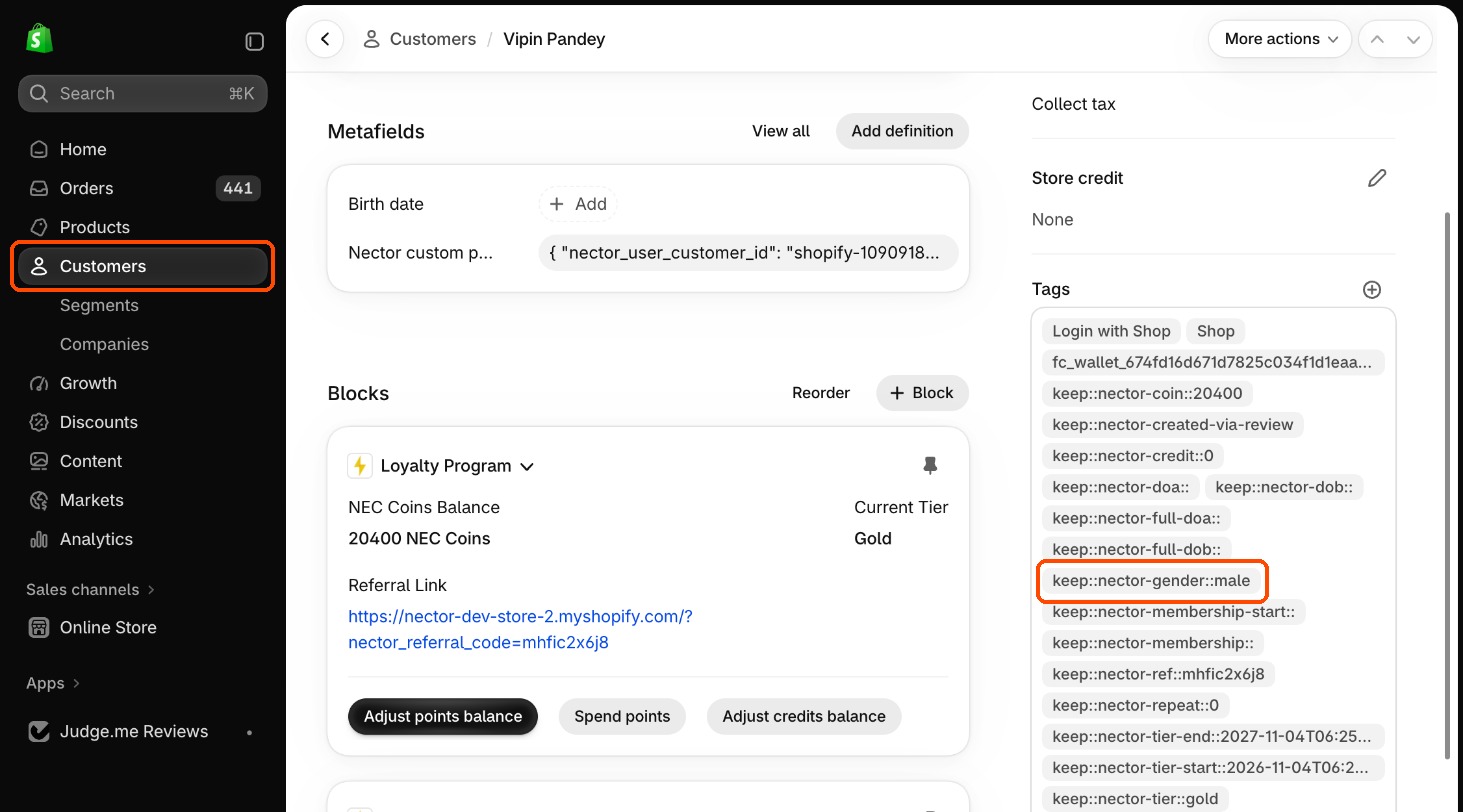
Nector also adds the gender to each customer's tags in Shopify (for example, keep::nector-gender::male). In your Shopify admin, open Customers, then a customer, to see the tag under Tags. You can use these tags to build customer segments in Shopify.
7. Turn it off (optional)
To stop using gender identification and stop the $10/month charge, go back to the Customer Gender Identification page and click Delete.
Updated on: 06/11/2026
Thank you!