
Birthday/Anniversary Rewards Program
Setting up Birthday/Anniversary Program
Reward customers with points on their birthday and on their sign-up anniversary. This guide covers turning on the program, setting the reward, choosing when it is sent and what customers see.
1. Open Birthday Rewards
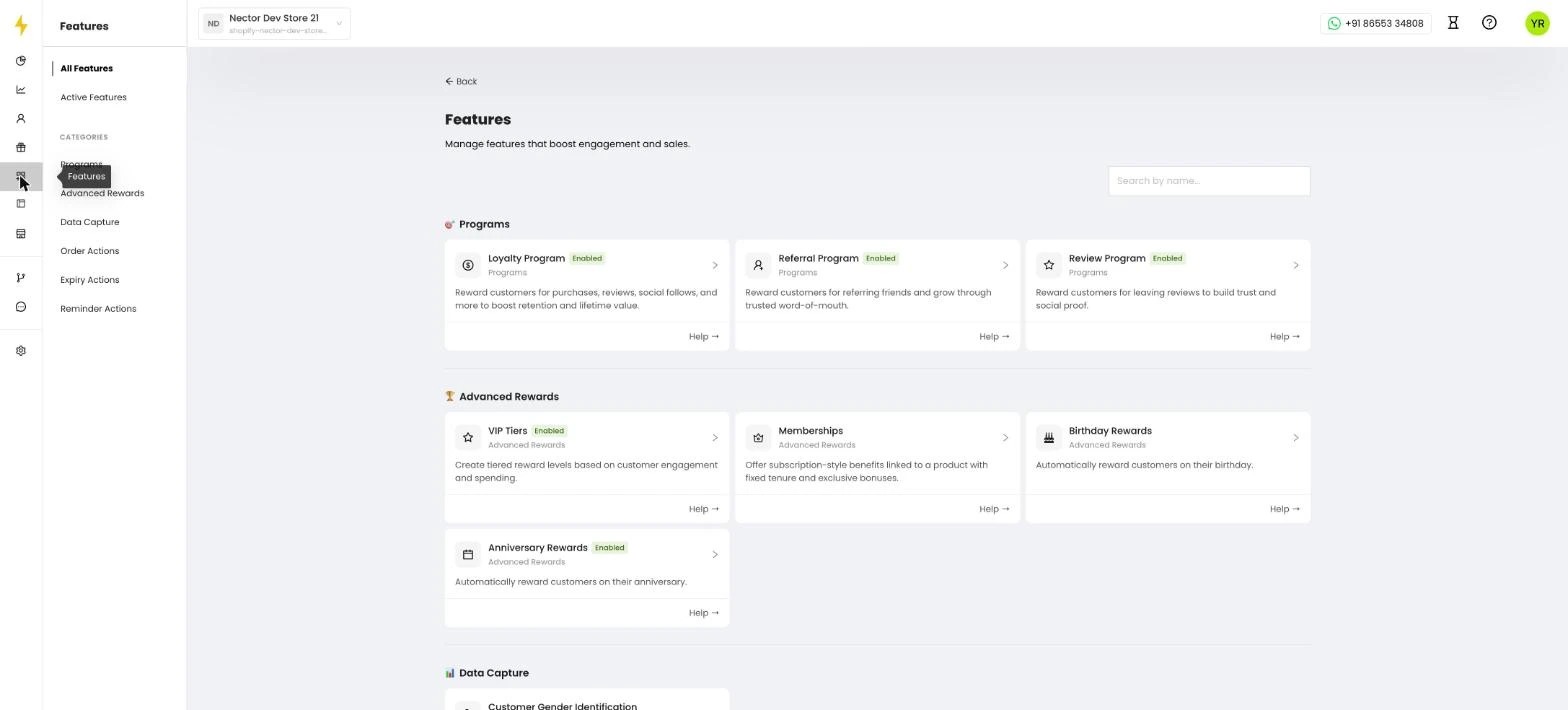
Go to https://merchant.nector.io/ and click Features in the left menu. Under Advanced Rewards, click the Birthday Rewards card.
2. Turn on birthday rewards
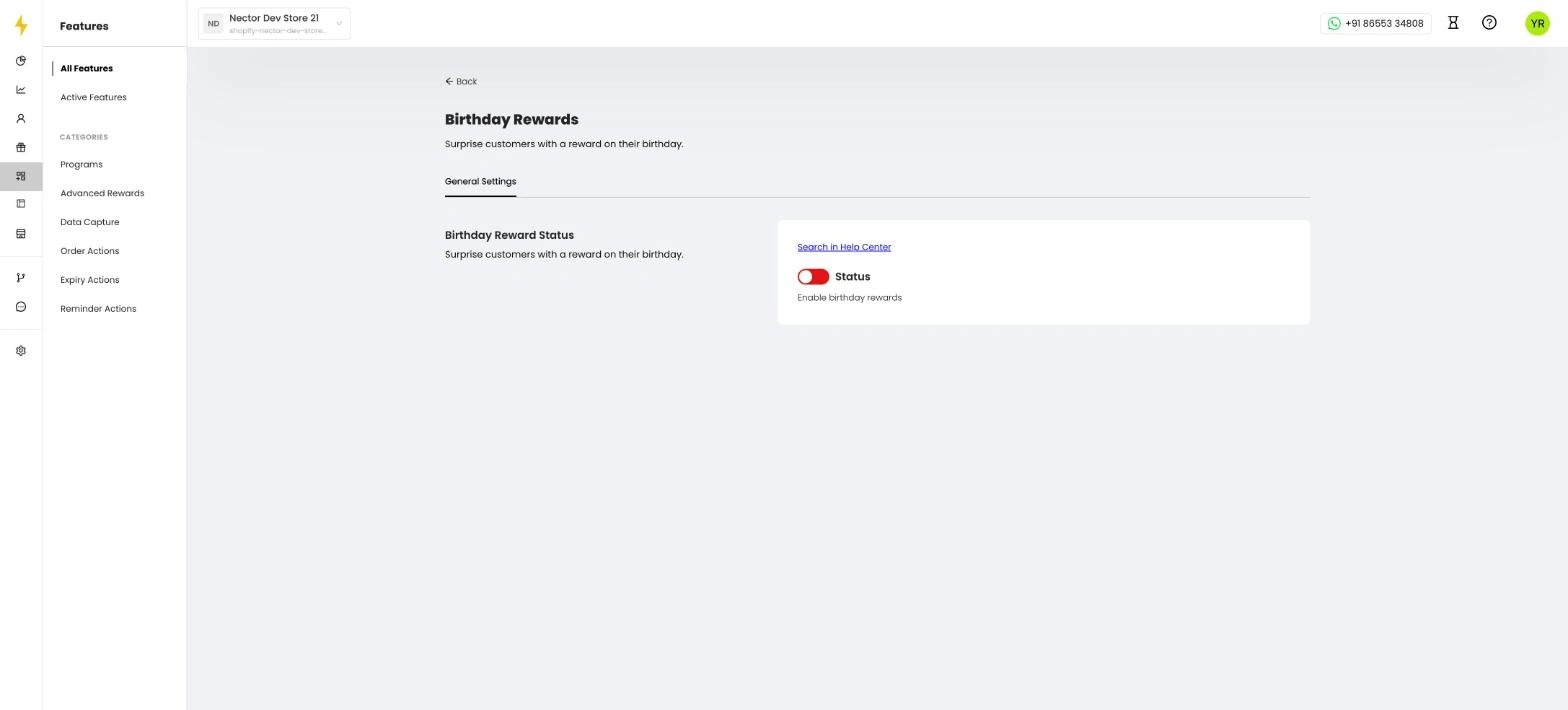
Under Birthday Reward Status, switch the Status toggle on.
3. Create the birthday earning rule
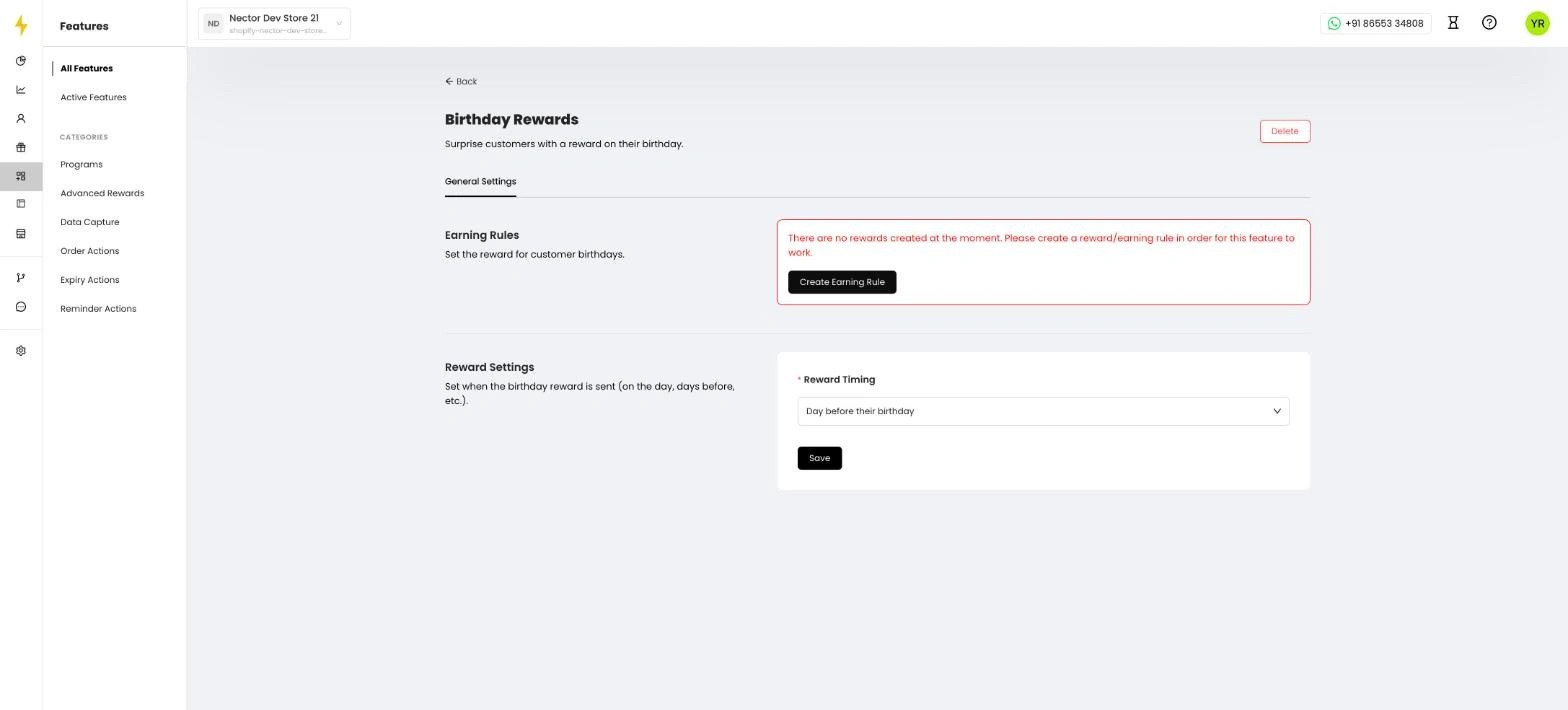
Once the program is on, the page shows Earning Rules and Reward Settings. Under Earning Rules, click Create Earning Rule to set the reward. If a birthday reward already exists, you'll see View Earning Rule instead.
4. Choose Birthday Reward
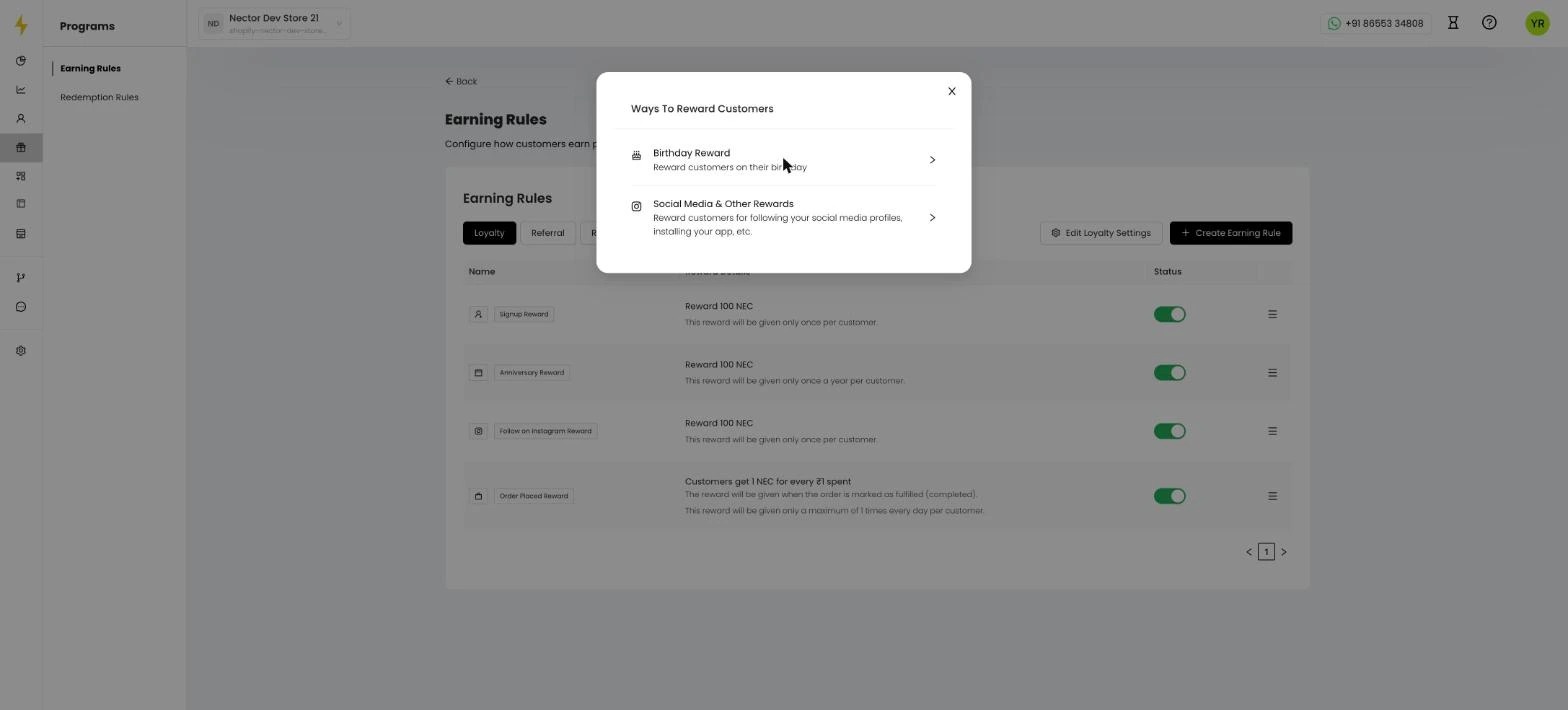
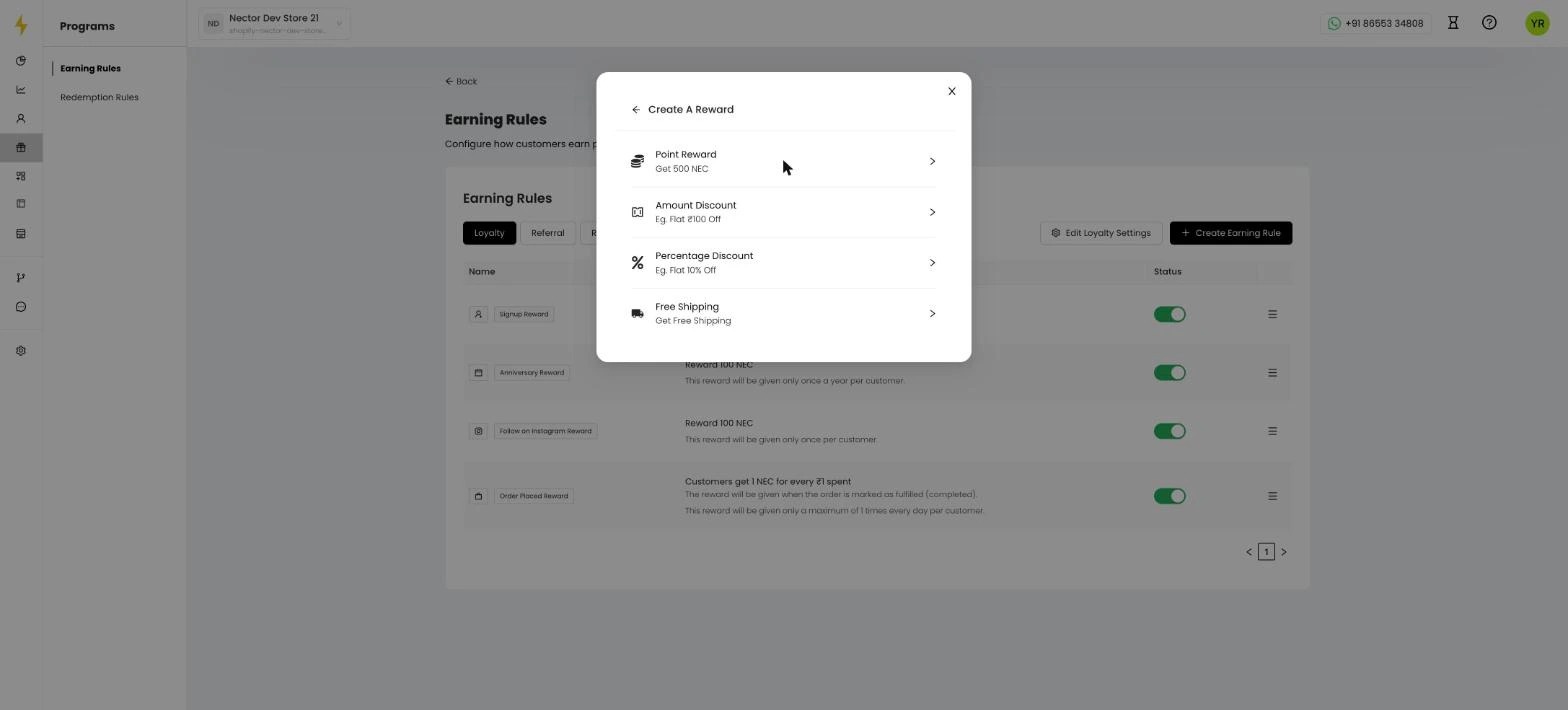
The Earning Rules page opens with a Ways To Reward Customers pop-up. Click Birthday Reward.
5. Pick the reward type
Choose what customers get on their birthday:
- Point Reward: points added to their wallet
- Amount Discount: a flat amount off, for example ₹100 off
- Percentage Discount: a percentage off, for example 10% off
- Free Shipping
This guide uses Point Reward.
Tip: 💡 Tip: Customers only get the birthday reward if they've added their birth date. They can add it from the rewards widget or the rewards page.
6. Set the points
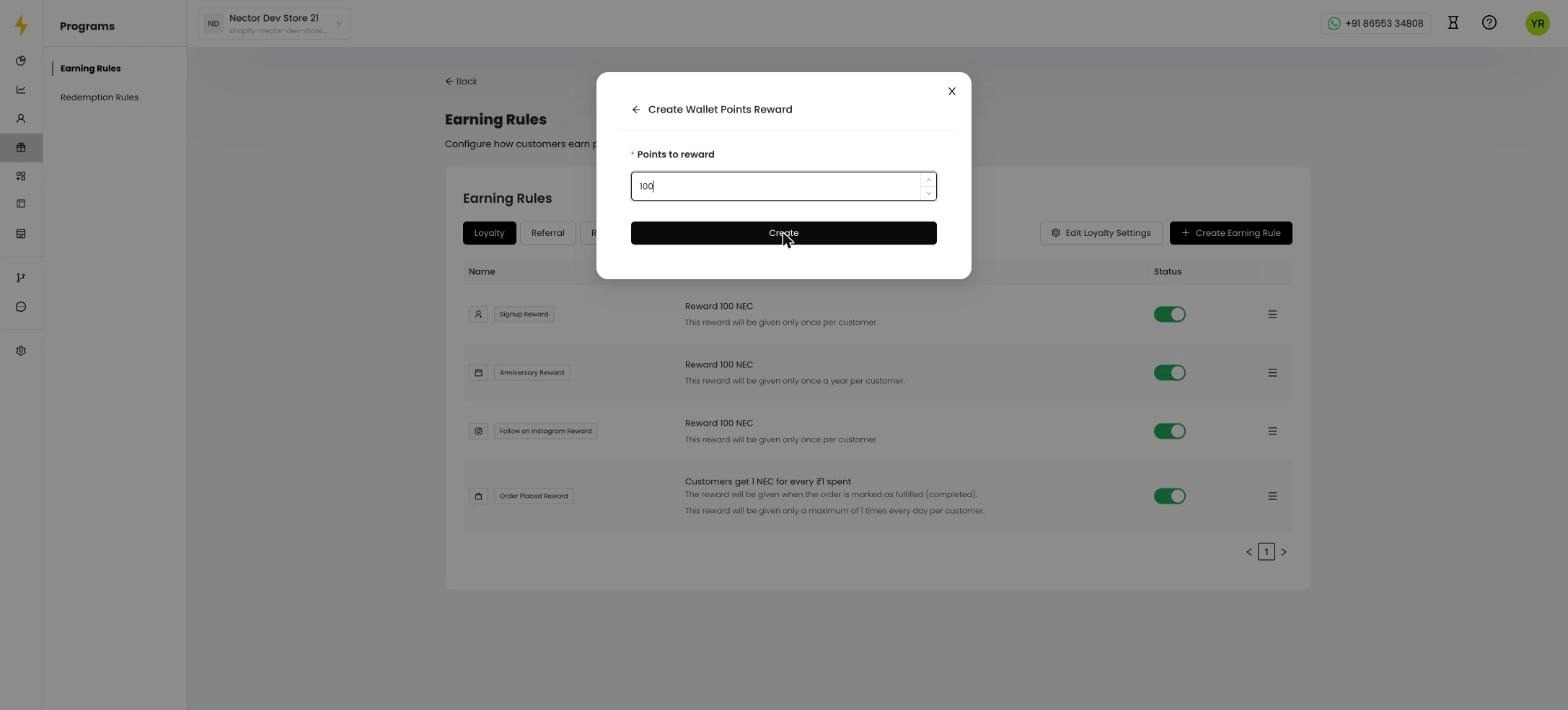
In Points to reward, enter how many points customers get on their birthday, for example 100. Click Create. The Birthday Reward now appears in your earning rules list.
7. Open the reward settings
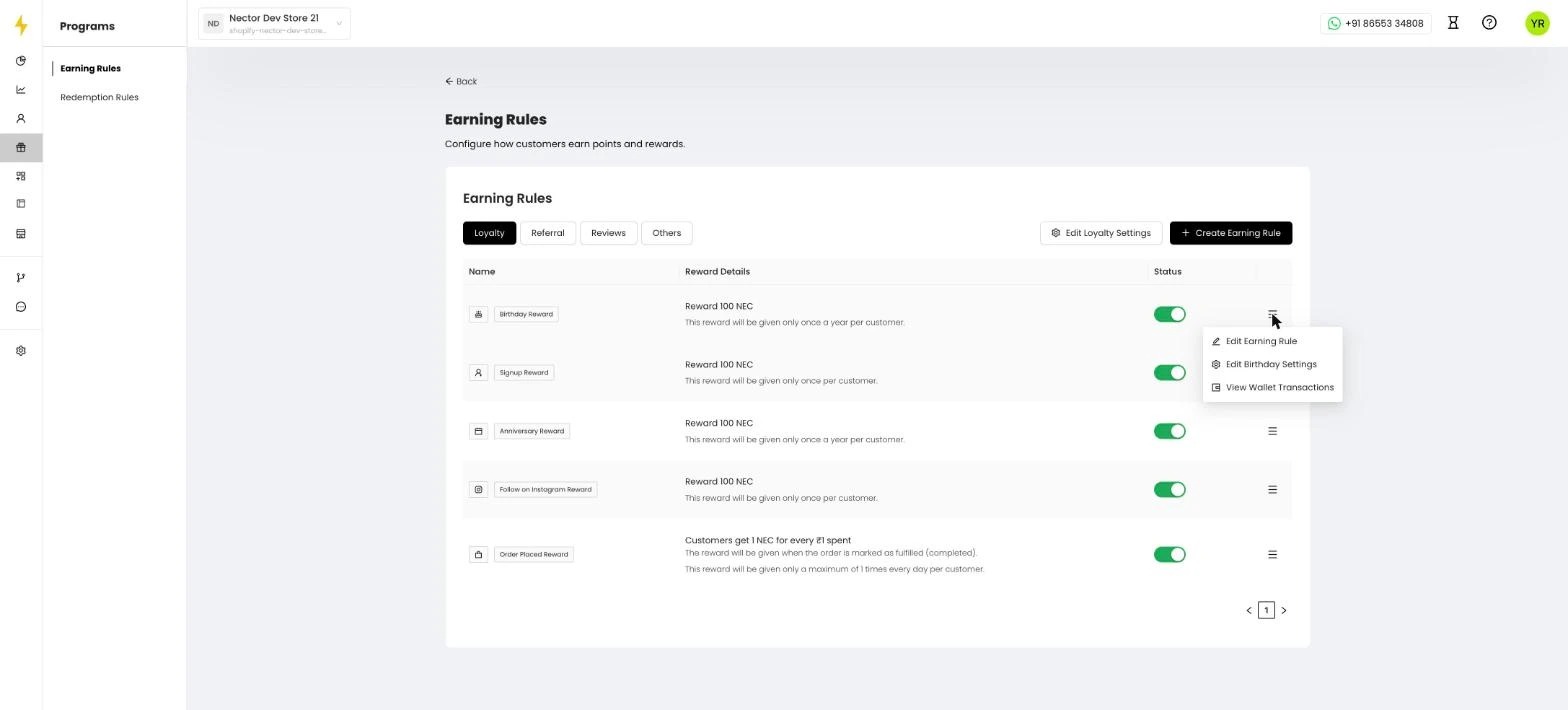
Click the ☰ menu on the Birthday Reward row and choose Edit Earning Rule. Here you can change the Reward Title and Reward Description shown in the customer's wallet history, and turn the reward on or off with the Status toggle.
8. Show it in Ways to Earn
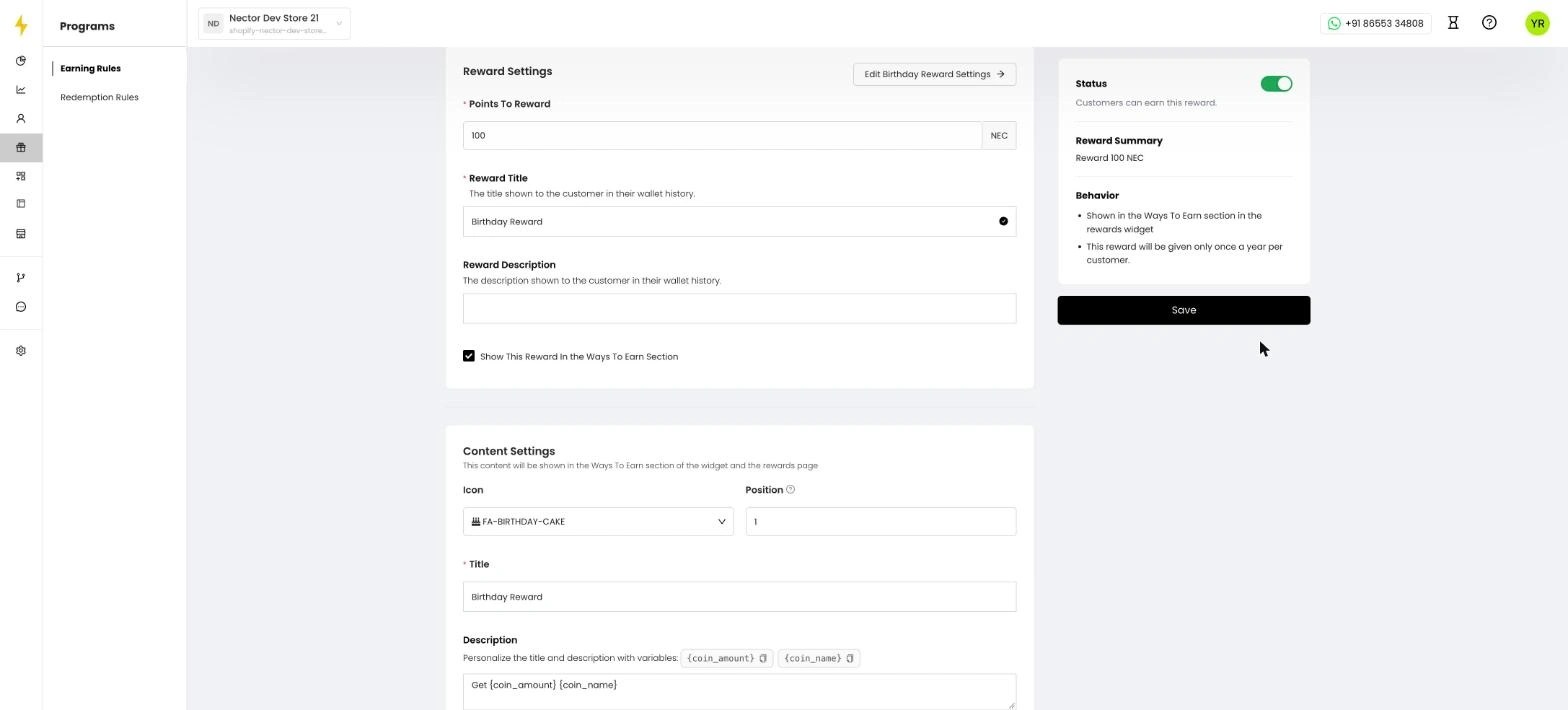
Keep Show This Reward In the Ways To Earn Section ticked so customers can see the reward. Then, under Content Settings, check what customers will see:
- Icon: for example a birthday cake
- Position: where it appears in the list
- Title and Description: what customers read. Use {coin_amount} and {coin_name} to show the points, for example Get {coin_amount} {coin_name}
- Link (optional): a page to open when customers click it
9. Set how often it's given and save
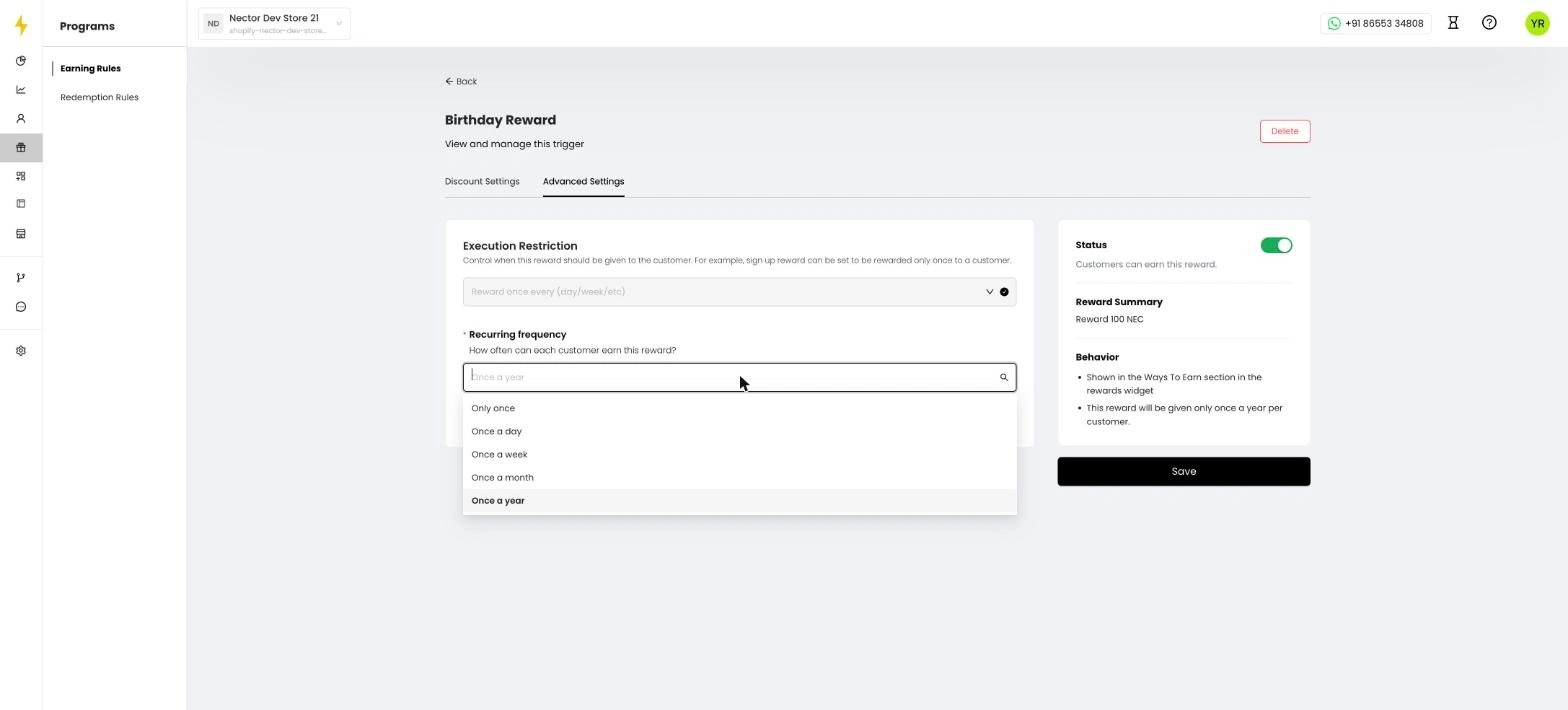
Click the Advanced Settings tab. Under Recurring frequency, choose Once a year so each customer gets the reward only once a year. Click Save.
10. Choose when the reward is sent
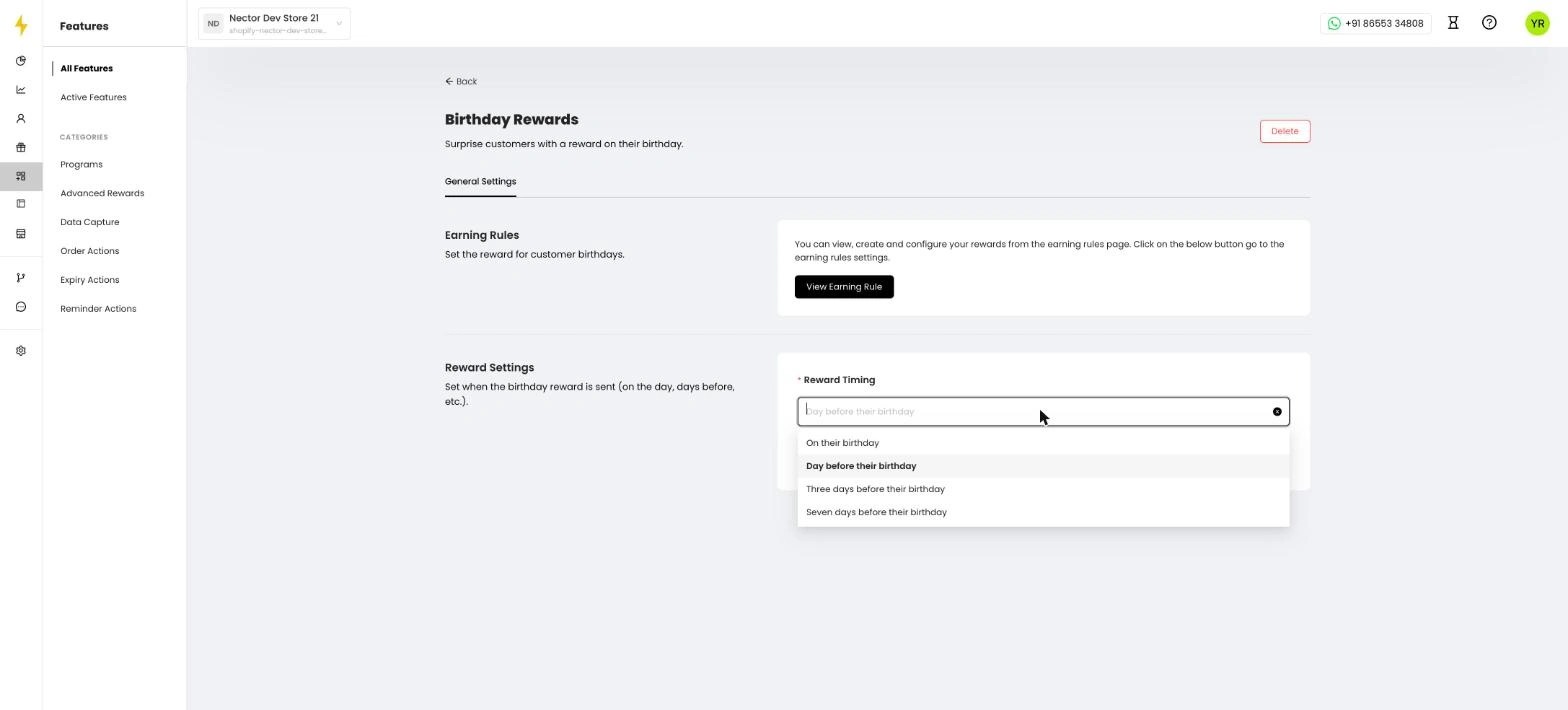
Go back to the Birthday Rewards page. Under Reward Settings, pick a Reward Timing:
- On their birthday
- Day before their birthday
- Three days before their birthday
- Seven days before their birthday
Click Save.
11. Set up anniversary rewards
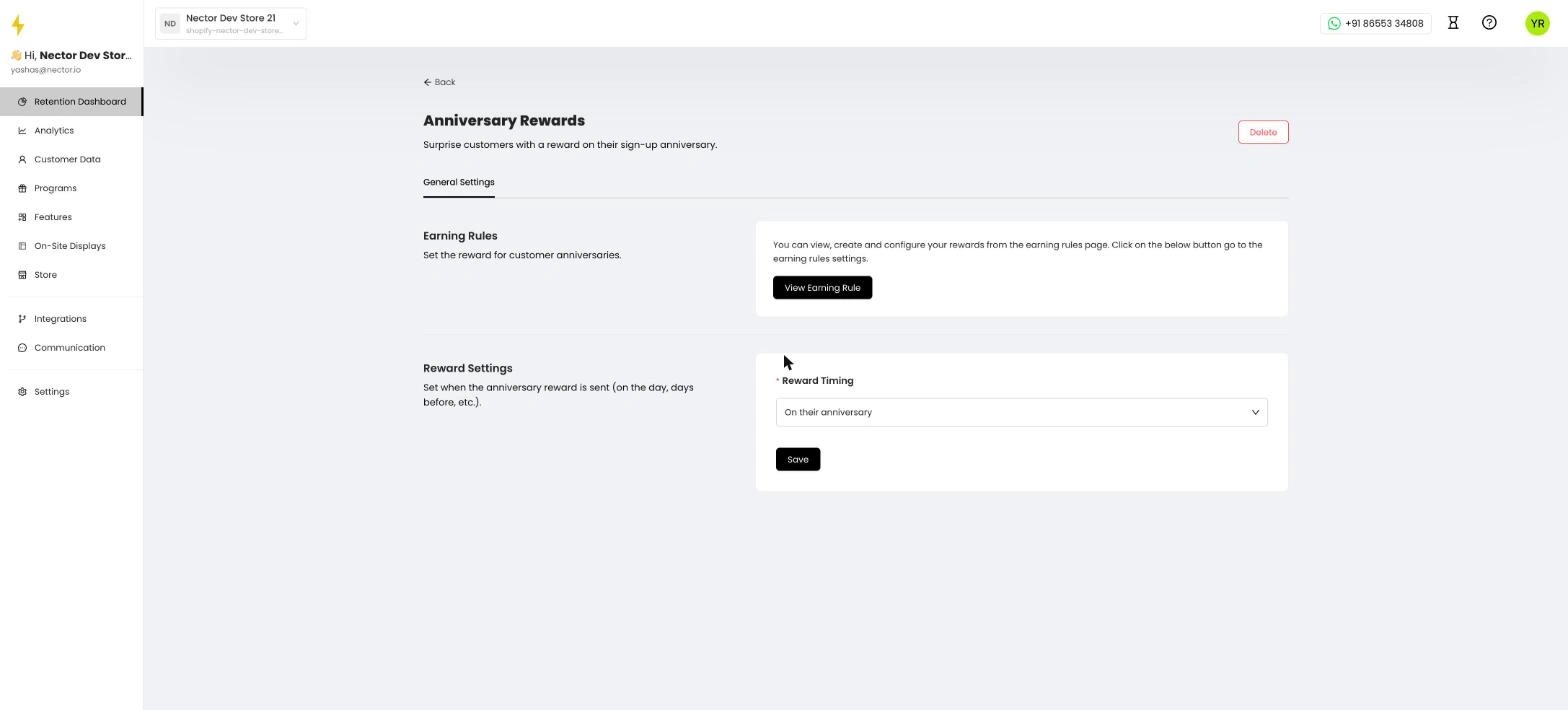
Anniversary rewards work the same way, but they're given on the anniversary of the day the customer signed up, so customers don't need to enter a date. Go to Features, click the Anniversary Rewards card, and repeat these steps.
12. See what your customers see
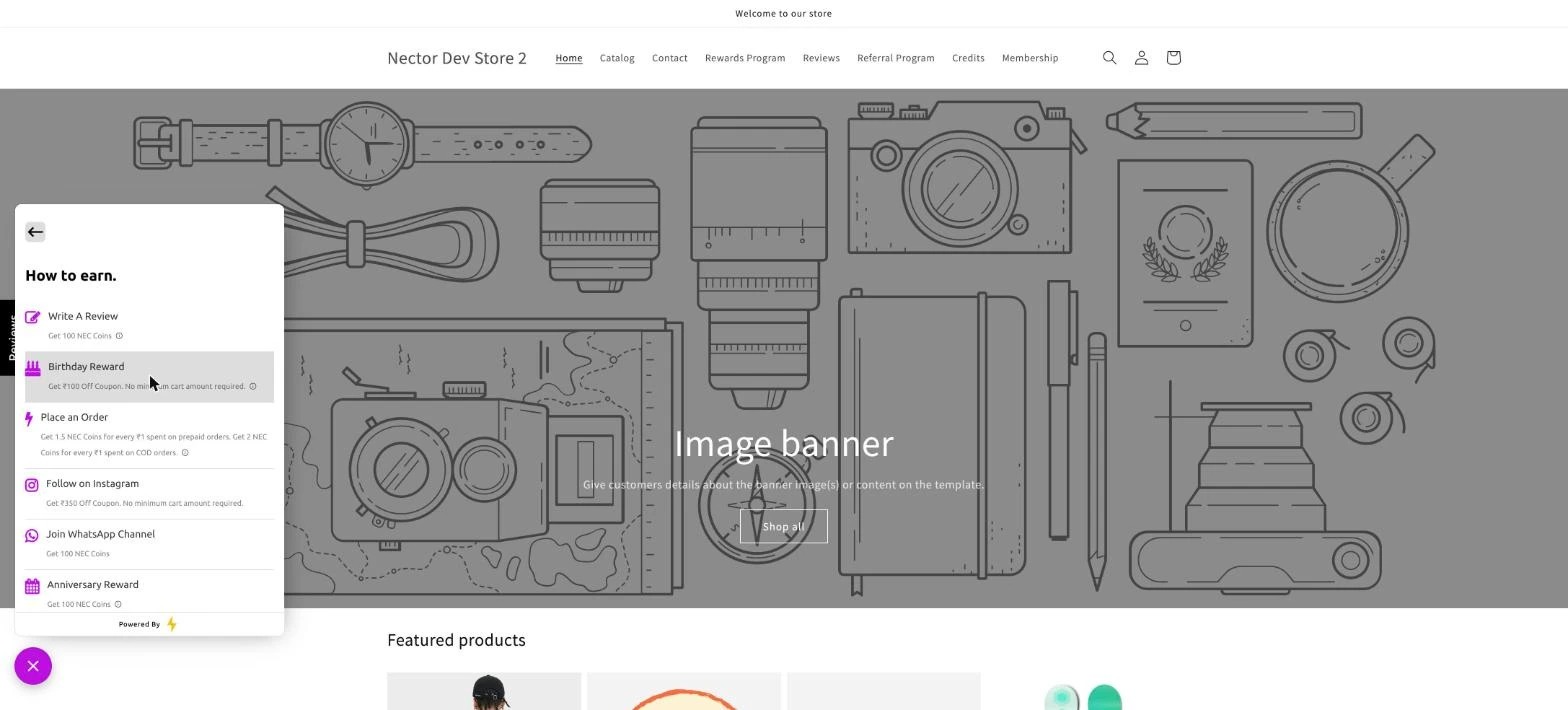
On your store, the Birthday Reward and Anniversary Reward appear under How to earn in the rewards widget and on the rewards page. To get the birthday reward, customers click Birthday Reward, enter their birth date and save it. Future dates aren't allowed.
Updated on: 03/11/2026
Thank you!