
Abandon Cart Reminder: Setup & Automation
How To Configure Abandoned Cart Reminder Notifications In Nector
Learn how to effectively recover lost sales by setting up automated abandoned cart email reminders through the Nector merchant portal. This guide walks you through customizing your notification settings and email templates to engage customers who left items in their carts.
1. Navigate to https://merchant.nector.io/
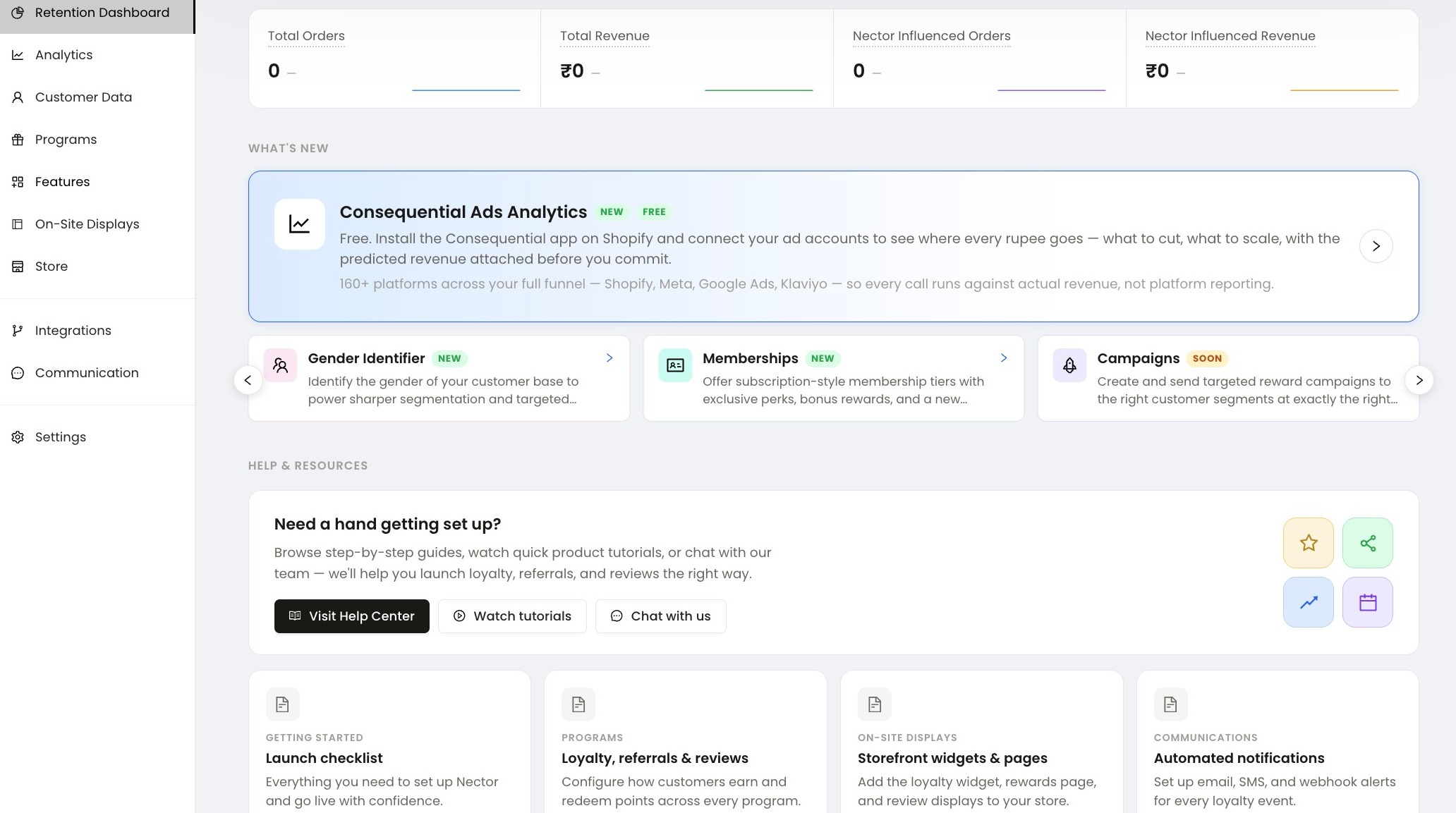
2. Open Features: In the left sidebar, click Features.
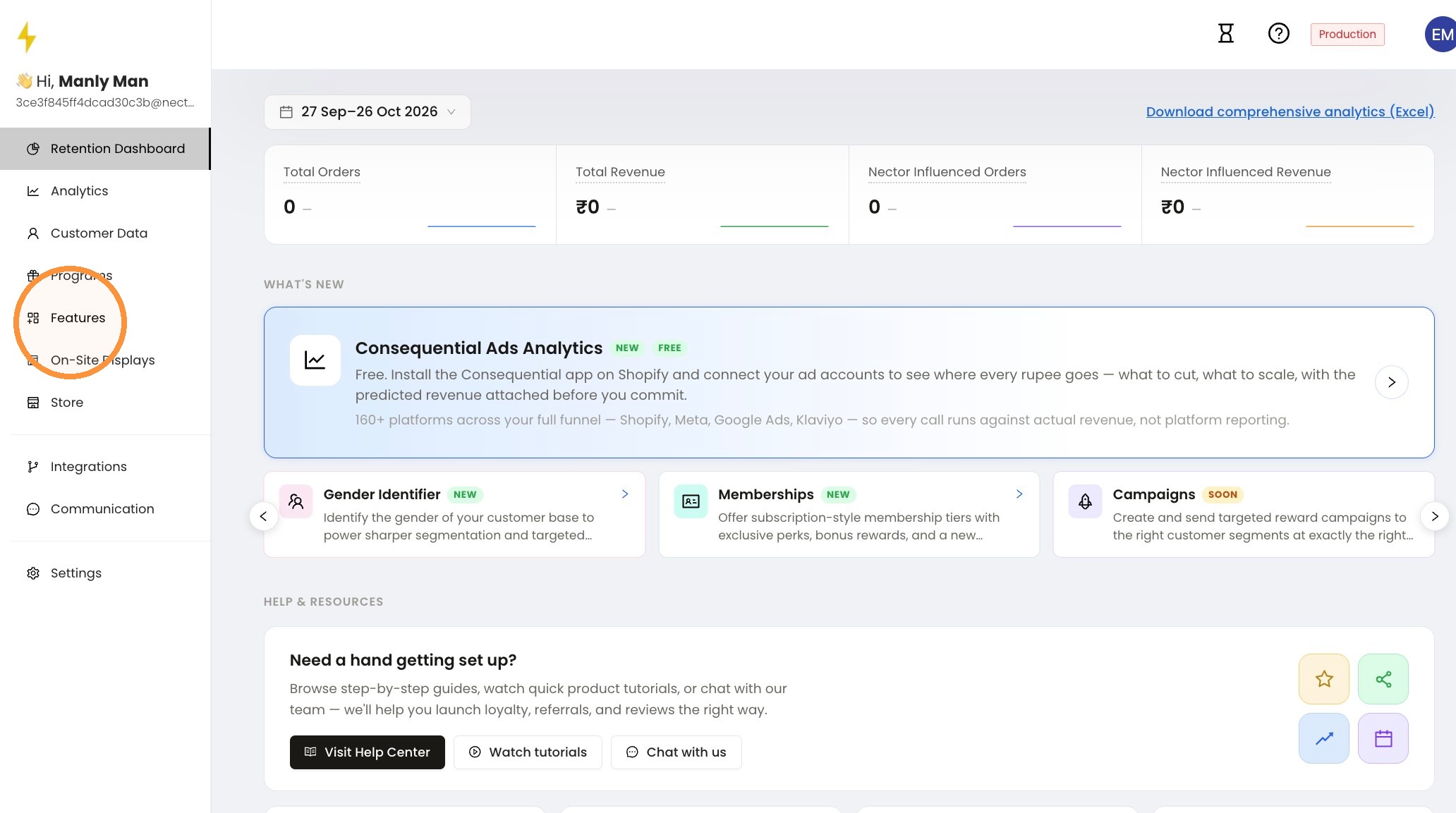
3. Select Reminder Actions: On the Features page, click Reminder Actions in the left menu.
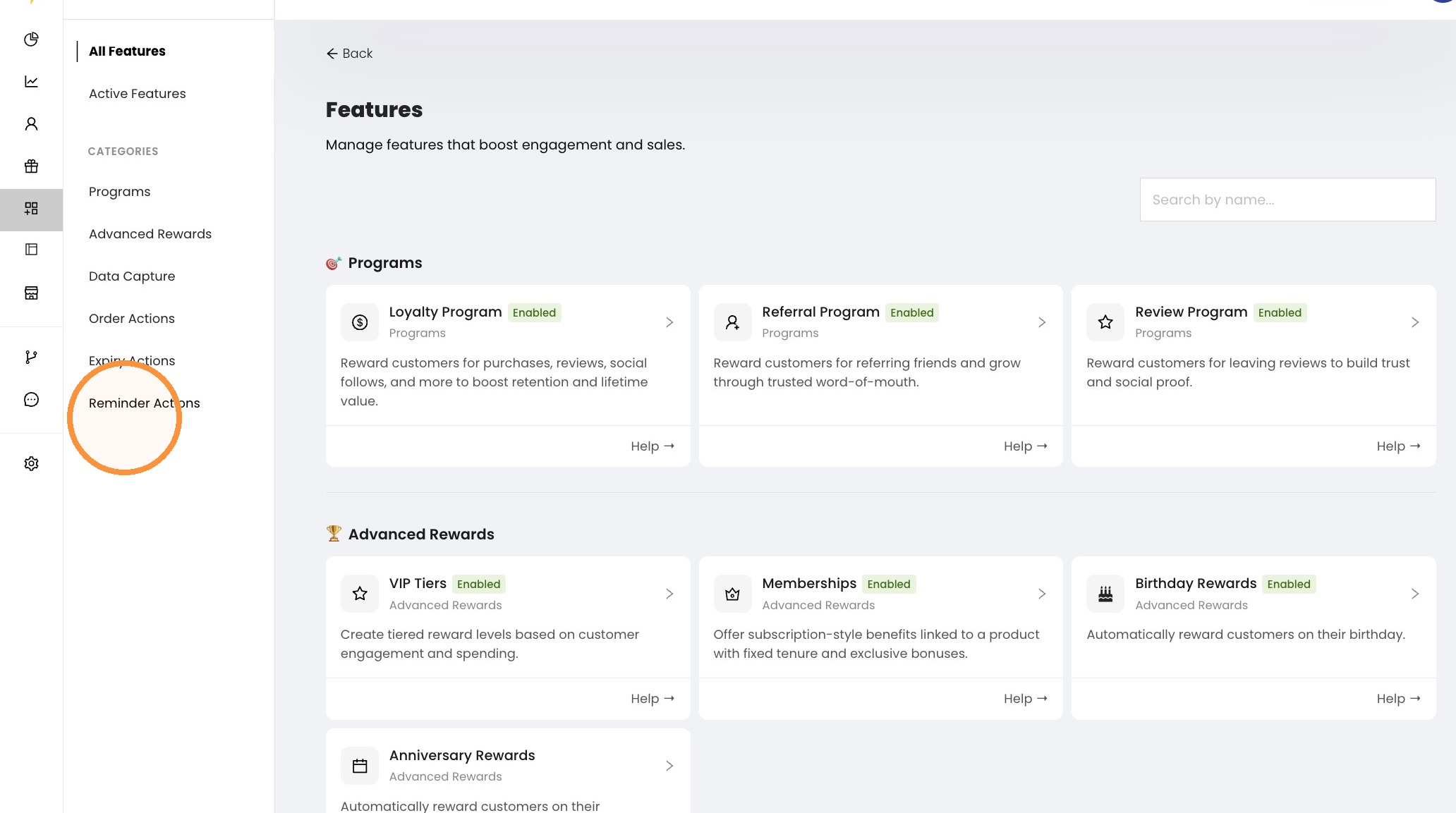
4. Open Abandoned Checkout Reminder: Under Reminder Actions, click the Abandoned Checkout Reminder card.
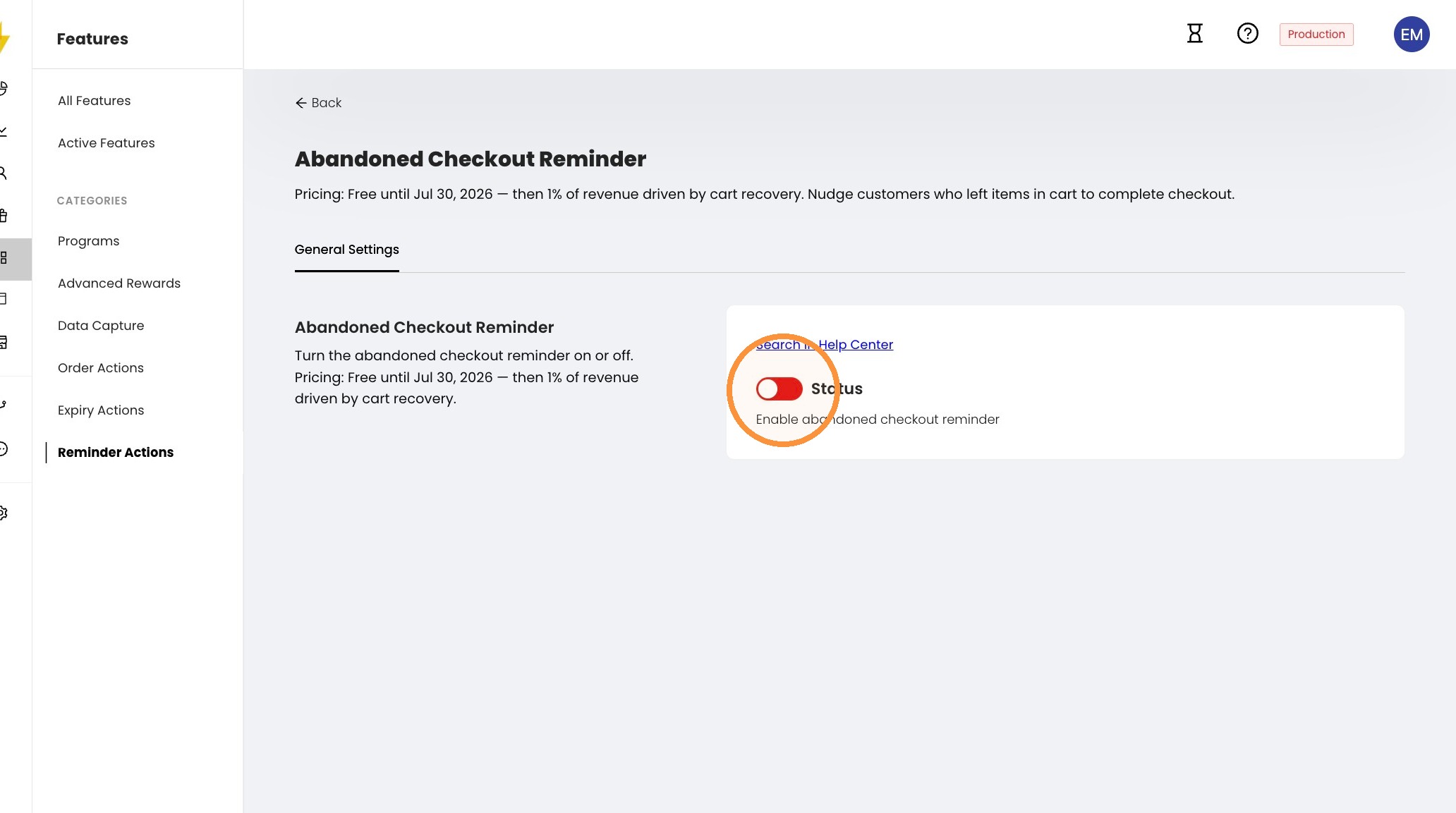
5. Turn on the reminder: On the General Settings tab, switch the Status toggle on to enable the abandoned checkout reminder.
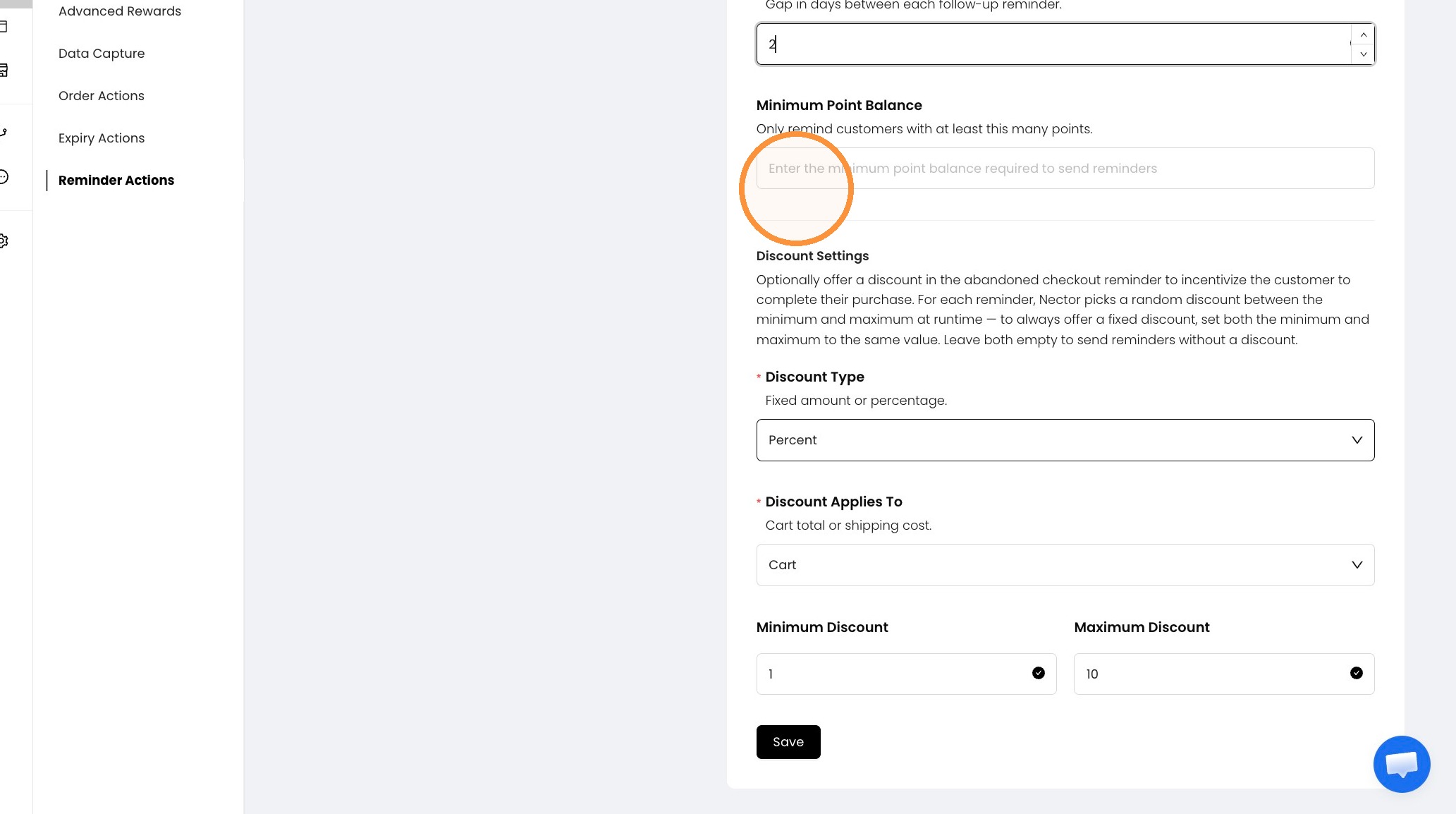
6. Set the reminder rules: Under Automation Rules, enter the Number of Reminders and the Days Between Follow-Ups. To remind only customers with a minimum number of points, enter it in Minimum Point Balance.
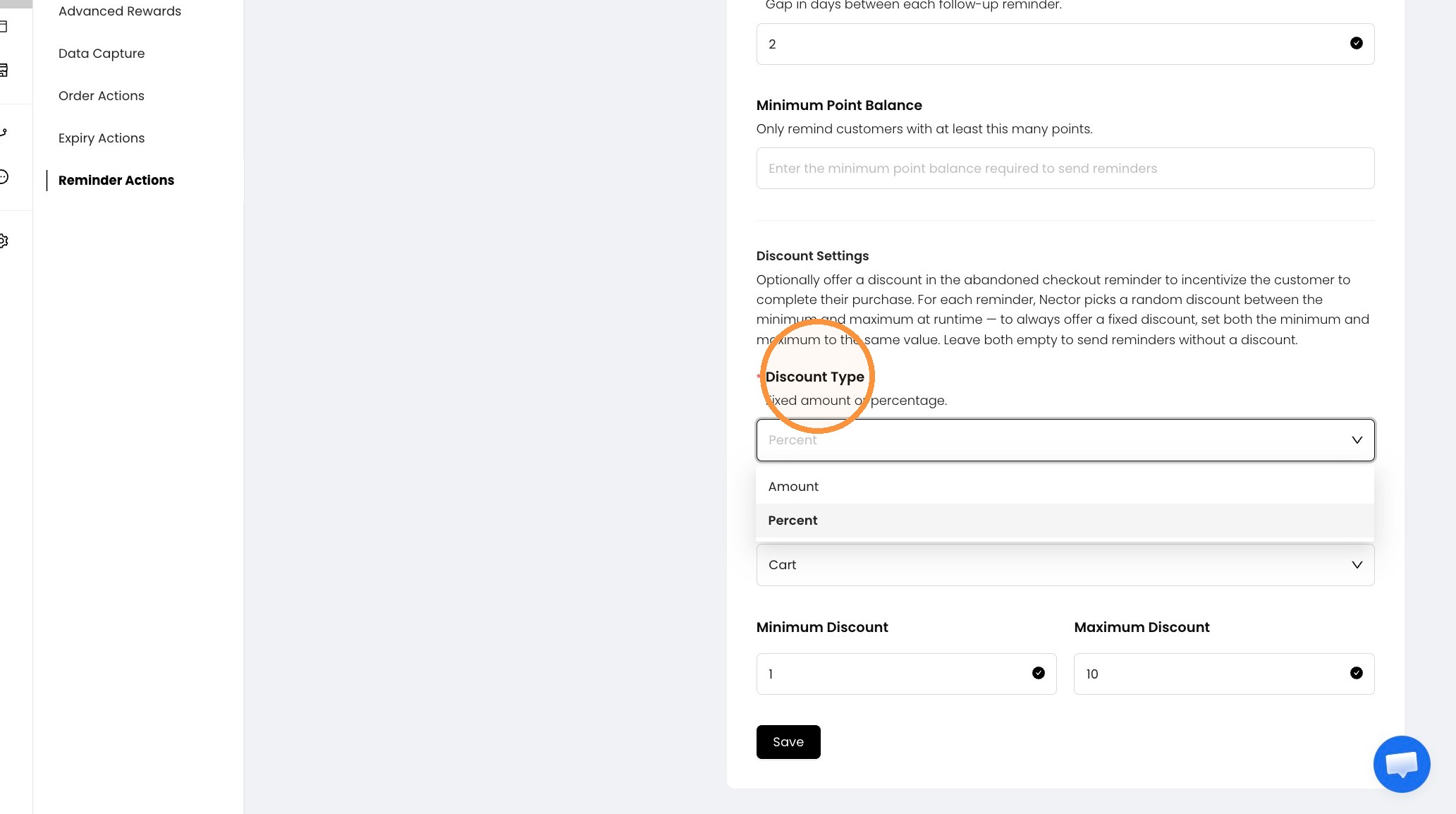
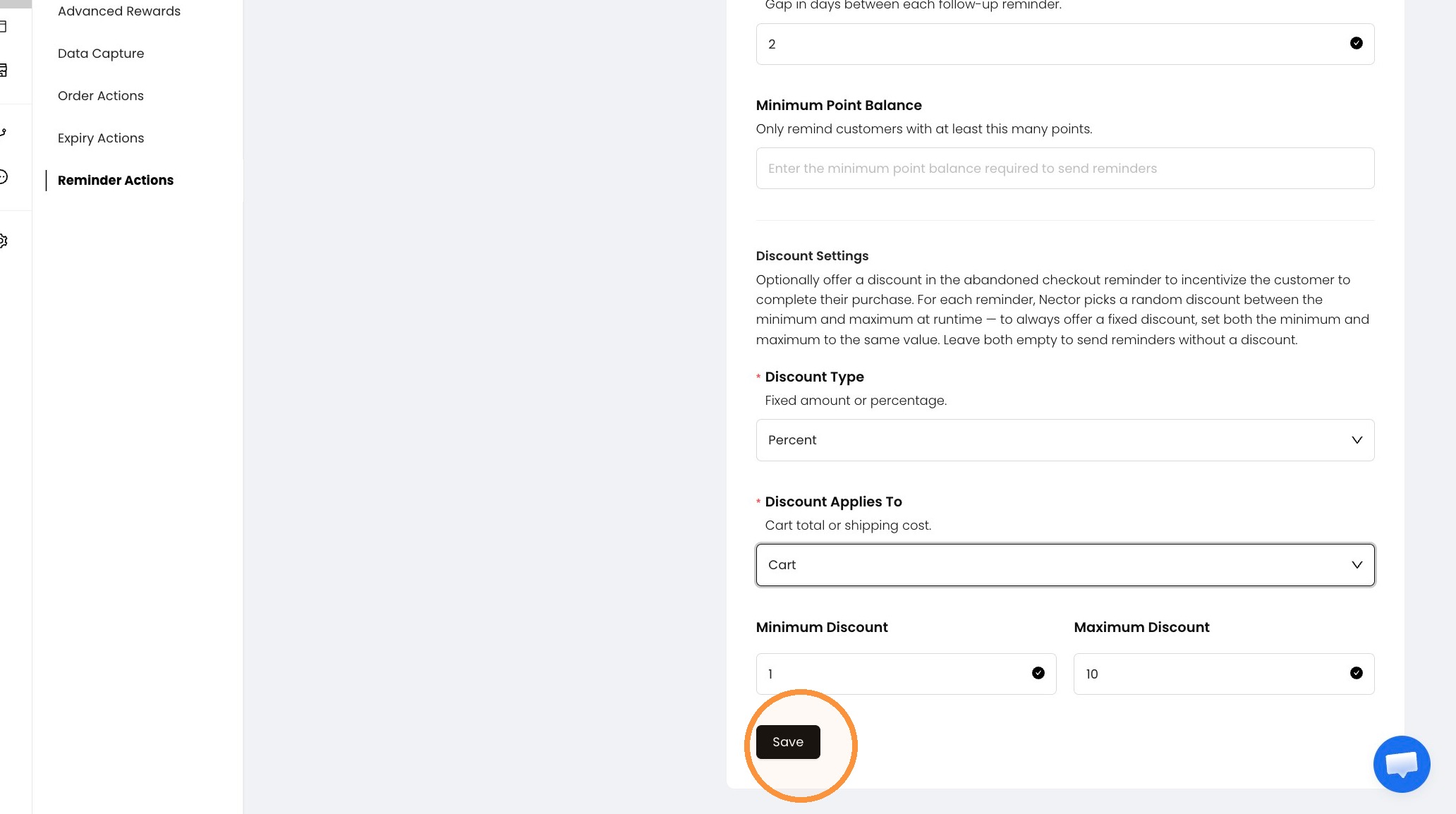
7. Choose the discount type: Under Discount Settings, open Discount Type and select Percent (or Amount for a fixed value).
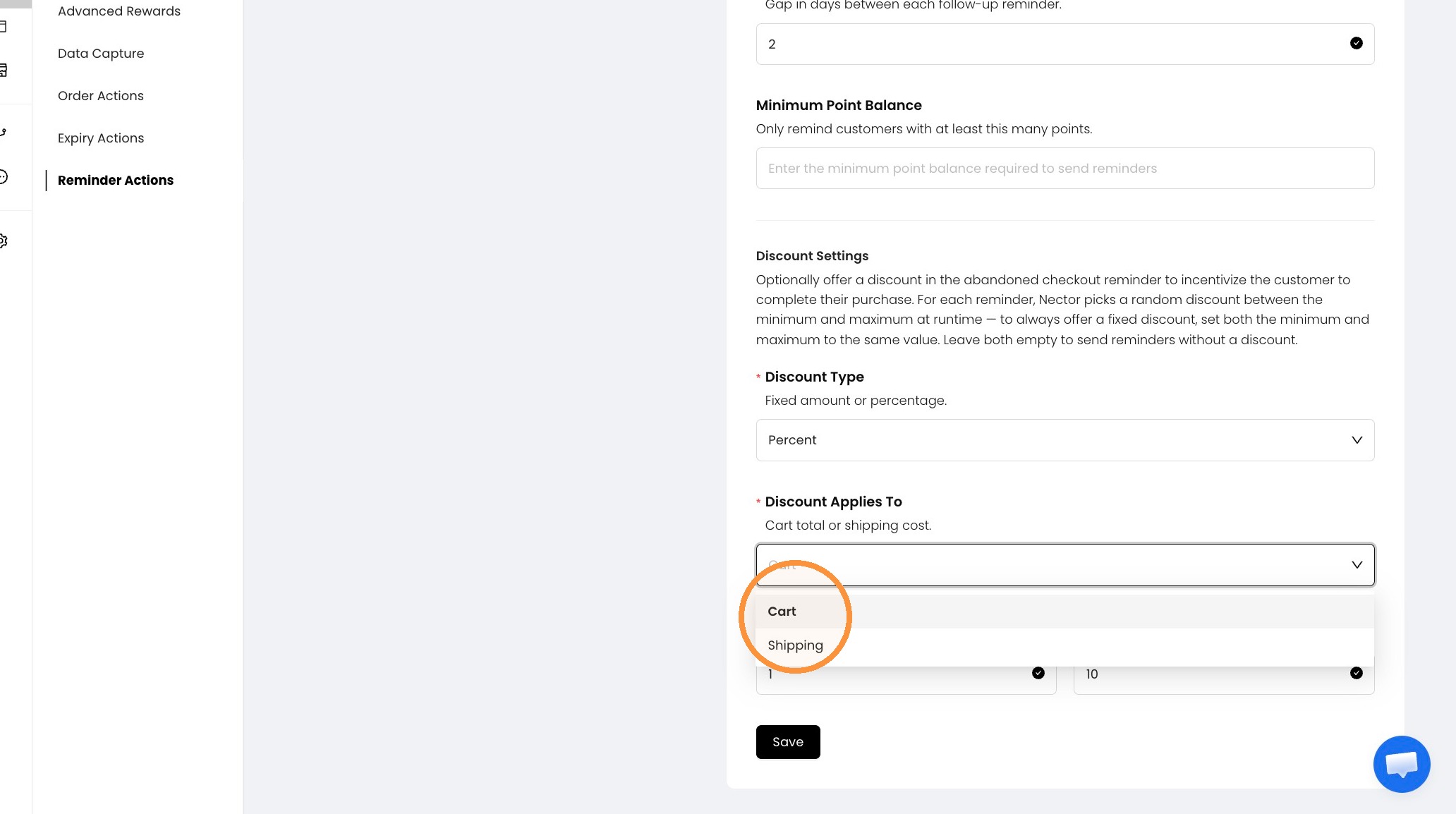
8. Choose where the discount applies: Open Discount Applies To and select Cart (cart total) or Shipping (shipping cost).
9. Set the discount range and save: Enter the Minimum Discount and Maximum Discount, then click Save. For each reminder, Nector picks a random discount between the two values. Note: To always offer a fixed discount, enter the same value in both fields. Leave both empty to send reminders without a discount.
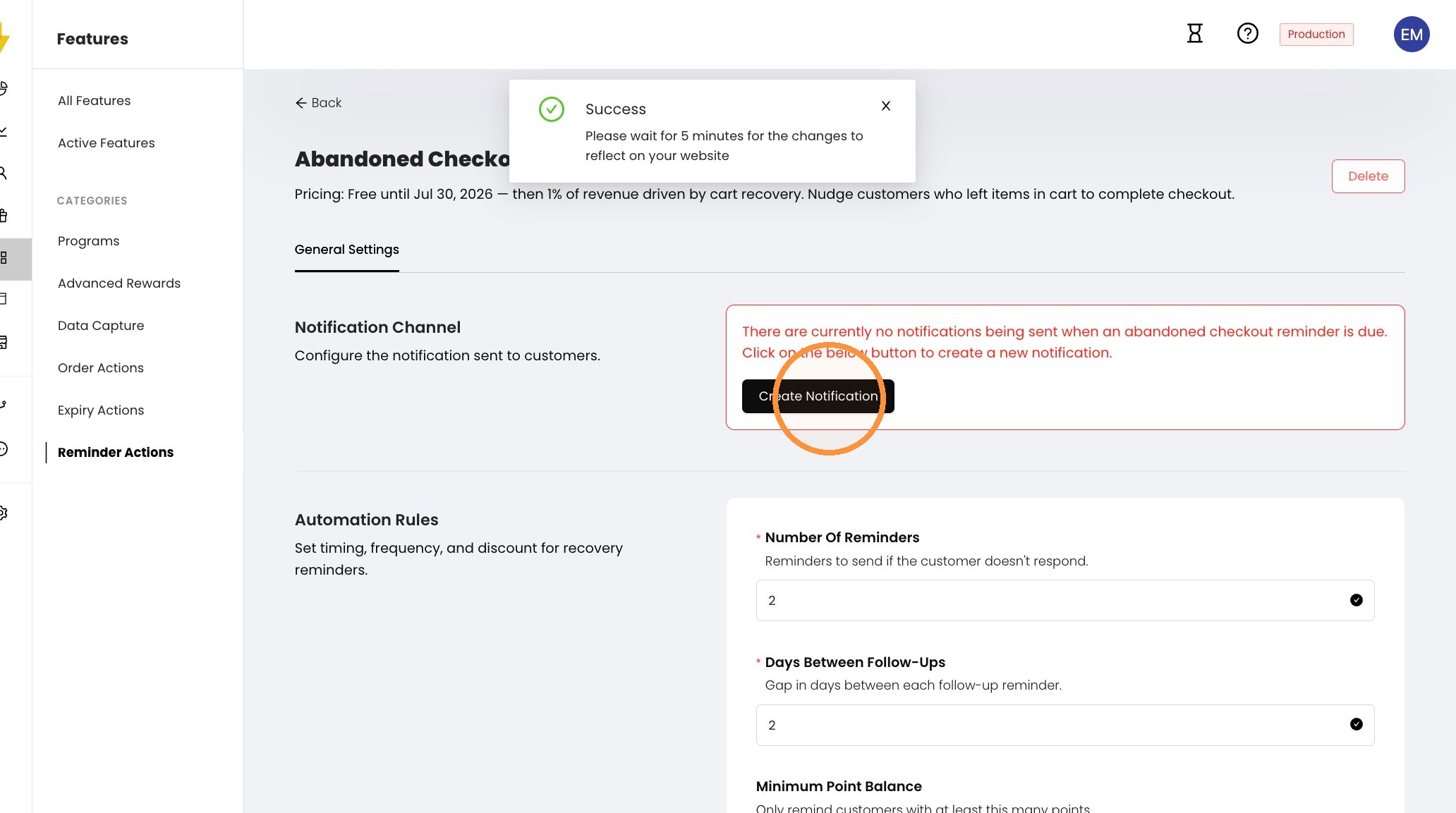
10. Create a notification: Once the success message appears, click Create Notification under Notification Channel. Note: Changes can take up to 5 minutes to reflect on your website.
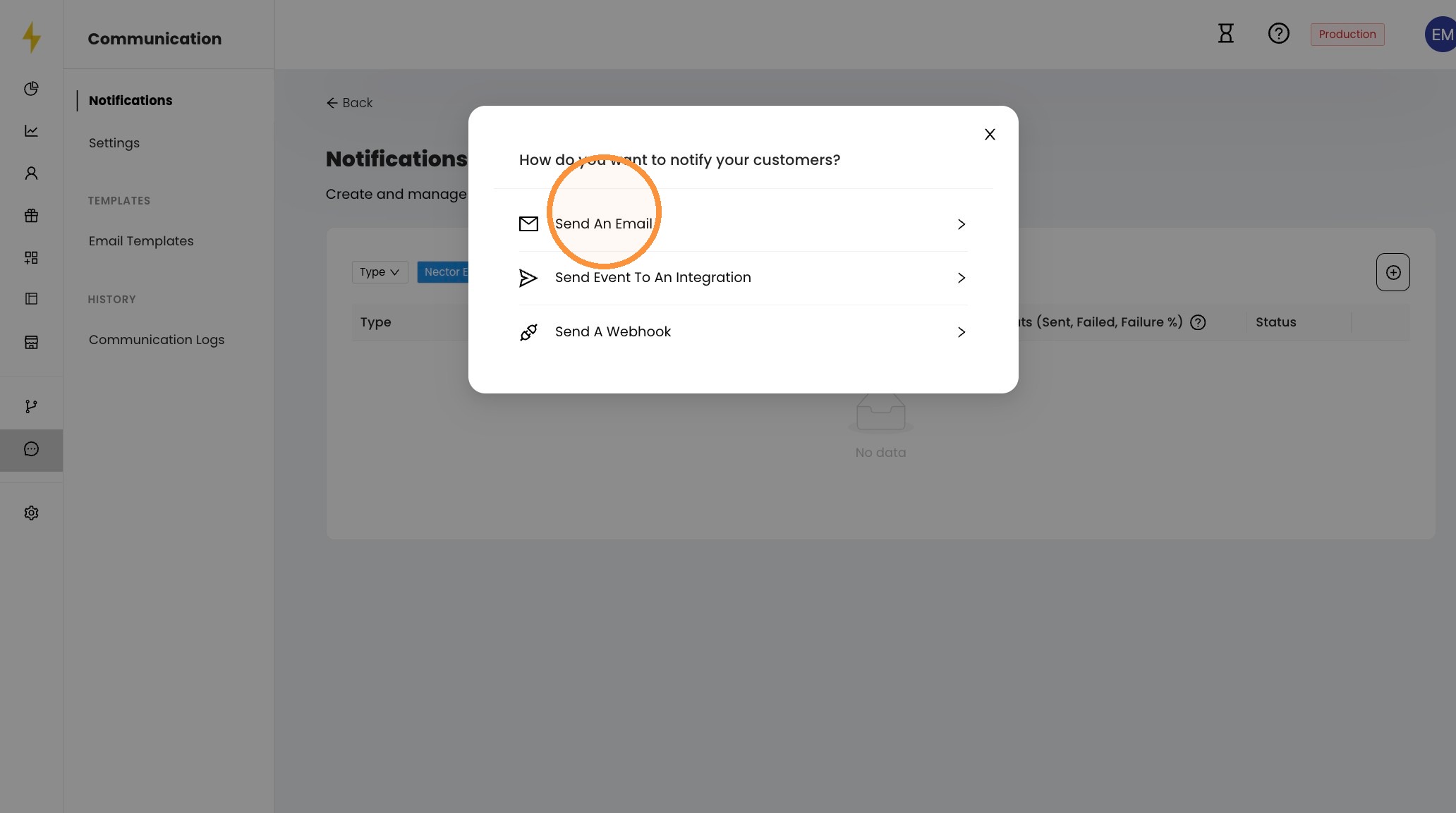
11. Choose how to notify customers: Click Send An Email. Send Event To An Integration connects to your marketing tool, and Send A Webhook sends the event directly to it.
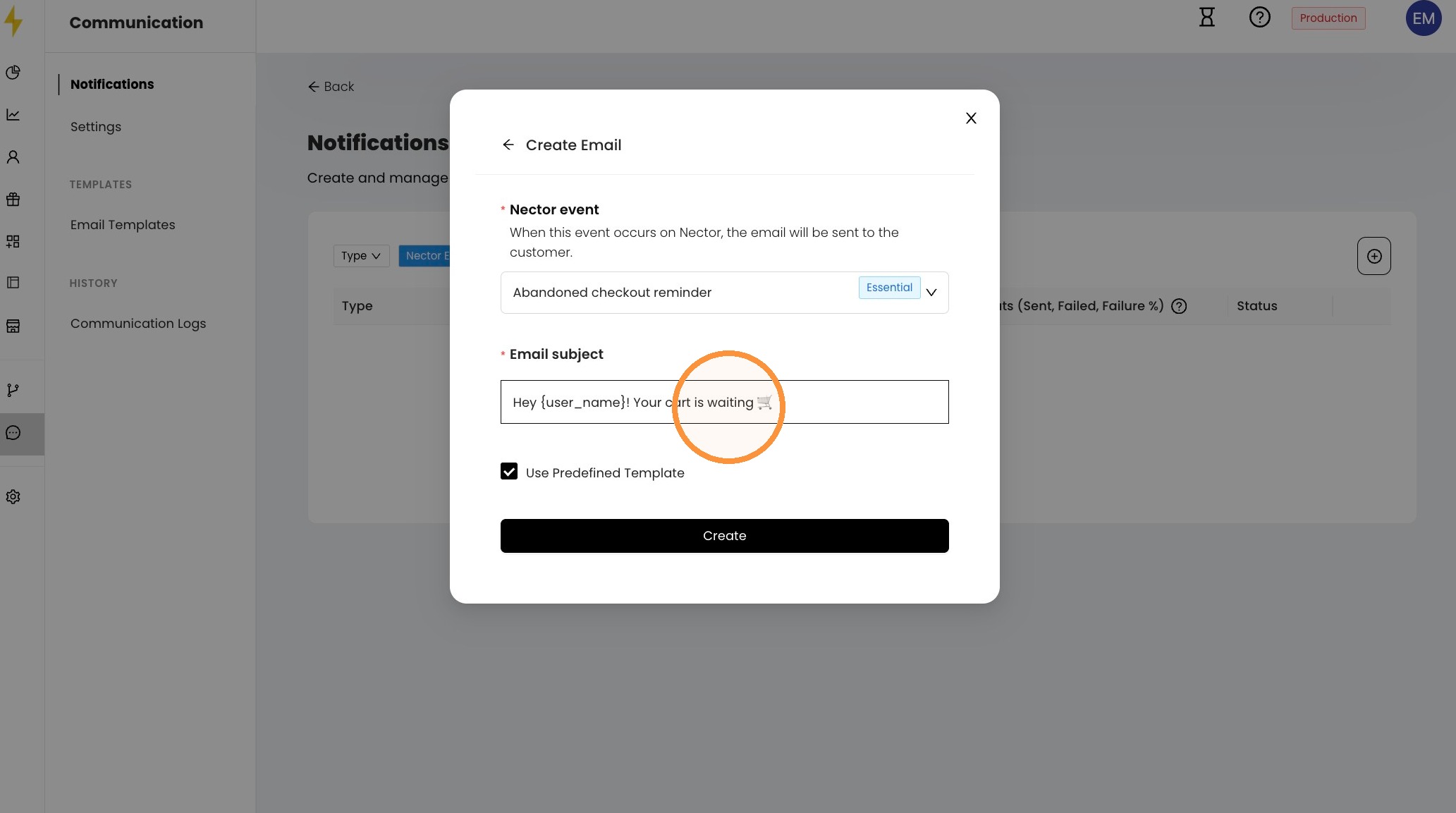
12. Set up the email: The Nector event is picked automatically as Abandoned checkout reminder. Edit the Email subject if you want, keep Use Predefined Template checked to use Nector's ready-made template, then click Create.
13. Open the notification: Your email notification now appears in the list with its status turned on. Click it to open its details.
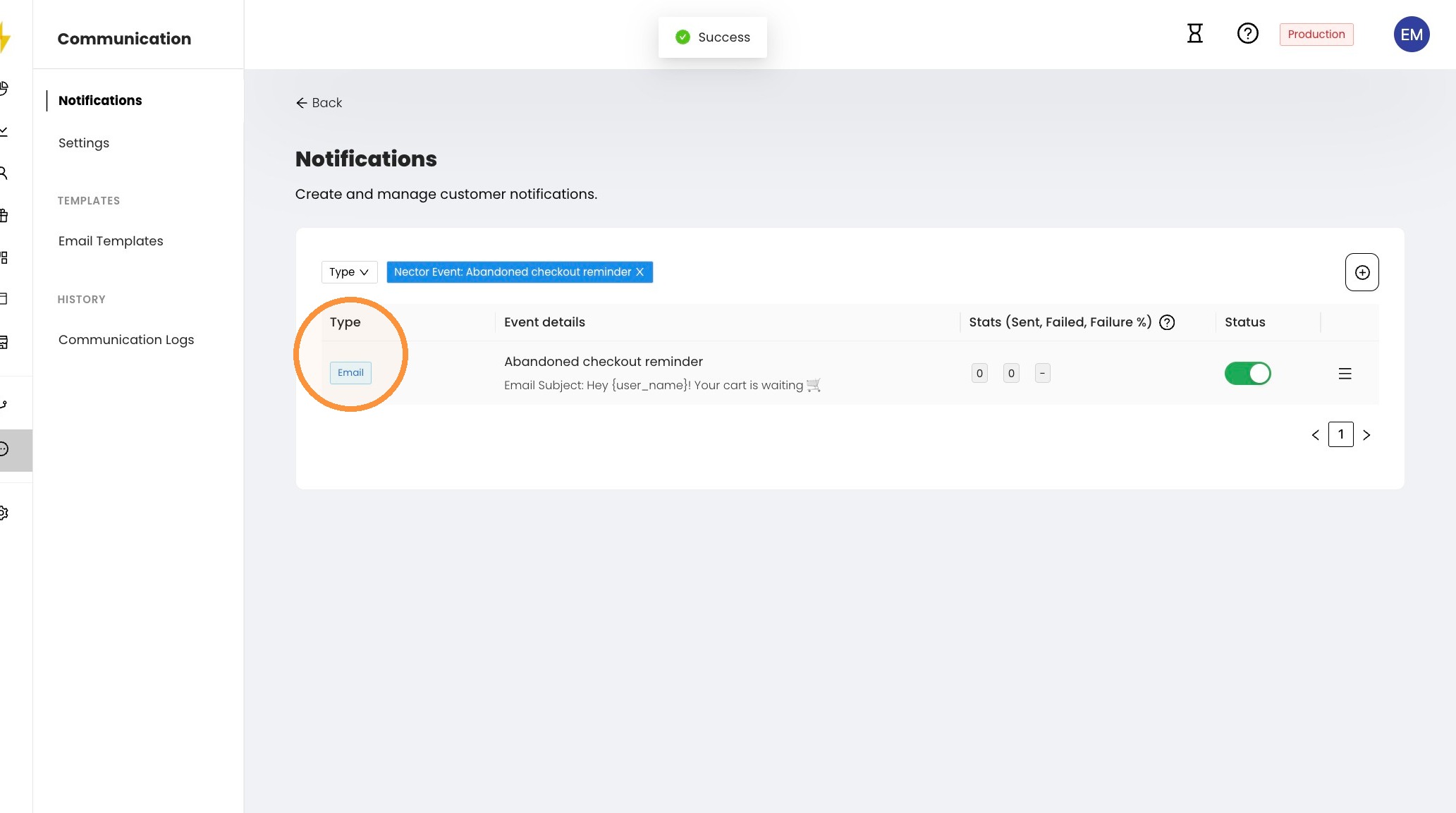
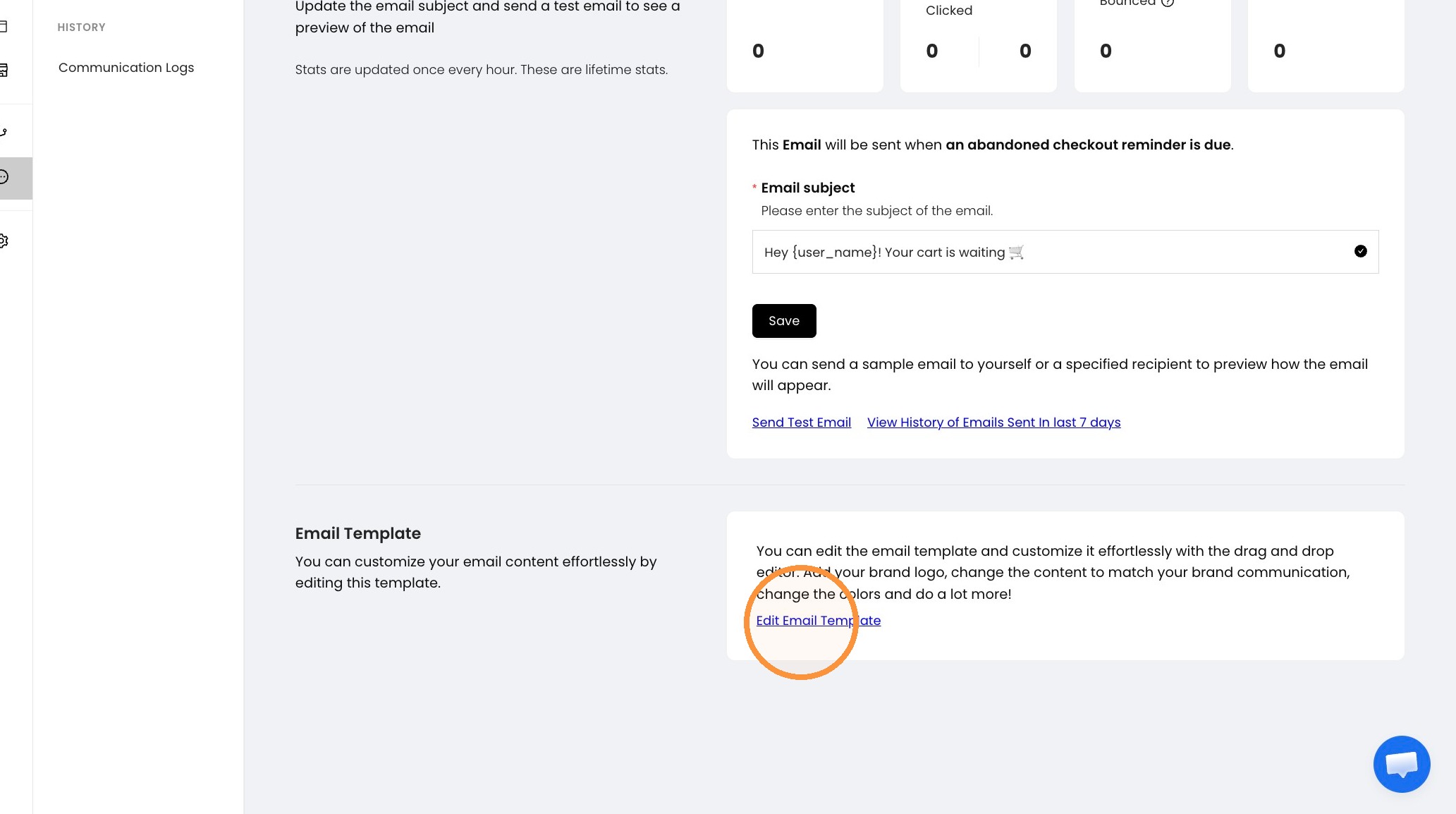
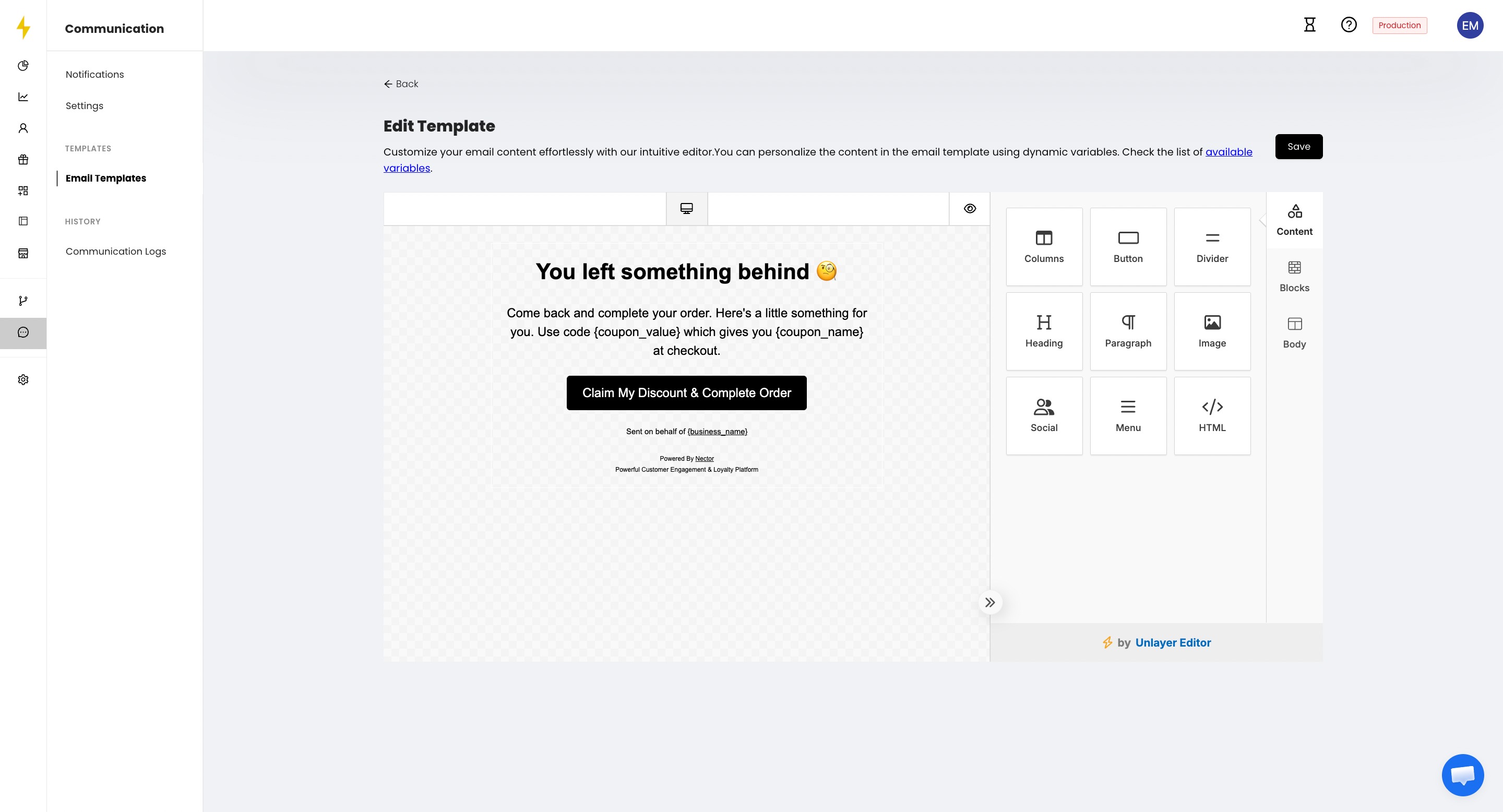
14. Edit the email template: Click Edit Email Template to preview the email and customize it with the drag-and-drop editor, such as your brand logo, content, and colors. Note: Use Send Test Email on this page to preview the email in your inbox.
15. The ABC flow setup is complete. Once you're done testing, you're good to go!
Updated on: 03/11/2026
Thank you!