
Import Customer Attributes(Date of birth and Anniversary)
How To Import Custom Customer Attributes To Nector
Learn how to efficiently upload and bulk update customer data within the Nector merchant dashboard. This guide walks you through the necessary steps to import your customer attributes and internal tags seamlessly.
1. Navigate to https://merchant.nector.io/
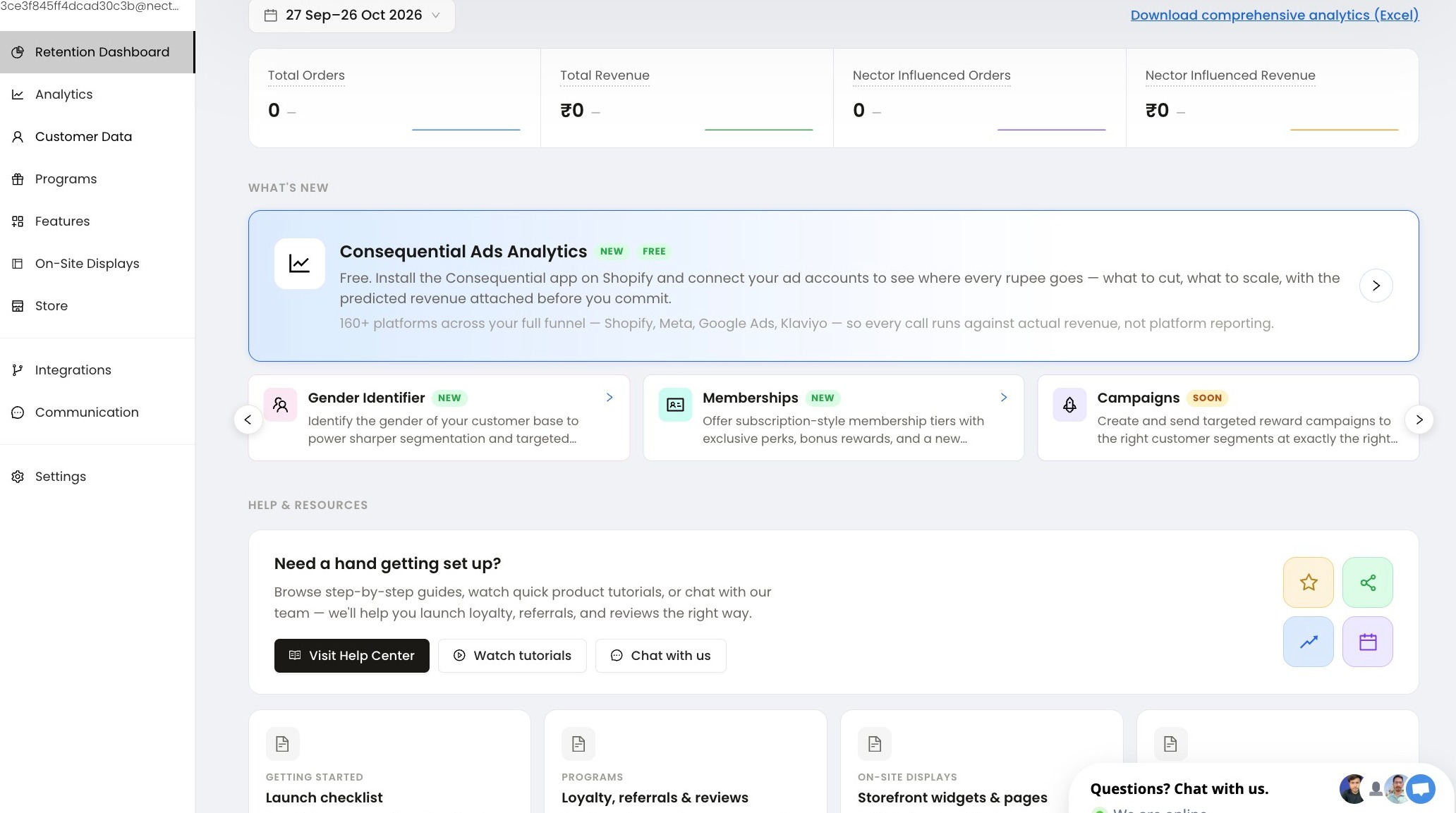
2. Click Customer Data. In the left sidebar of the Nector Merchant Dashboard, click Customer Data.
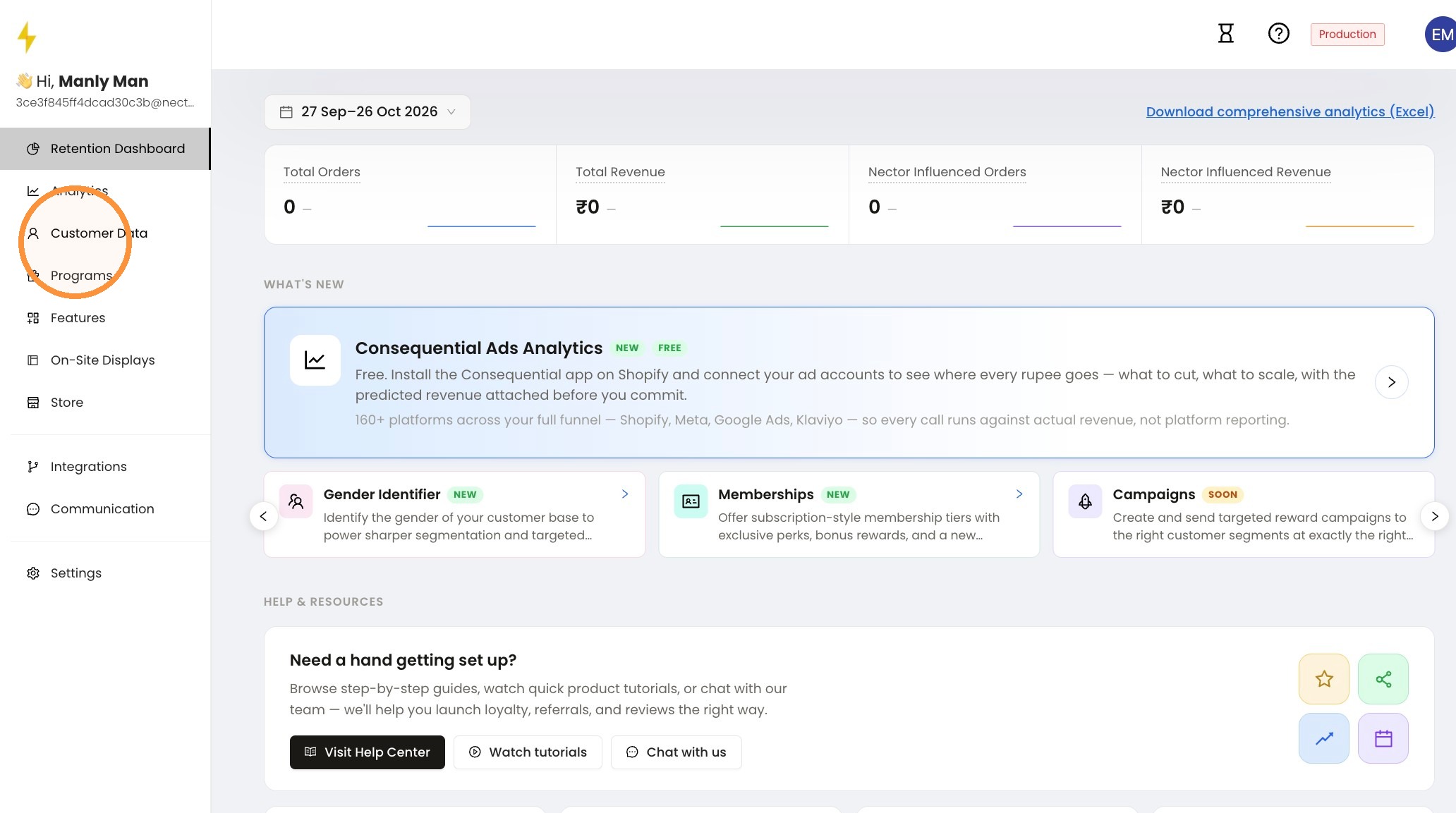
3. Open Import or Bulk Edit Data. In the Customer Data menu, under Import & Export Data, click Import or Bulk Edit Data.
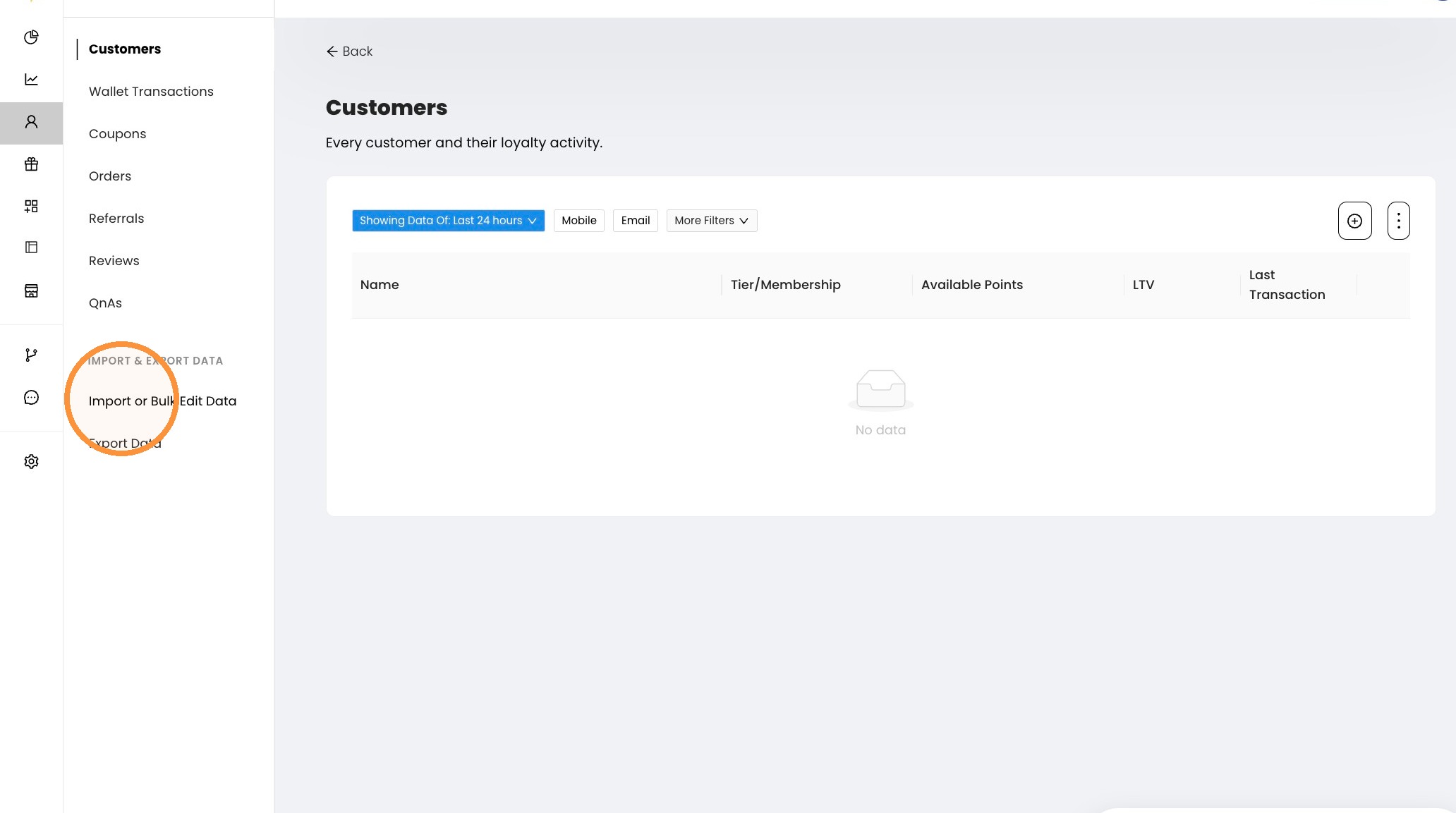
4. Select Import Customer Attributes. On the Import Customer Attributes card, click Import. This option lets you bulk import date of birth, anniversary date and internal tags for your customers.
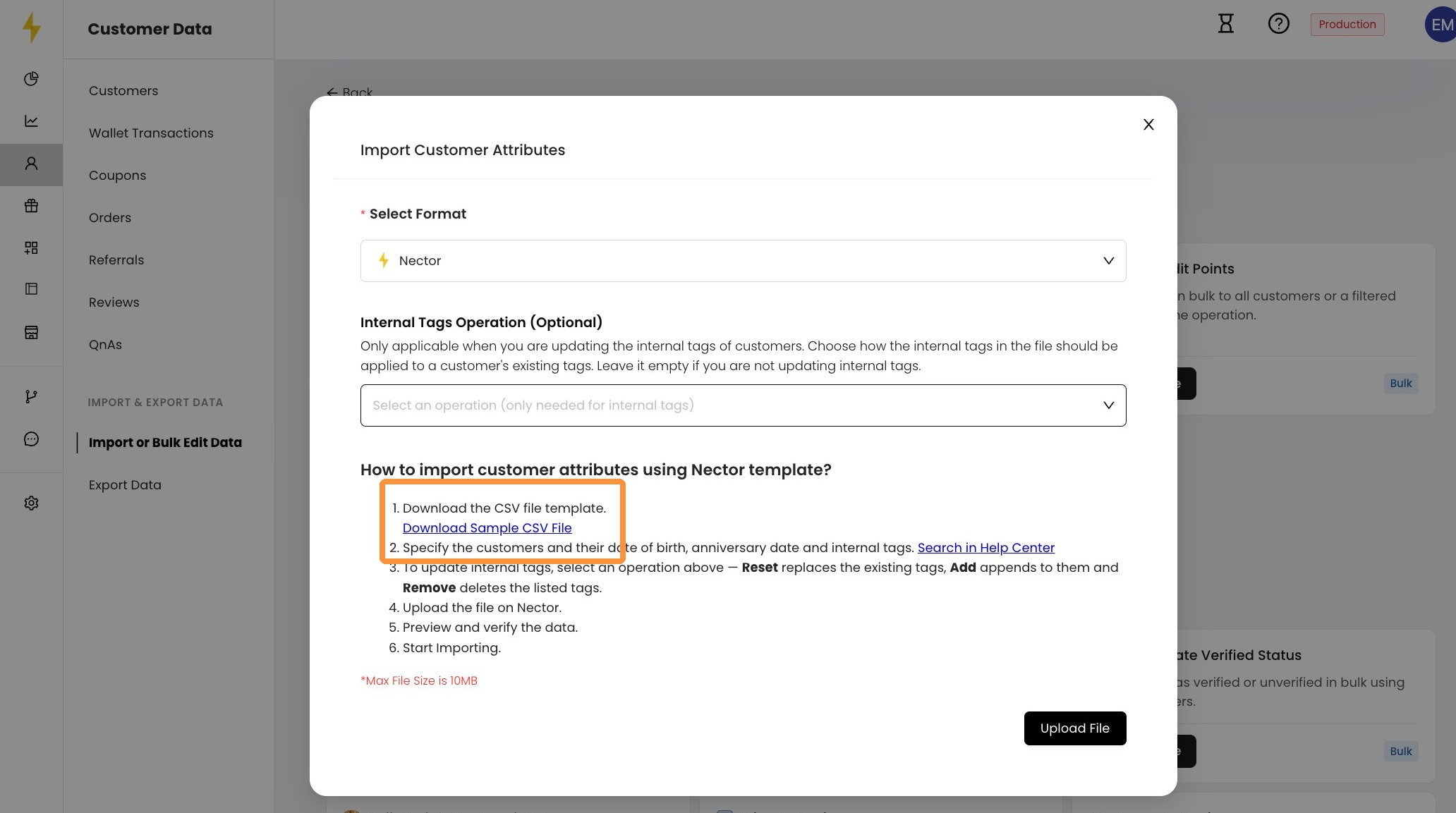
5. Download the sample CSV. In the Import Customer Attributes window, keep the format as Nector and click Download Sample CSV File. Fill it in with your customer data using the columns shown in the previous step, then save it as a CSV file. Note: The maximum file size is 10 MB.
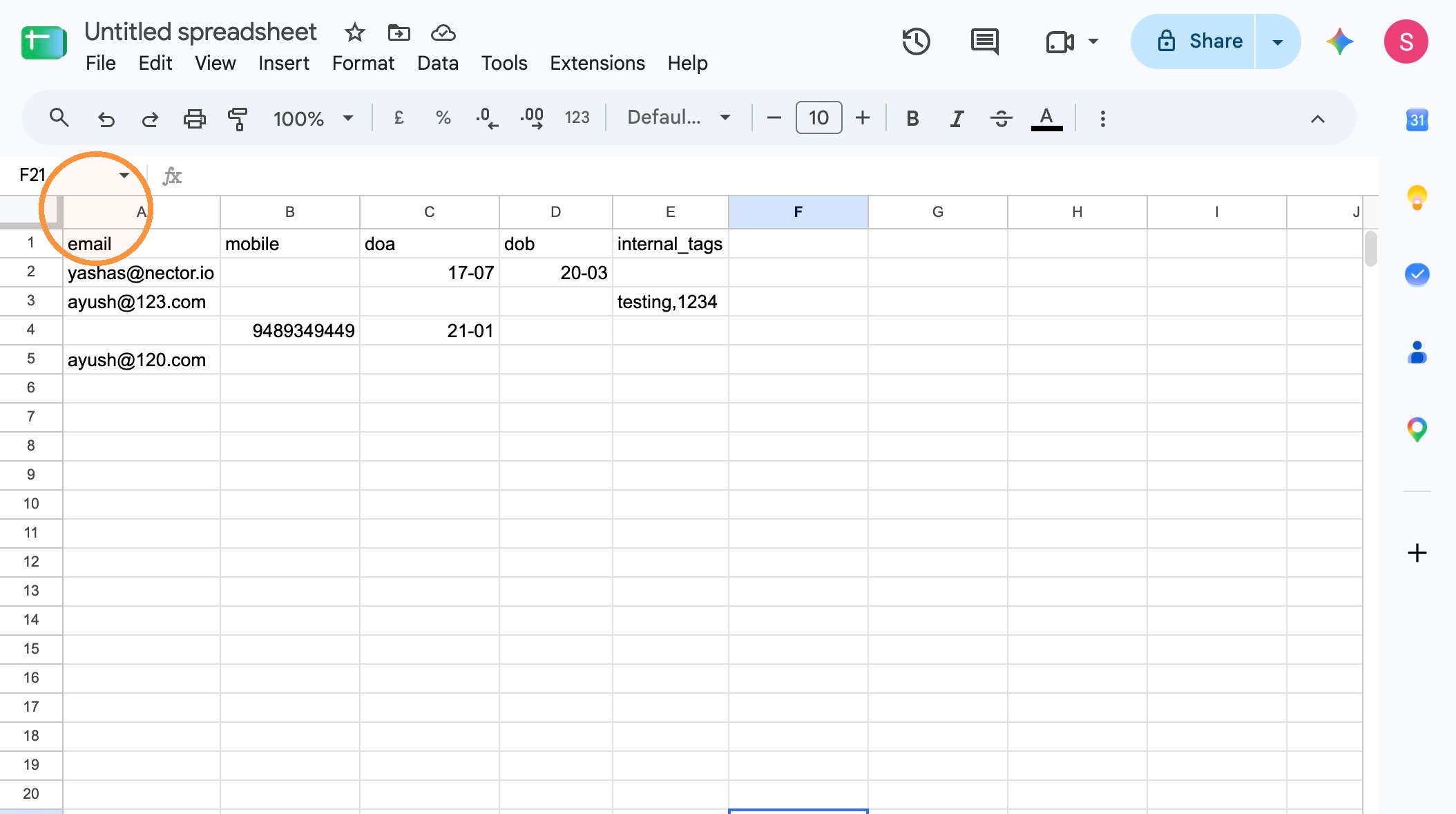
6. Check the CSV format. Your file uses these columns: email, mobile, doa (date of anniversary), dob (date of birth) and internal_tags. Add each customer's email or mobile number along with the details you want to update. Note: Separate multiple internal tags with a comma, as shown in the sample file.
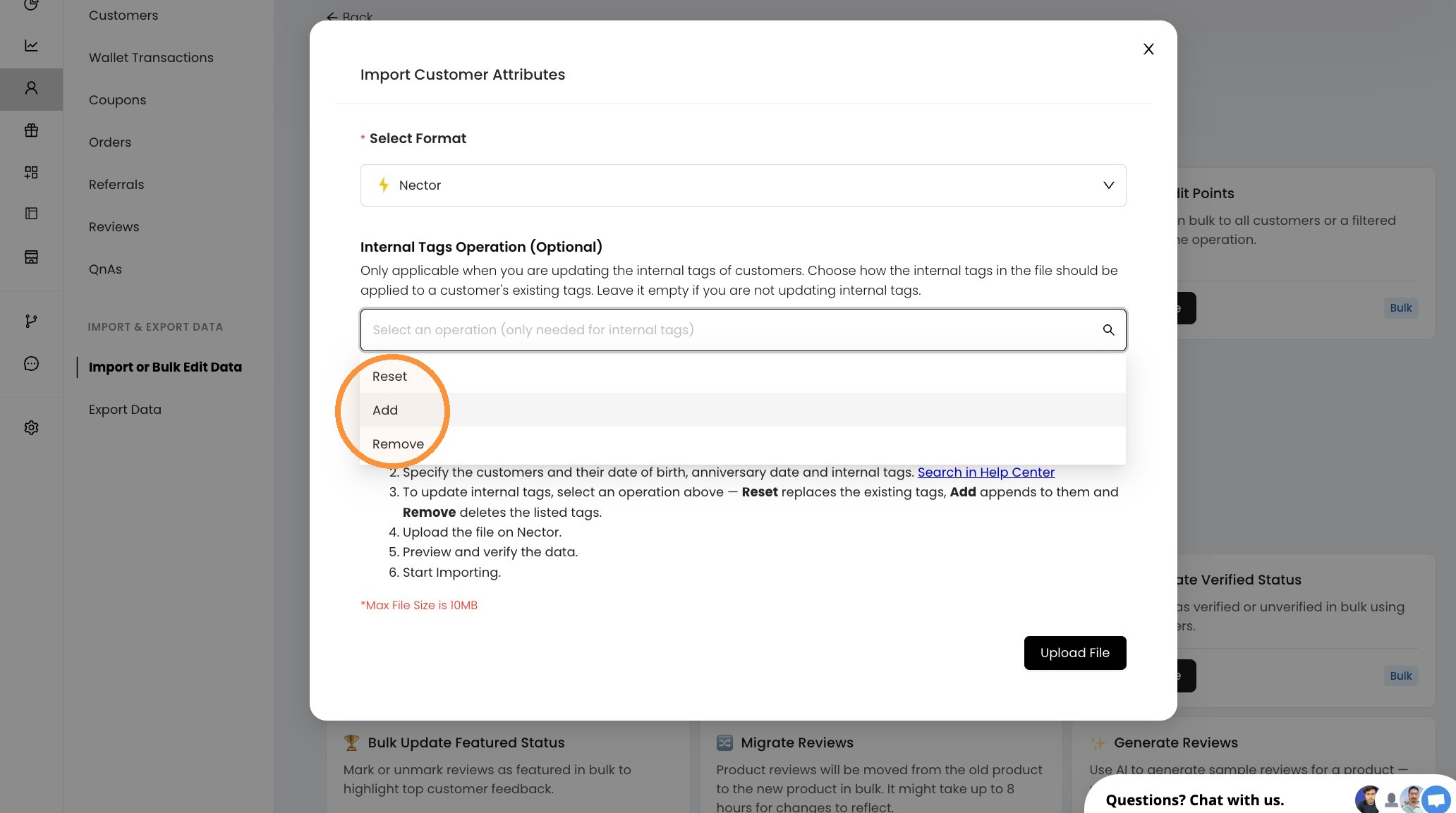
7. Choose an internal tags operation. If you are updating internal tags, select an operation from the dropdown: Reset replaces a customer's existing tags, Add appends the new tags to them, and Remove deletes the listed tags. Leave this empty if you are only updating dates.
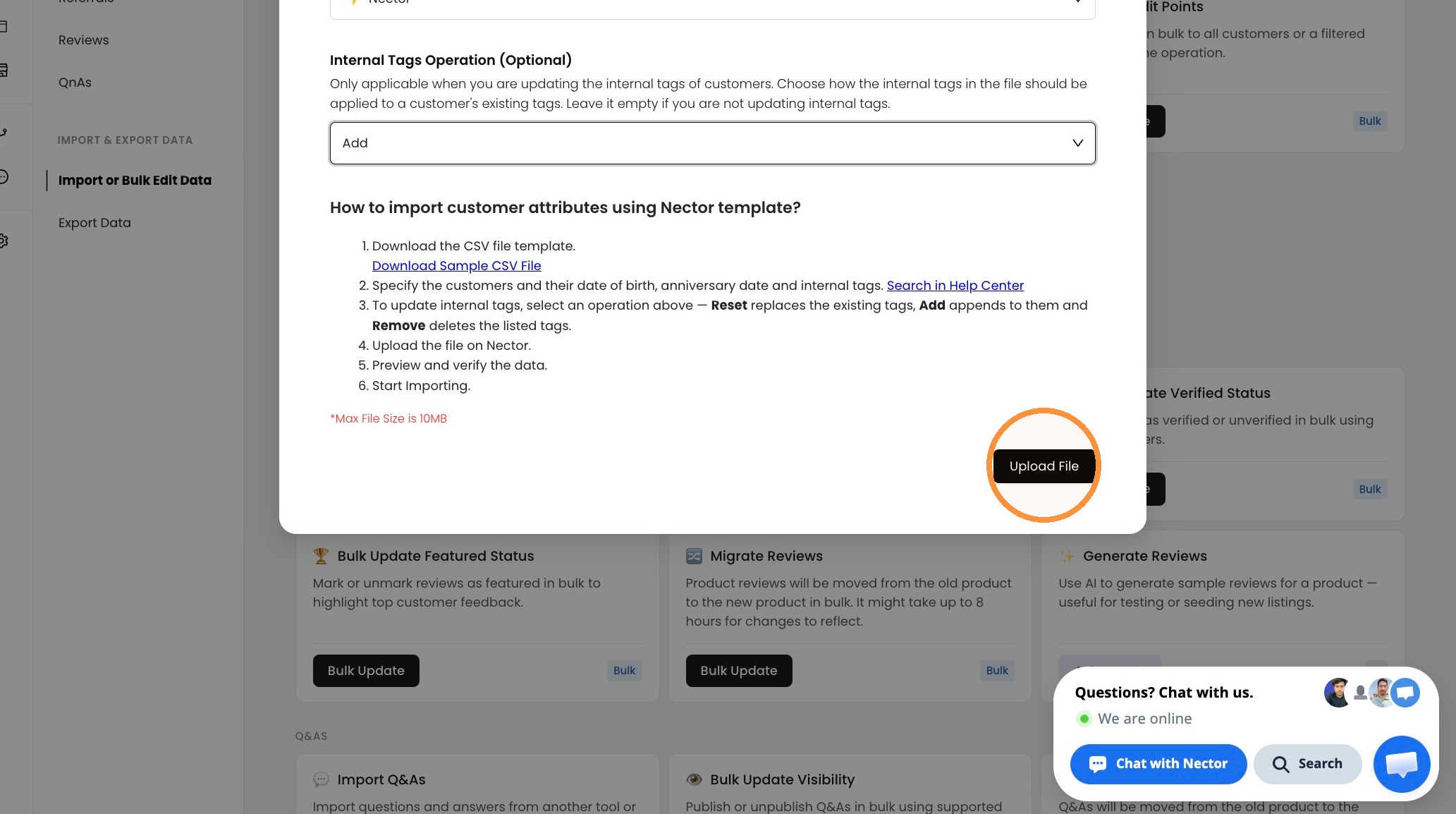
8. Click Upload File. Select your completed CSV file from your computer.
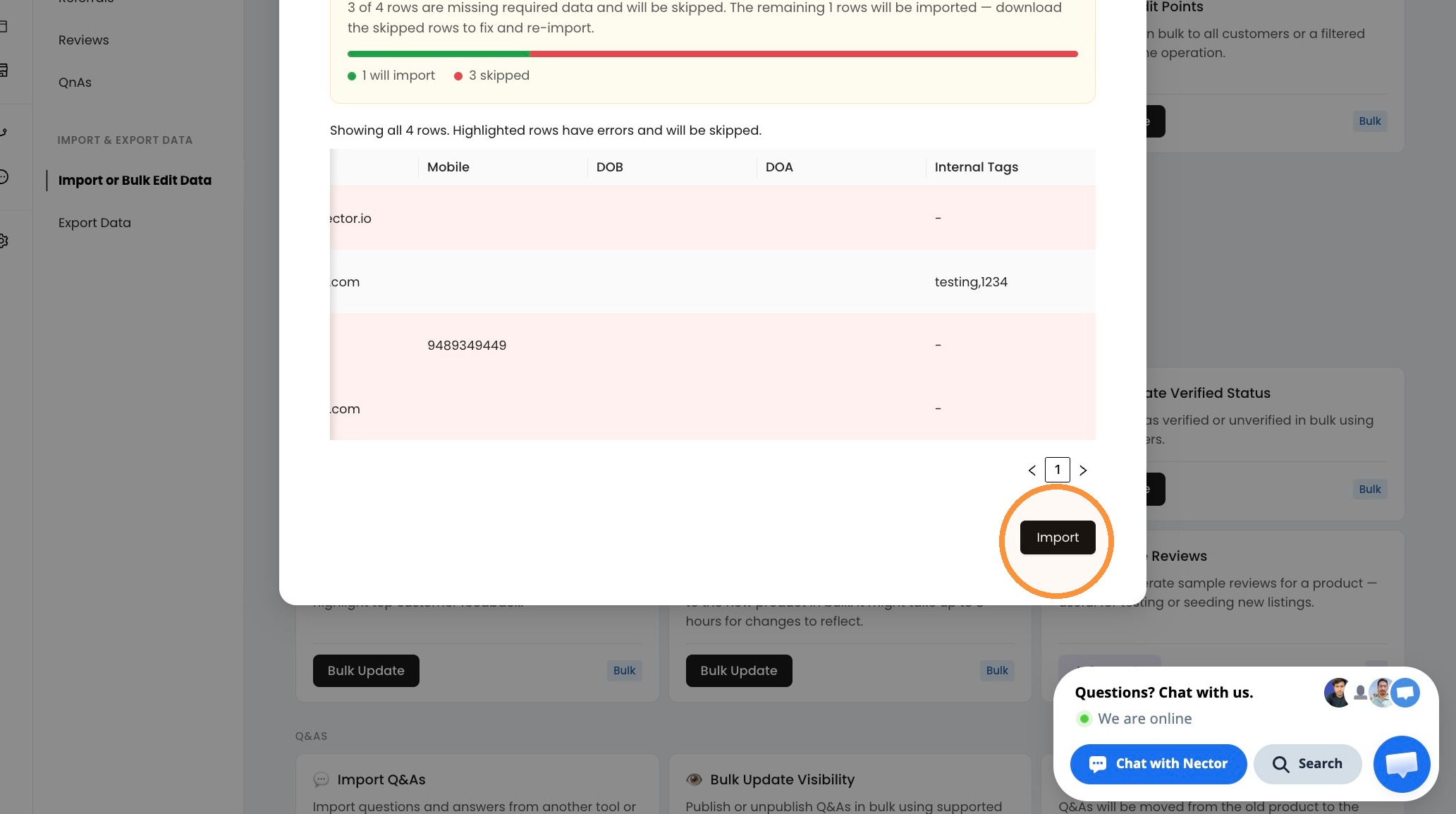
9. Review the preview and click Import. Nector shows how many rows will be imported. Rows with missing or incorrect data are highlighted and skipped, so you can download them, fix them and re-import. Click Import to continue.
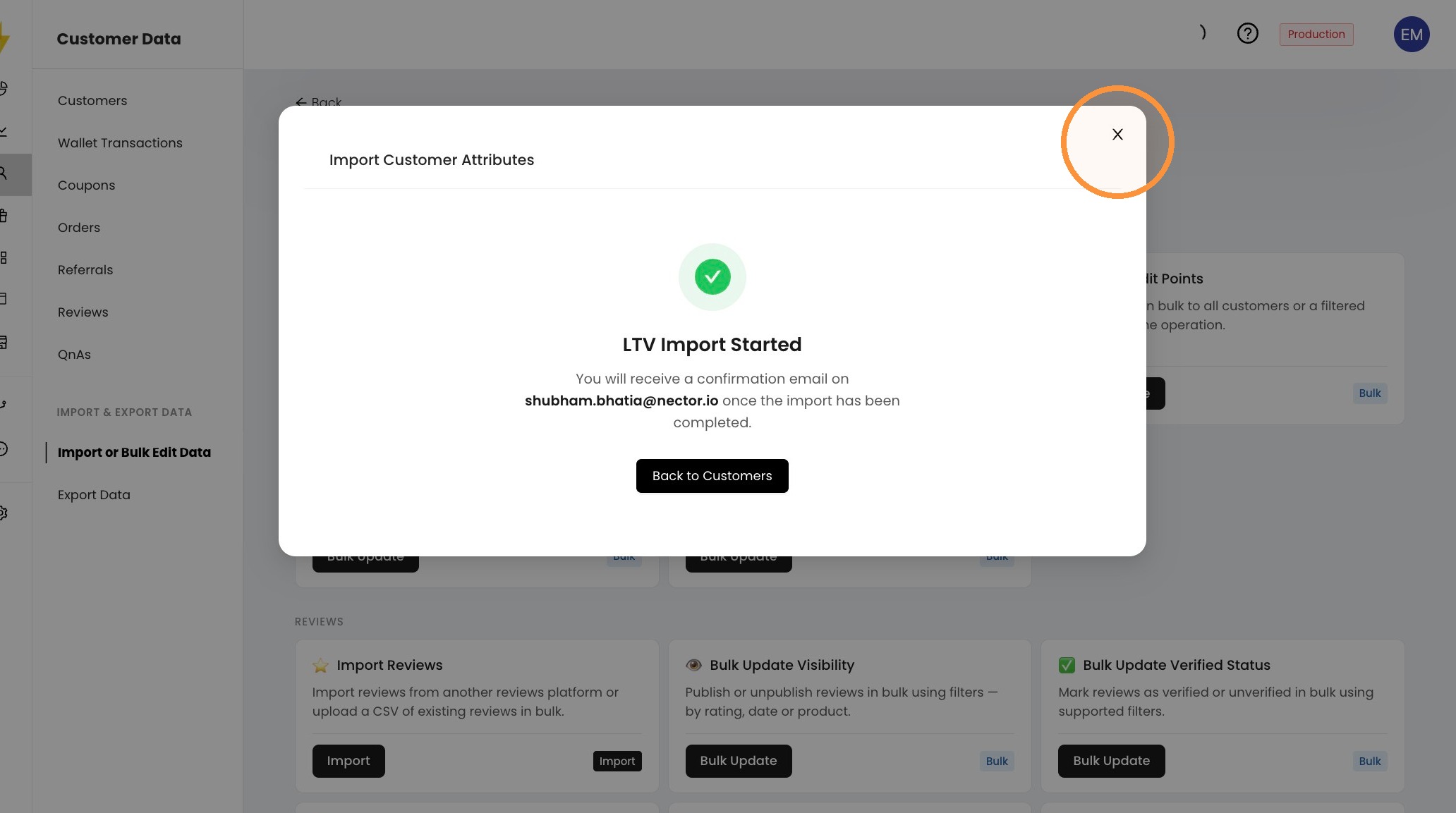
10. Wait for the confirmation email. You will see an "LTV Import Started" message, and Nector emails you once the import is complete. Click the close icon to exit the window.
Updated on: 04/11/2026
Thank you!