
Nector and Trust Signal Integration
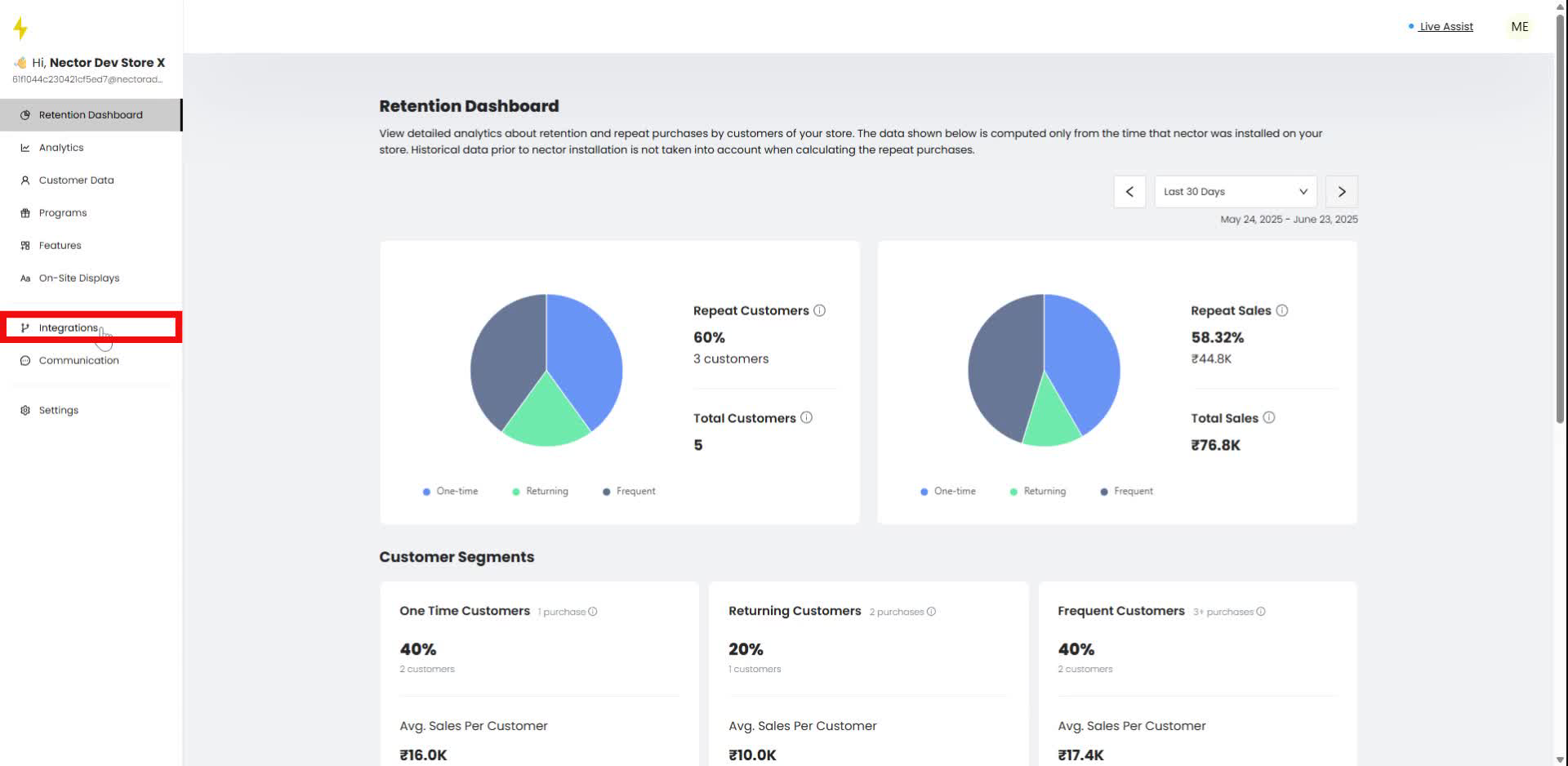
In the navigation bar, click on "Integrations."
Step 2
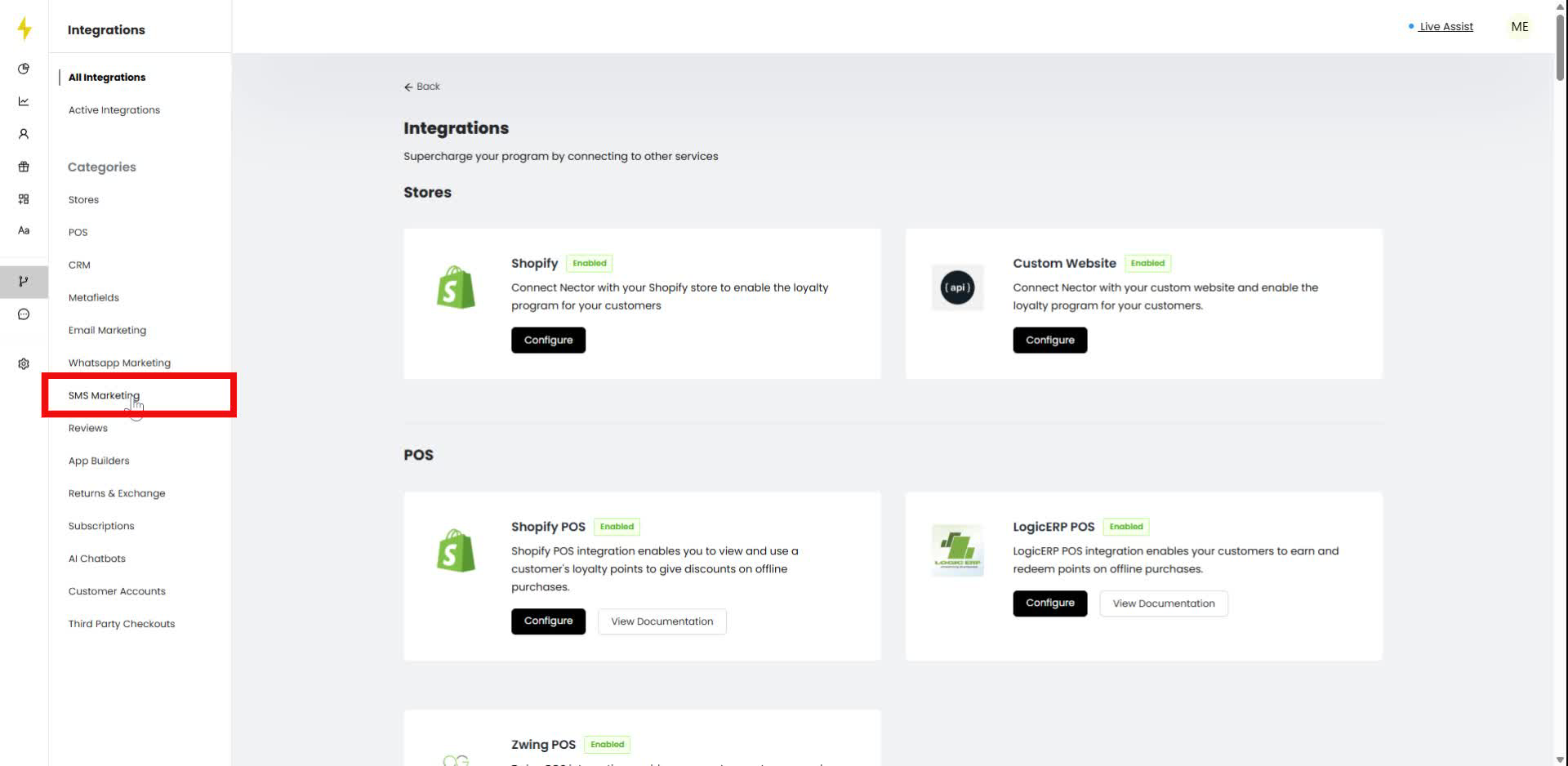
In the integrations menu, select "SMS Marketing."
Step 3
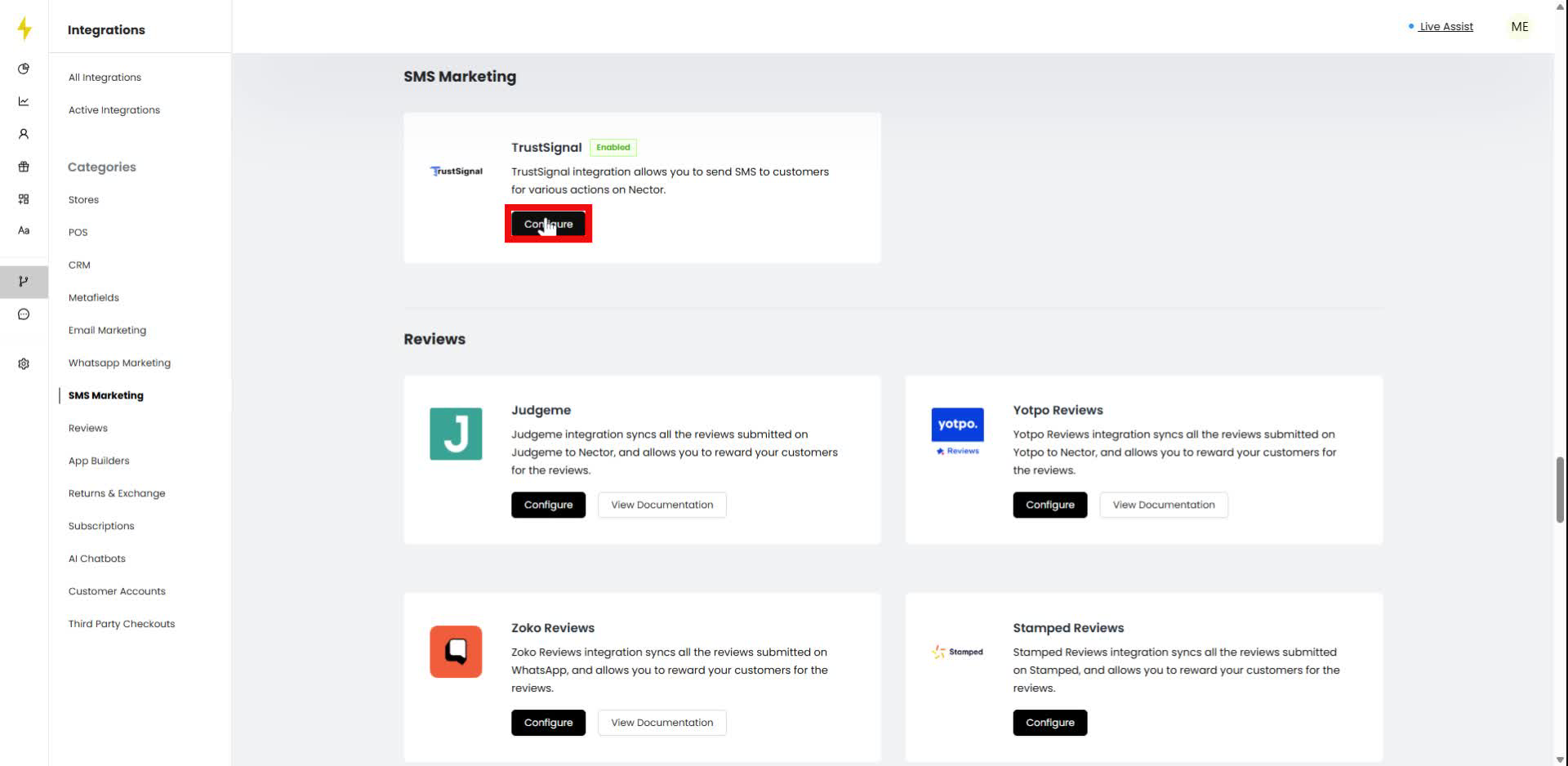
Click on "Configure" under TrustSignal in the SMS Marketing section.
Step 4
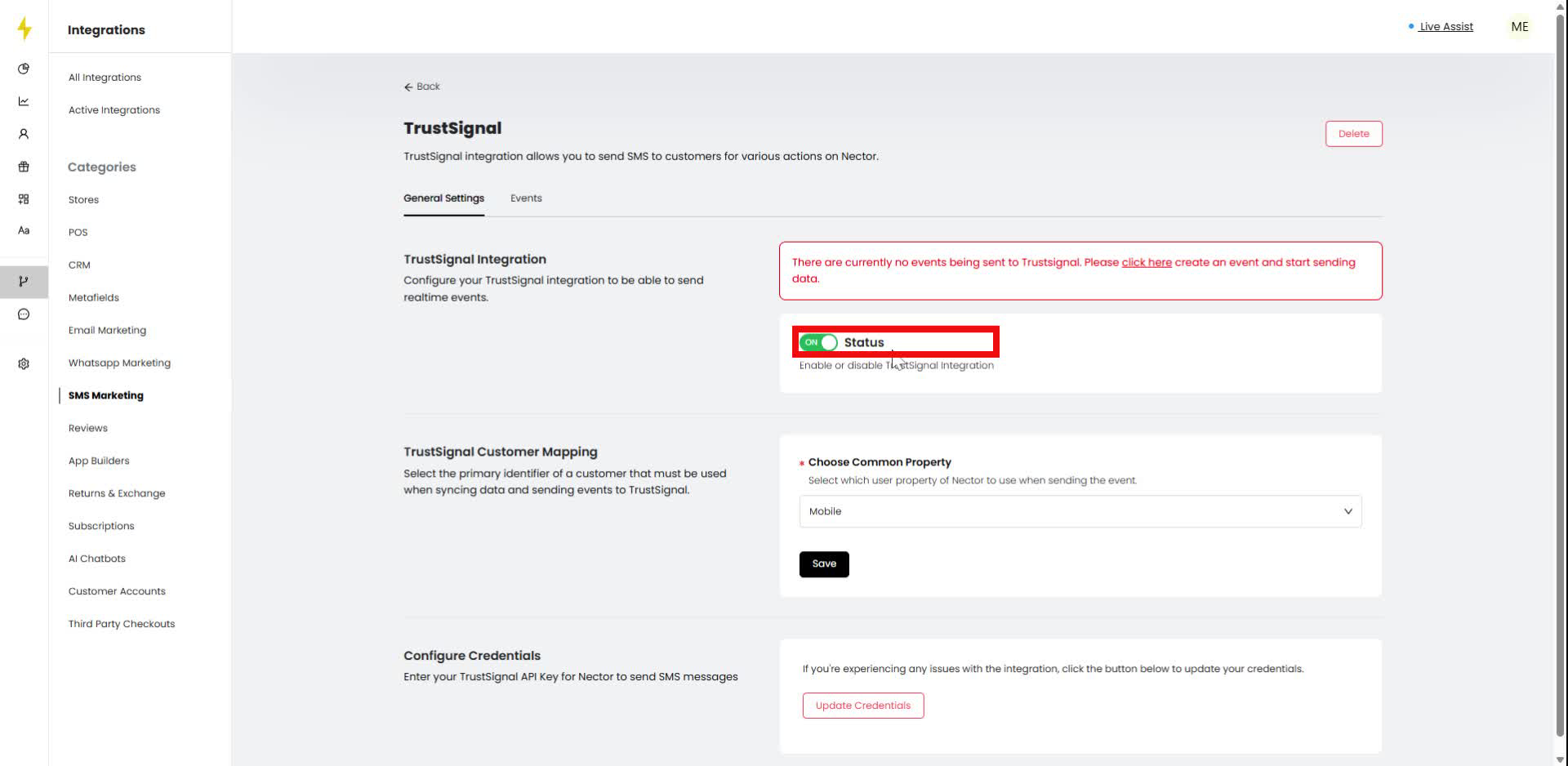
Toggle the "Status" switch to enable TrustSignal Integration.
Step 5
Select "Mobile" from the dropdown menu under Choose Common Property.
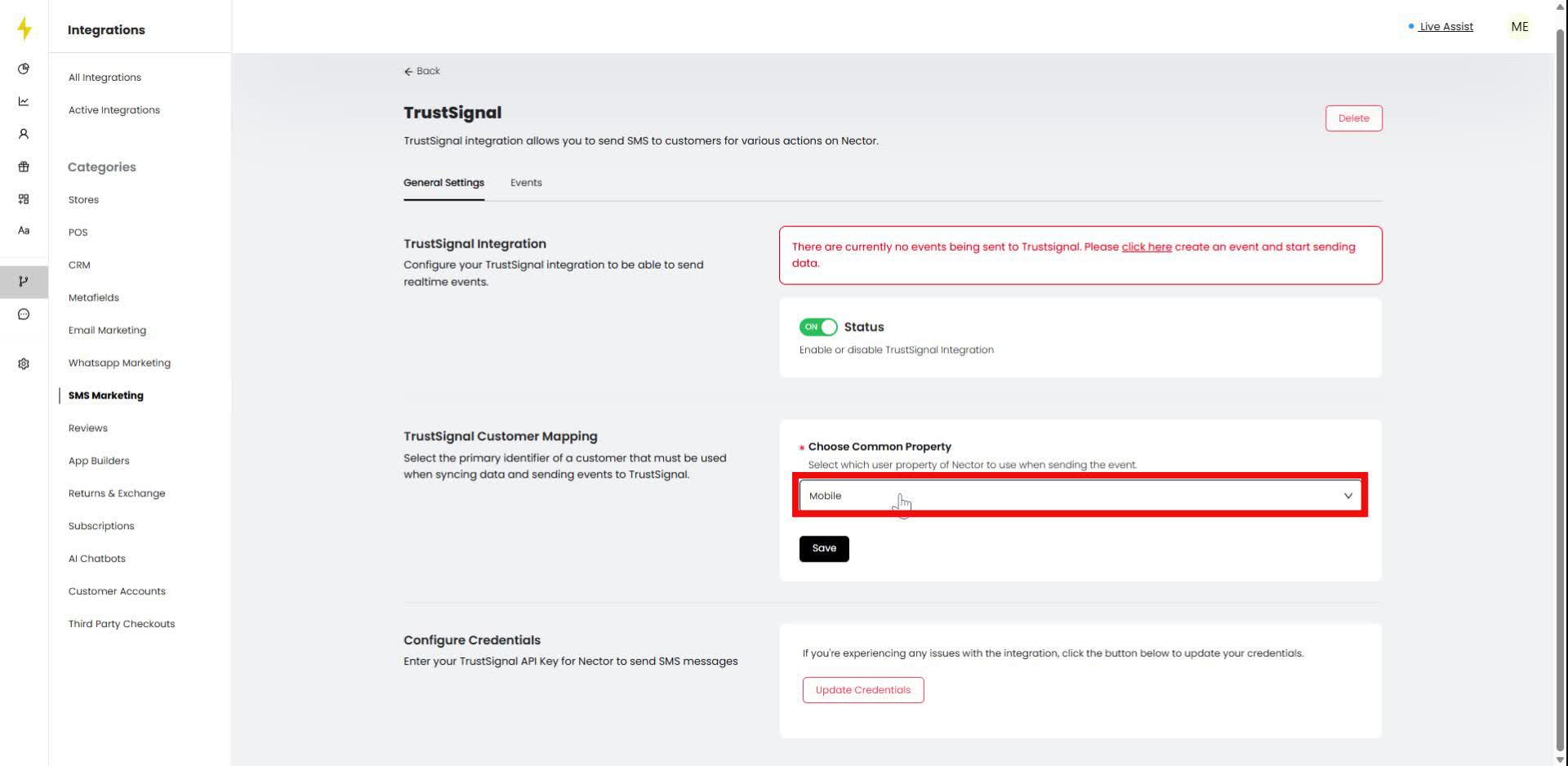
Step 6
In the TrustSignal settings, select "Mobile" from the dropdown under "Choose Common Property."
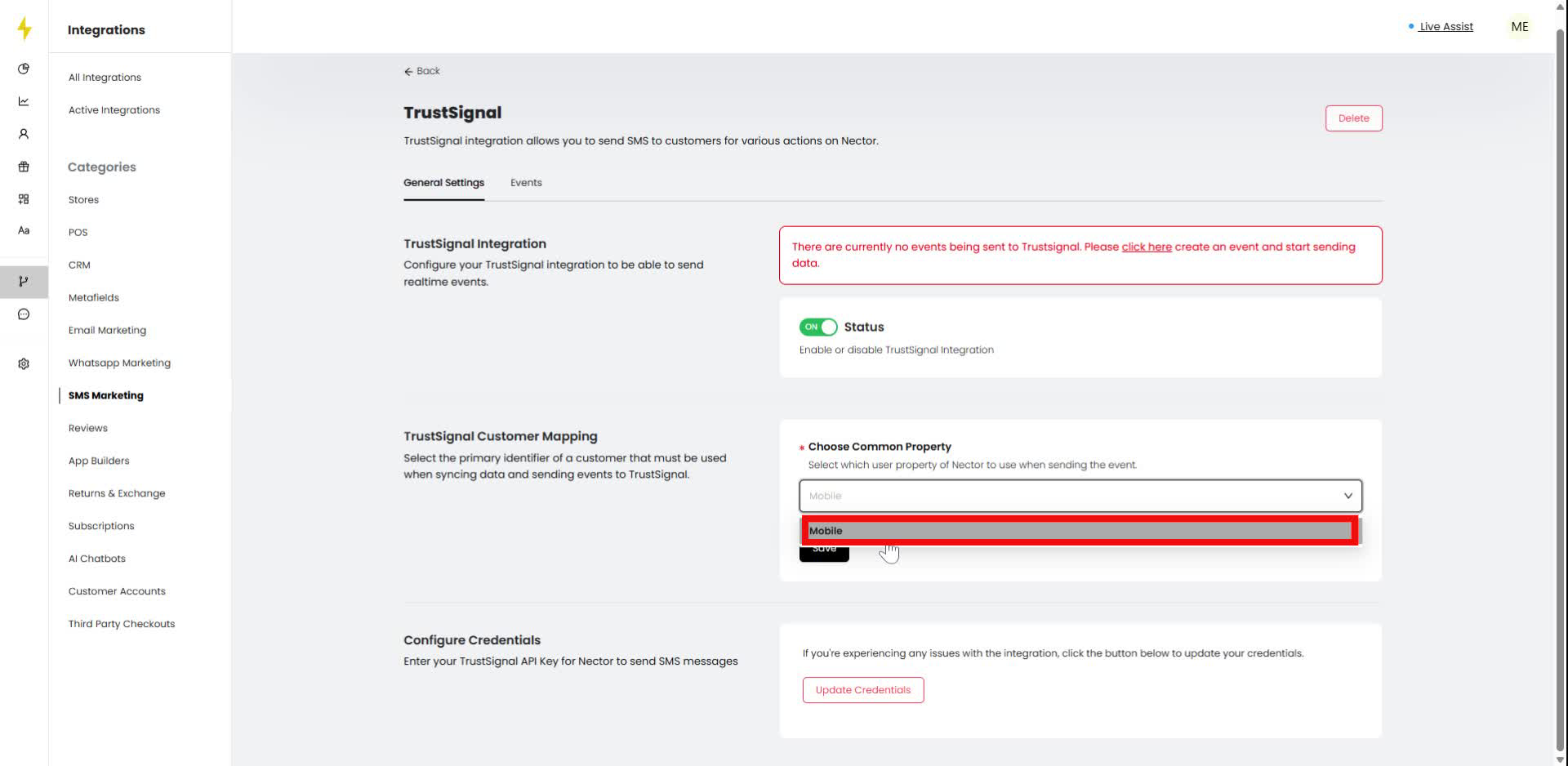
Step 7
Click on "Update Credentials" in the Configure Credentials section.
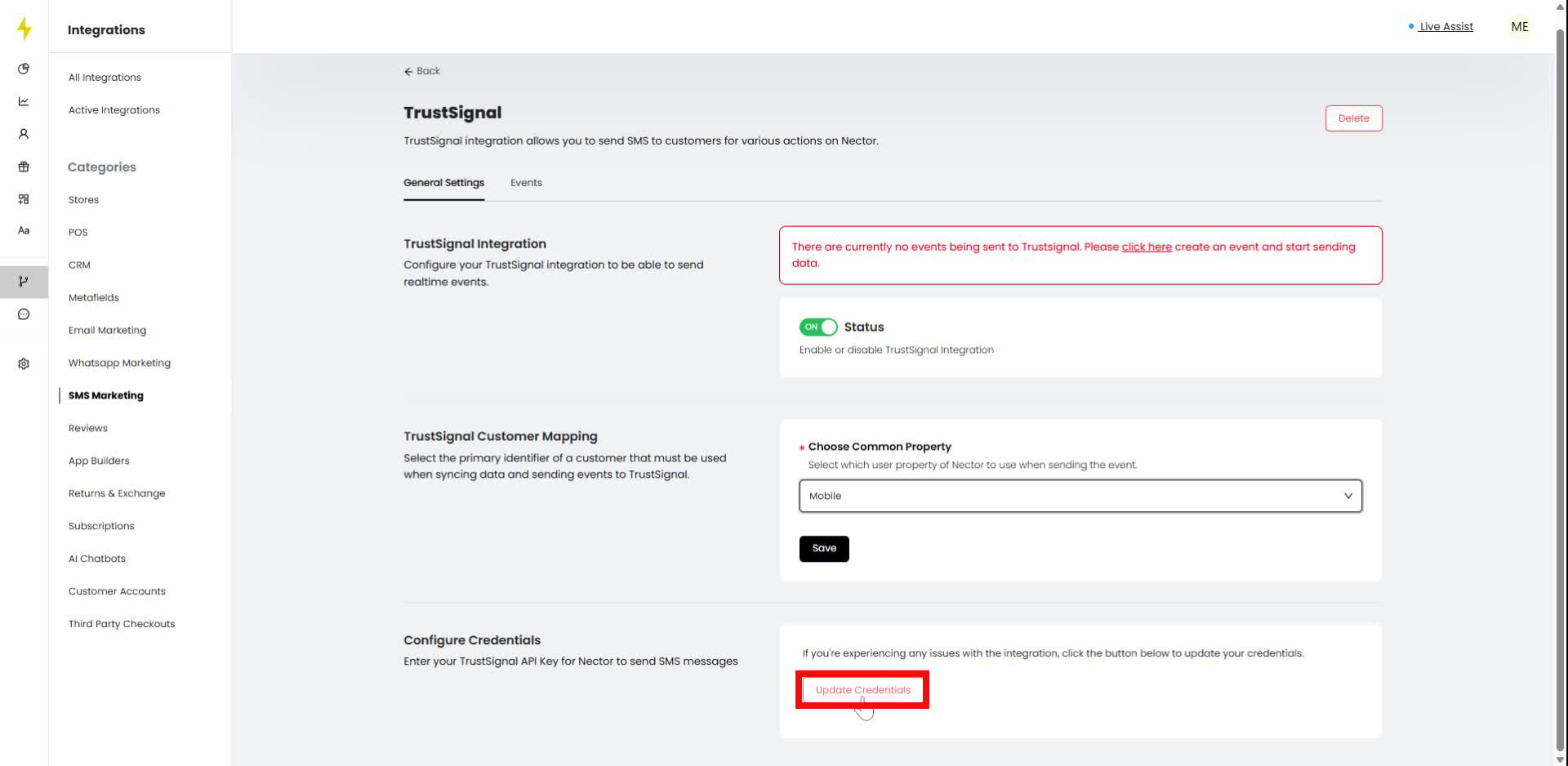
Step 8
Enter your API Key in the provided field under Configure Credentials.
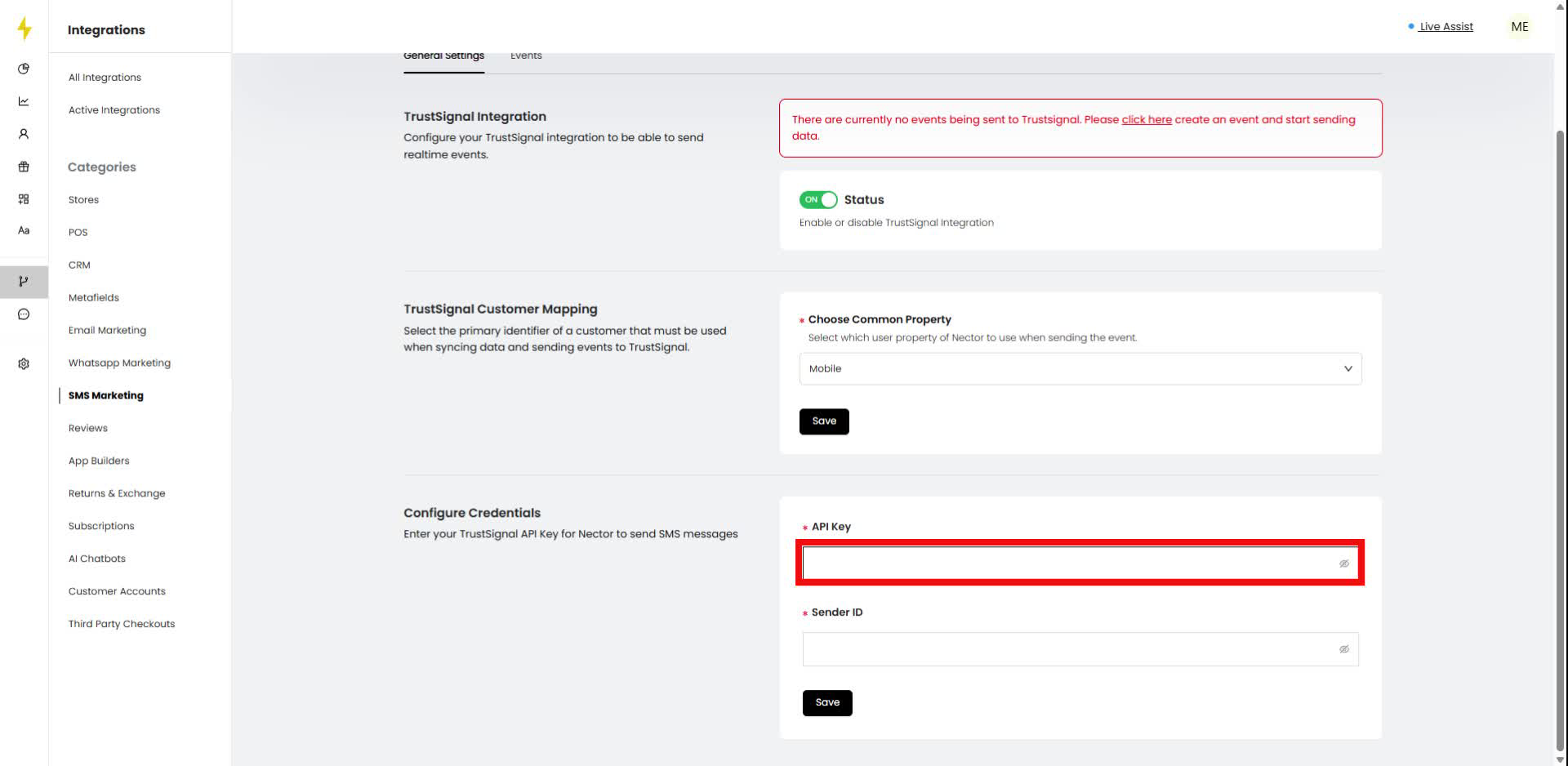
Step 9
Enter your Sender ID in the provided field under Configure Credentials.
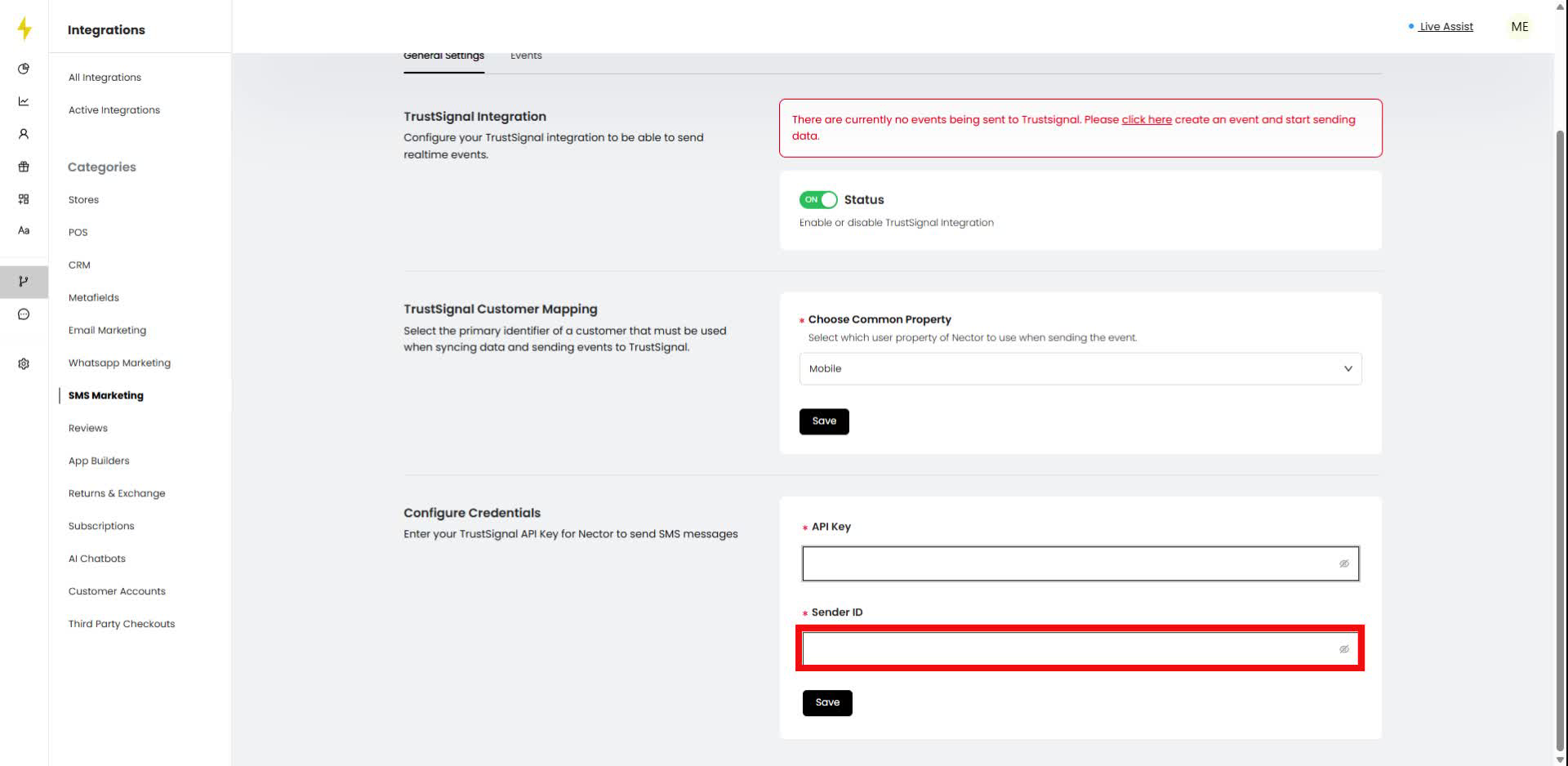
Step 10
Click the "Save" button to save your changes.
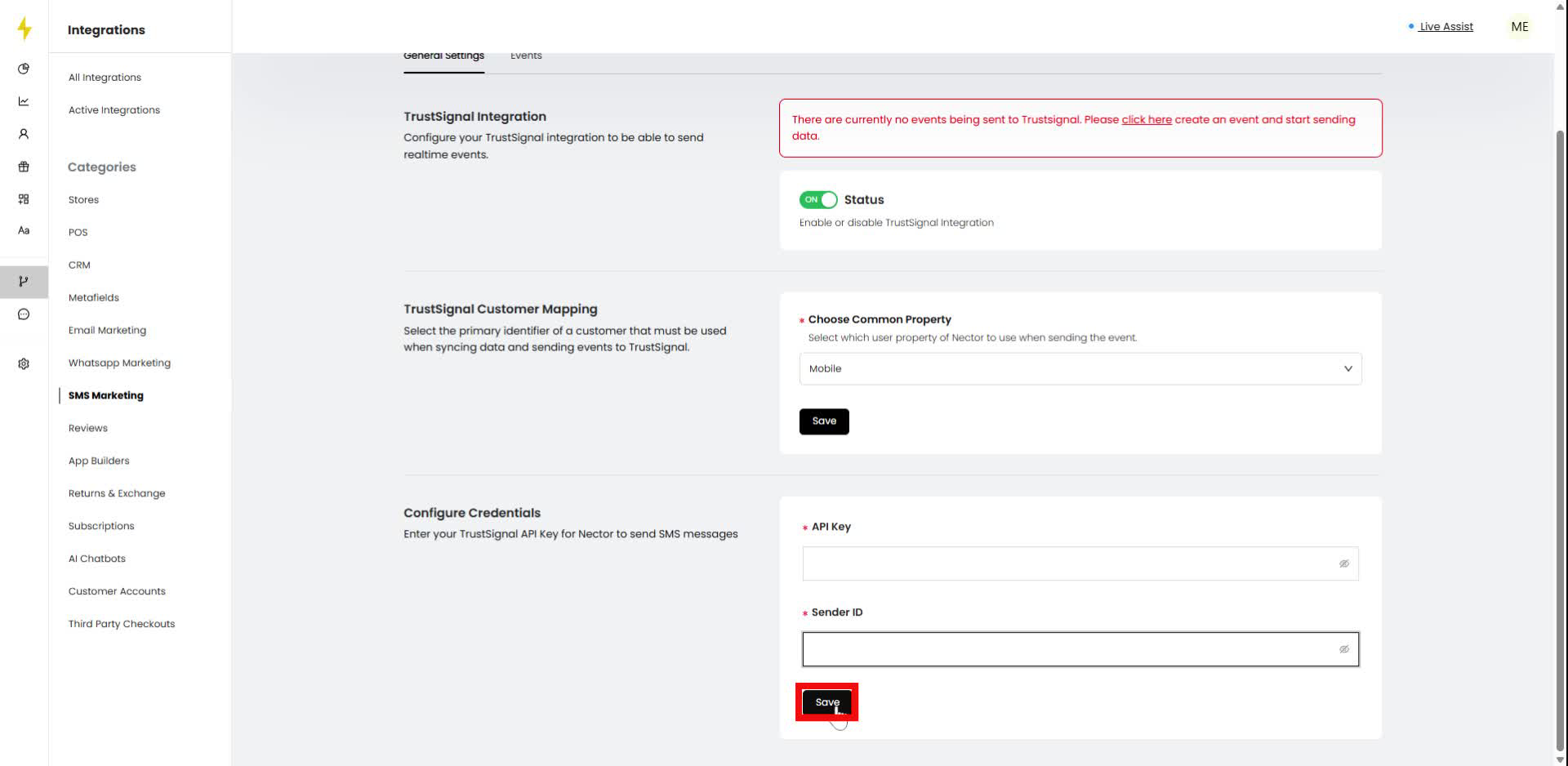
Step 11
In the TrustSignal integration page, click on the "Events" tab.
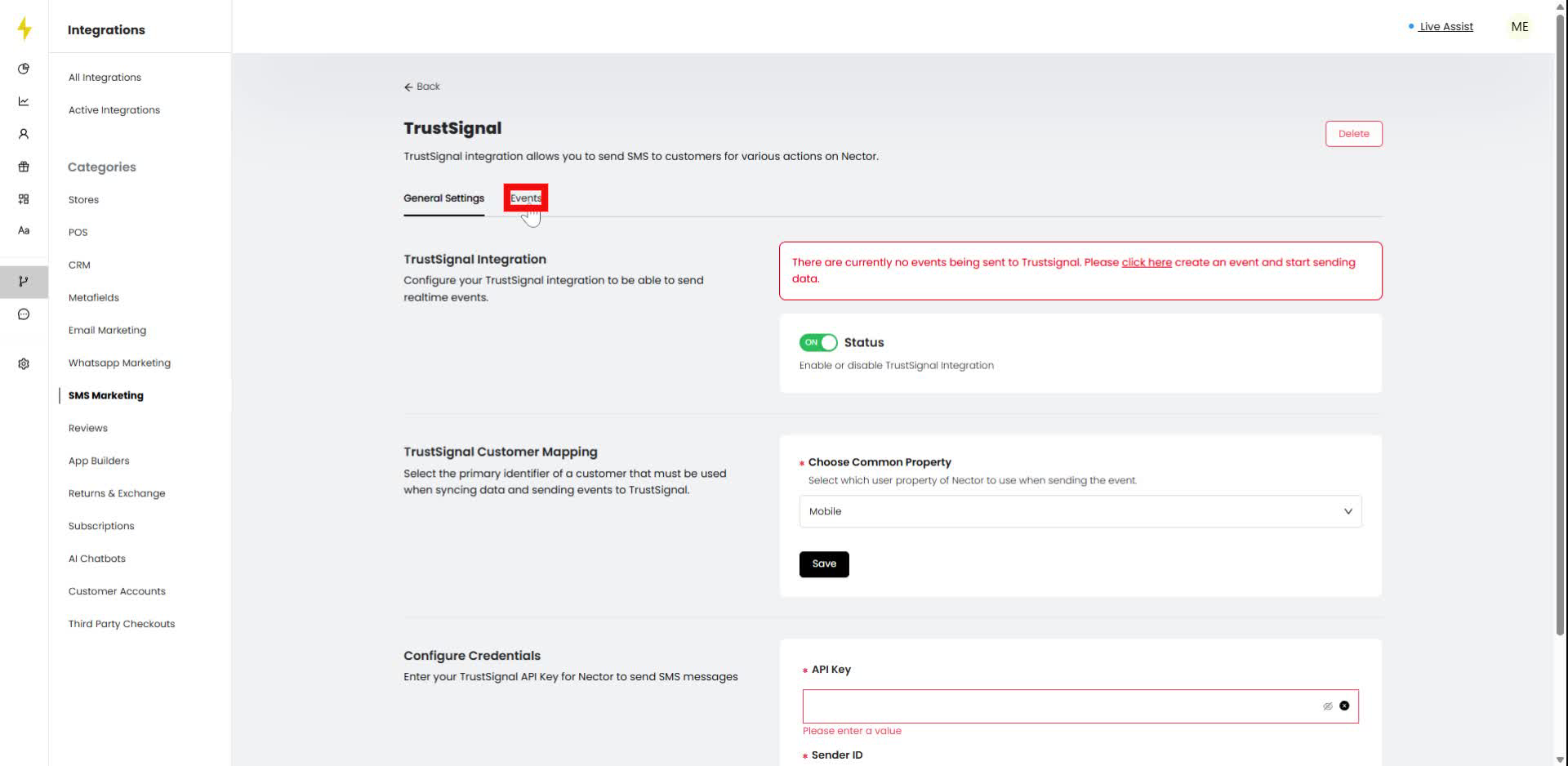
Step 12
In the Events section, click on the "Create An Event" button.
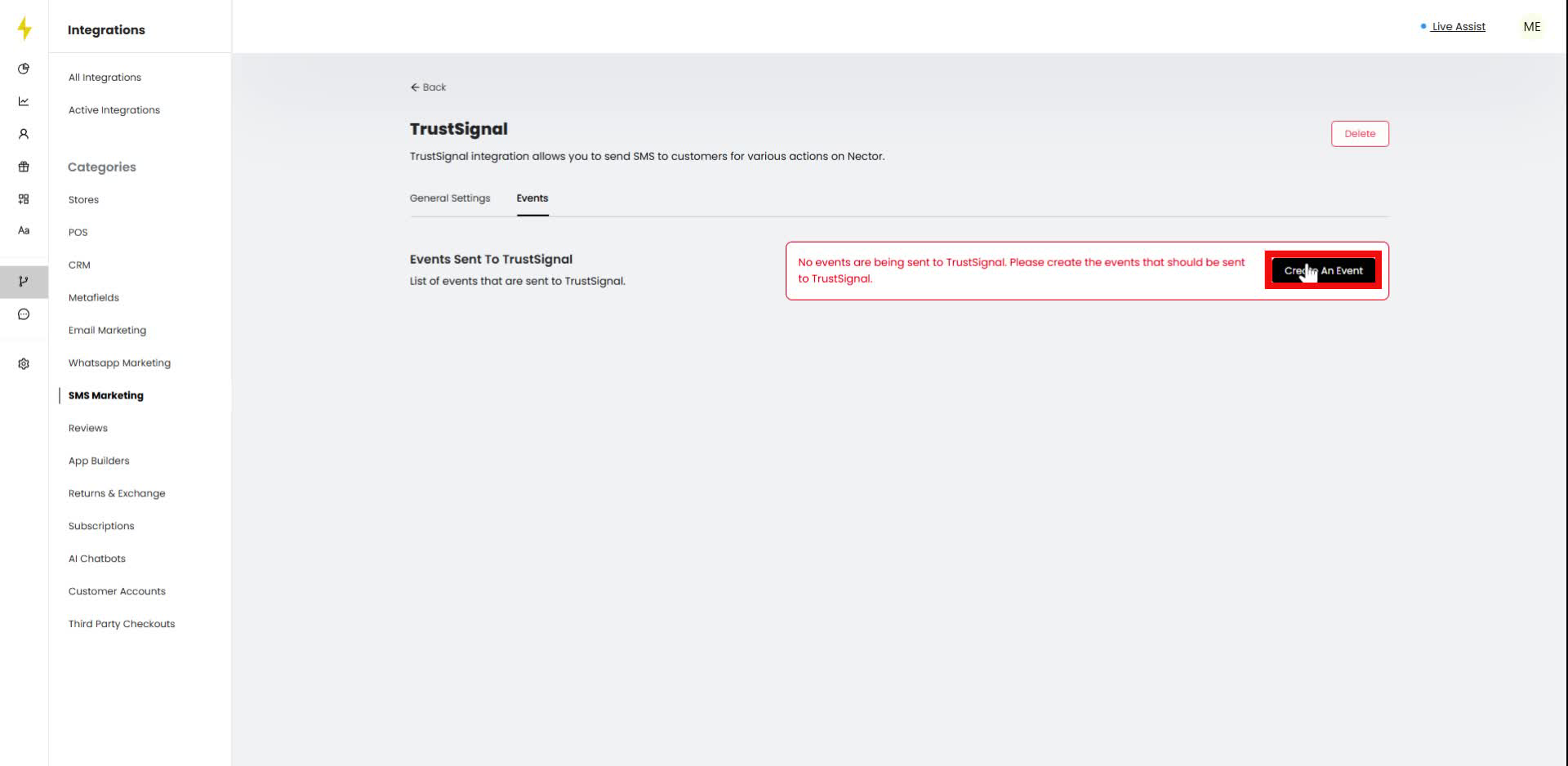
Step 13
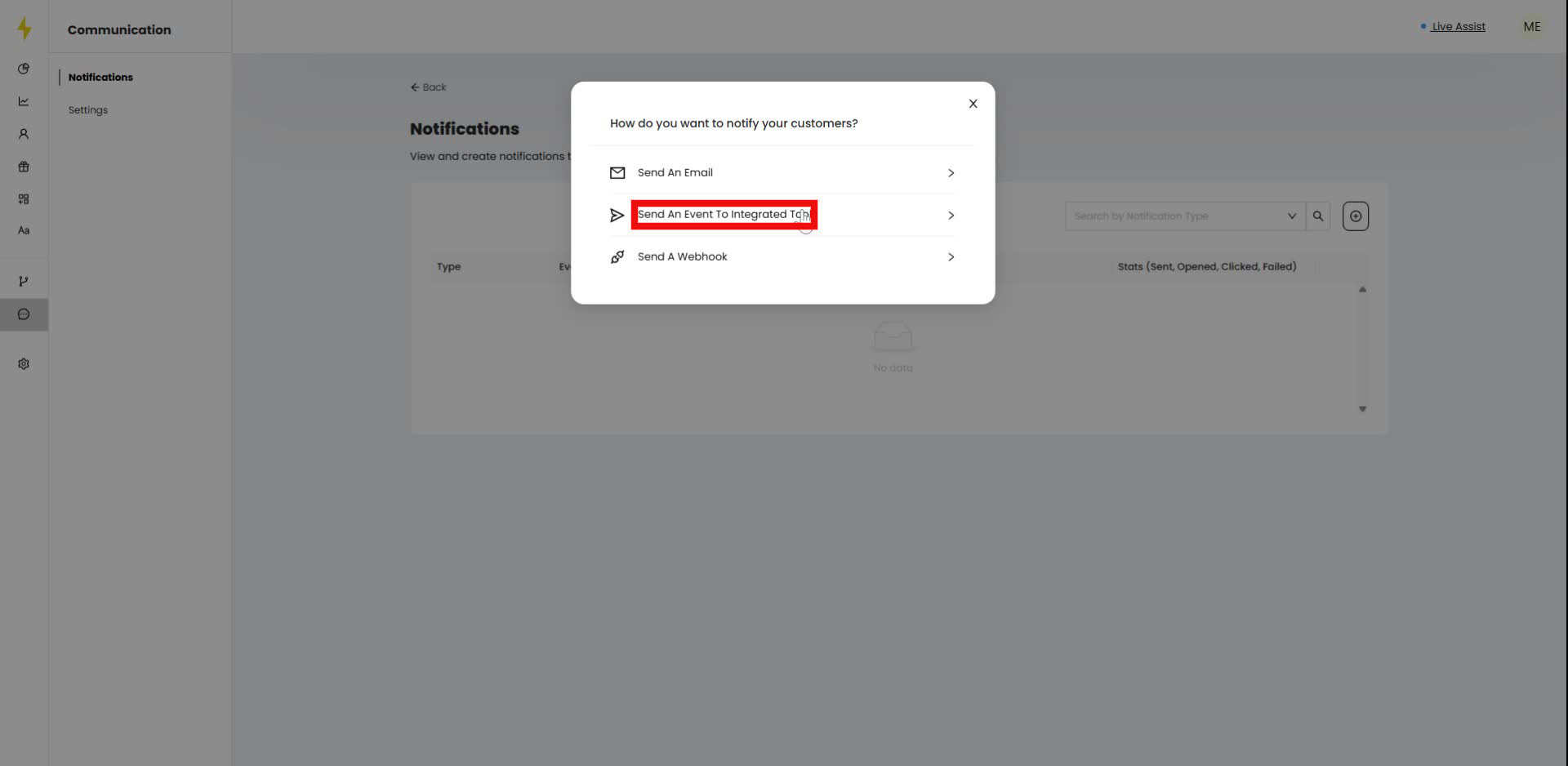
In the notification modal, select "Send An Event To Integrated Tpl" option.
Step 14
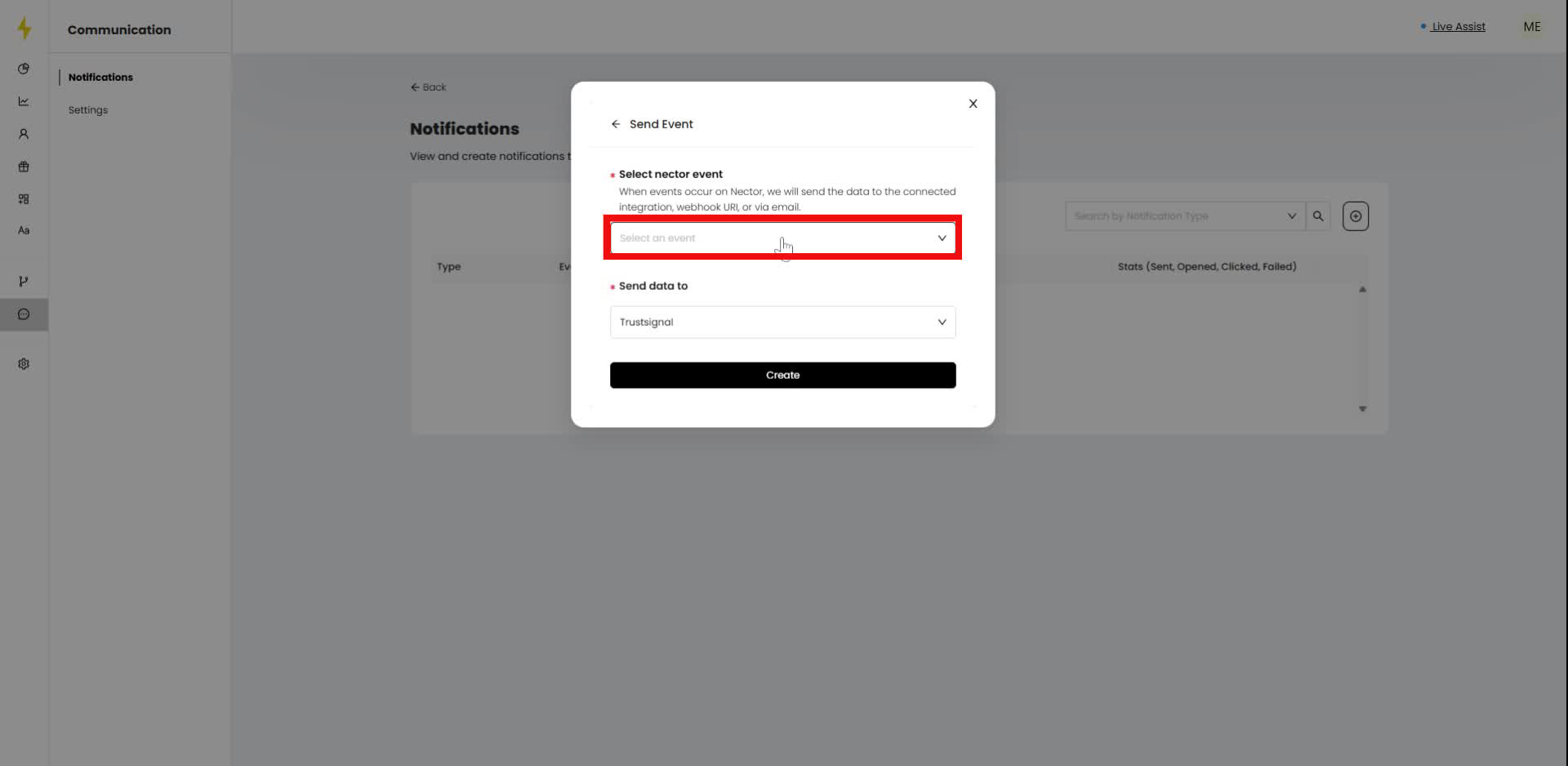
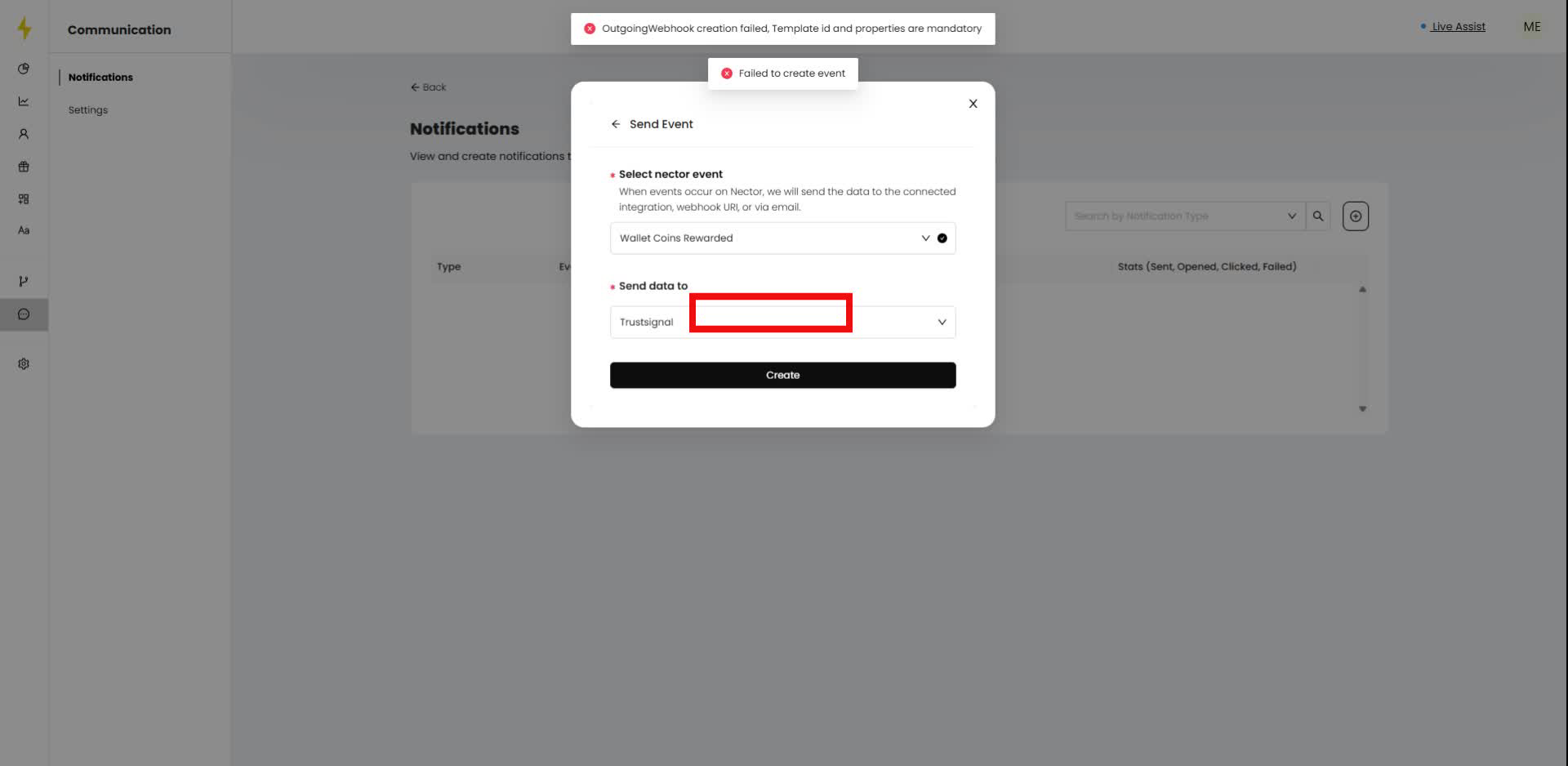
In the modal, click on the dropdown to select a nectar event.
Step 15
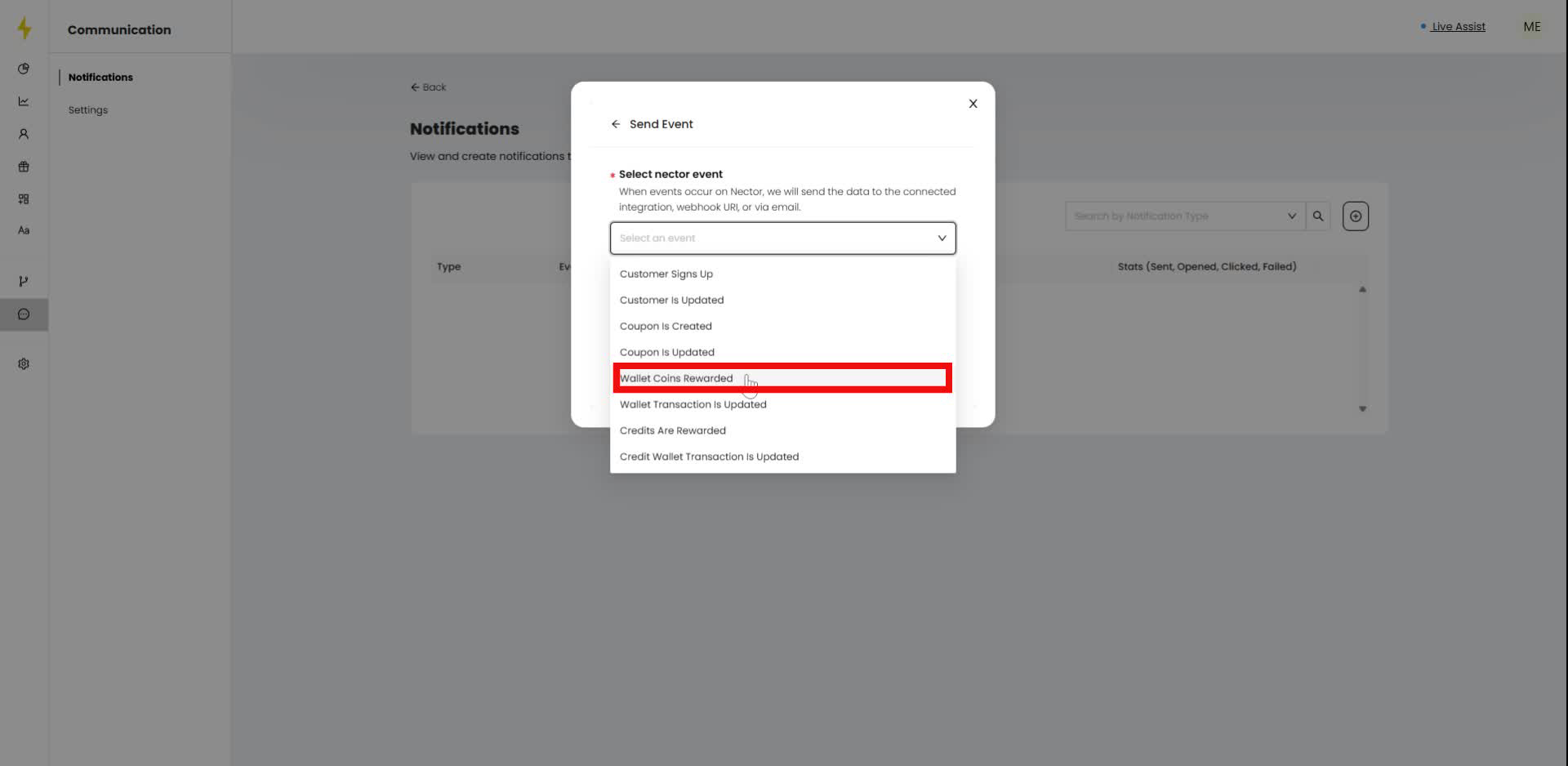
Choose "Wallet Coins Rewarded" from the list of events in the modal.
Step 16
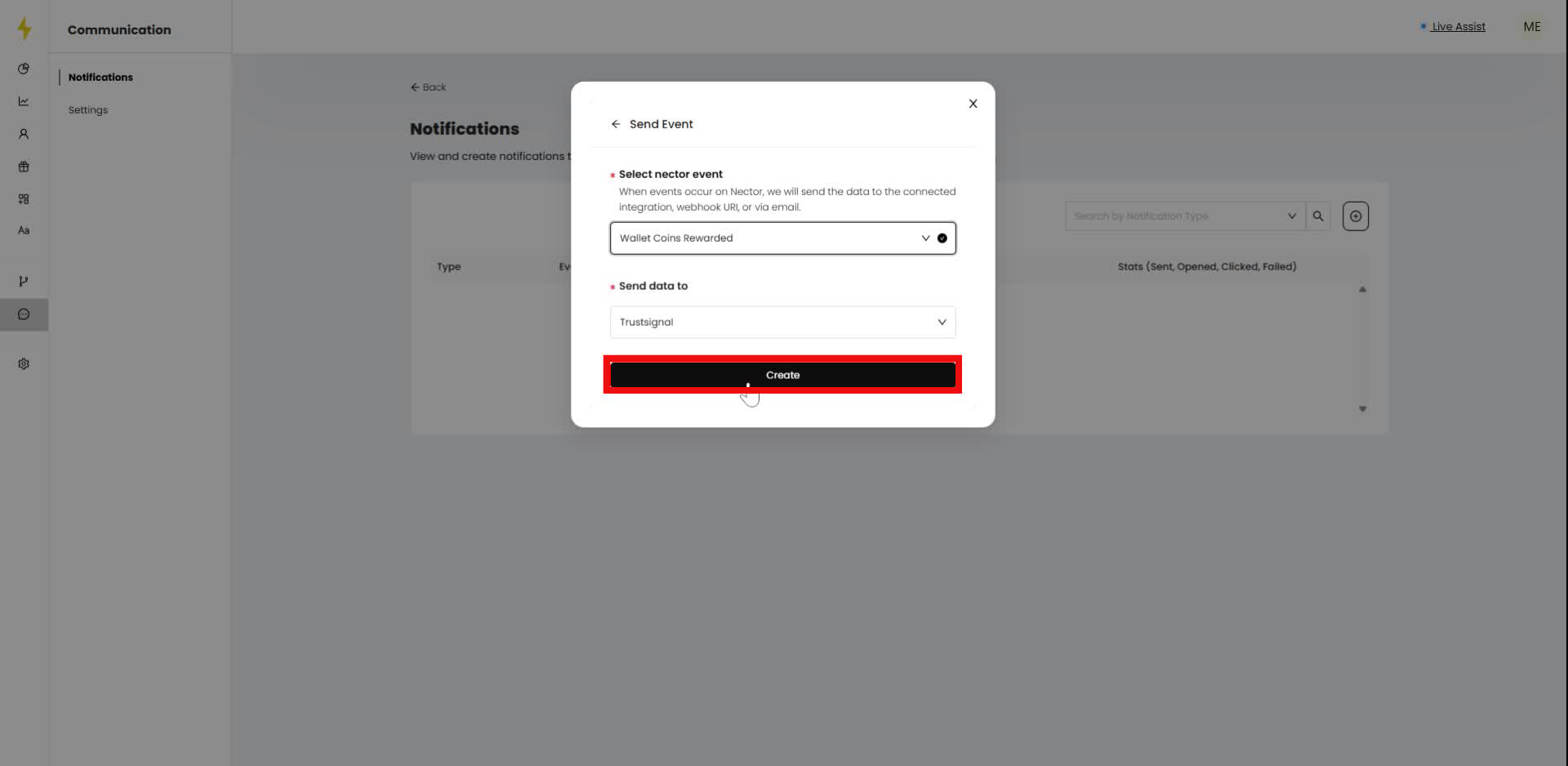
Click the "Create" button in the modal to finalize the event creation.
Step 17
In the modal, select the recipient for sending data from the dropdown menu under "Send data to."
Updated on: 07/01/2026
Thank you!