
Nector and Integration with Zwing POS
Step 1
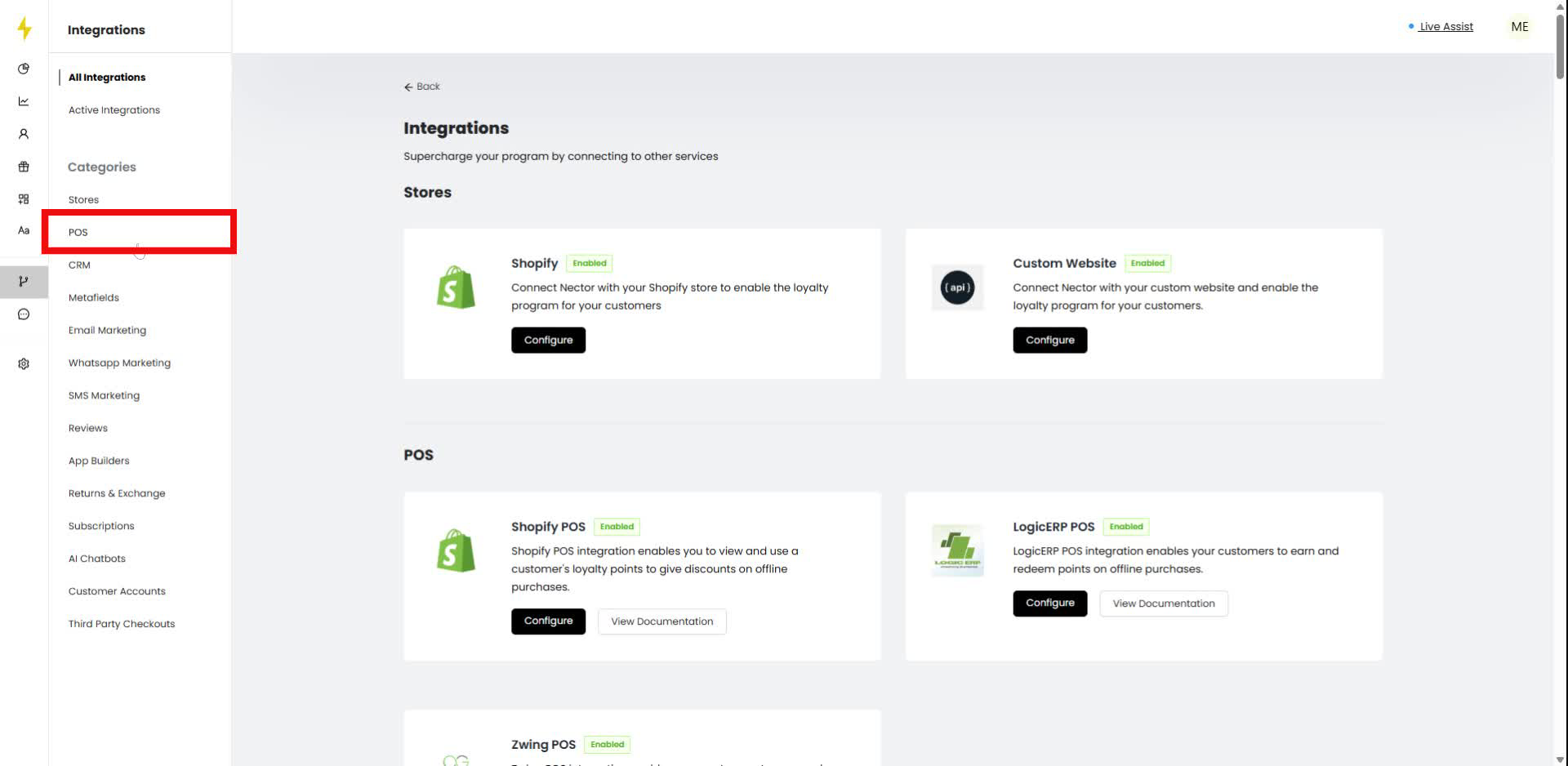
In the navigation bar, click on "POS" under the Categories section.
Step 2
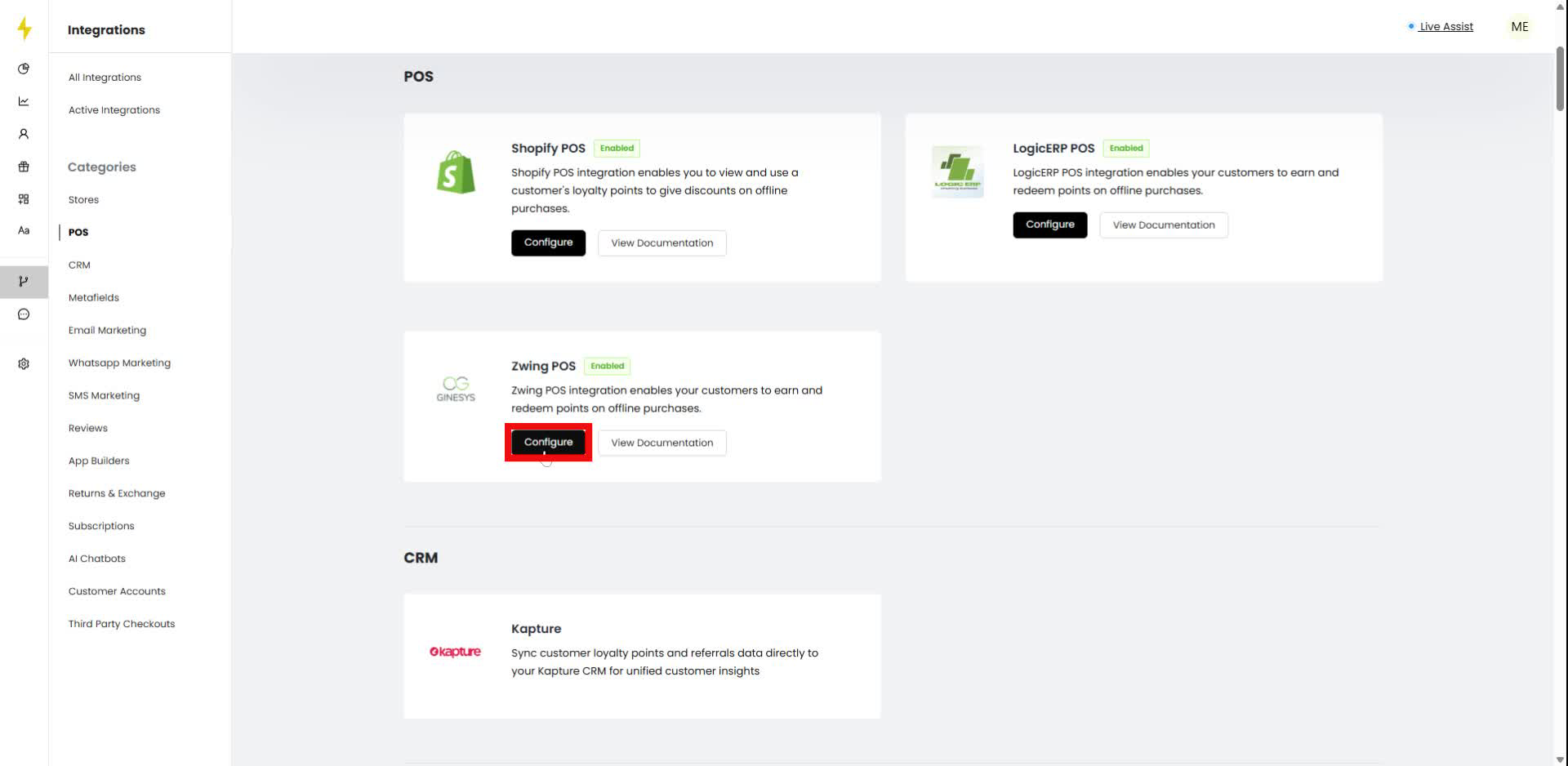
Click the "Configure" button for Zwing POS.
Step 3
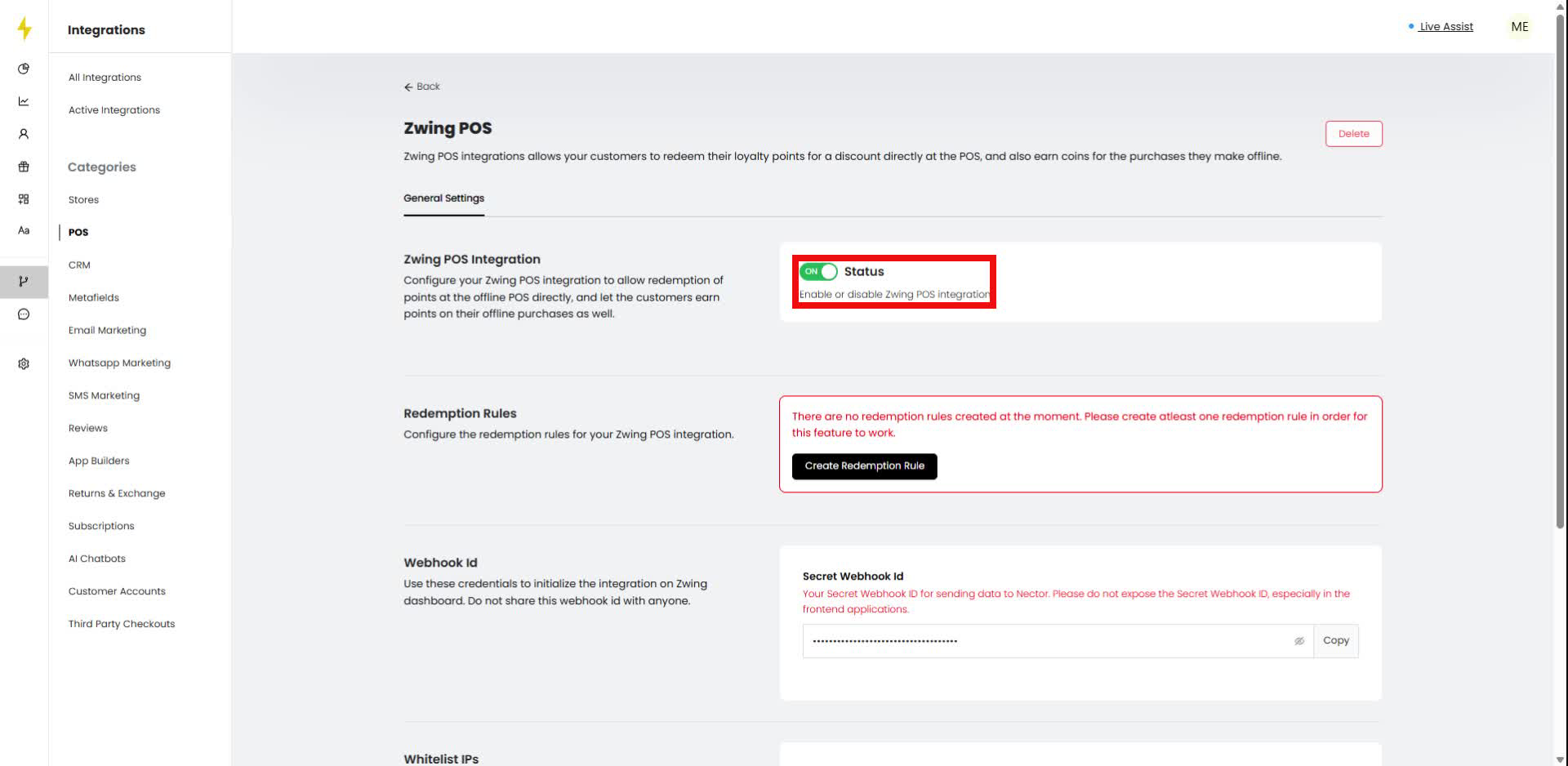
Toggle the "Status" switch to enable Zwing POS integration.
Step 4
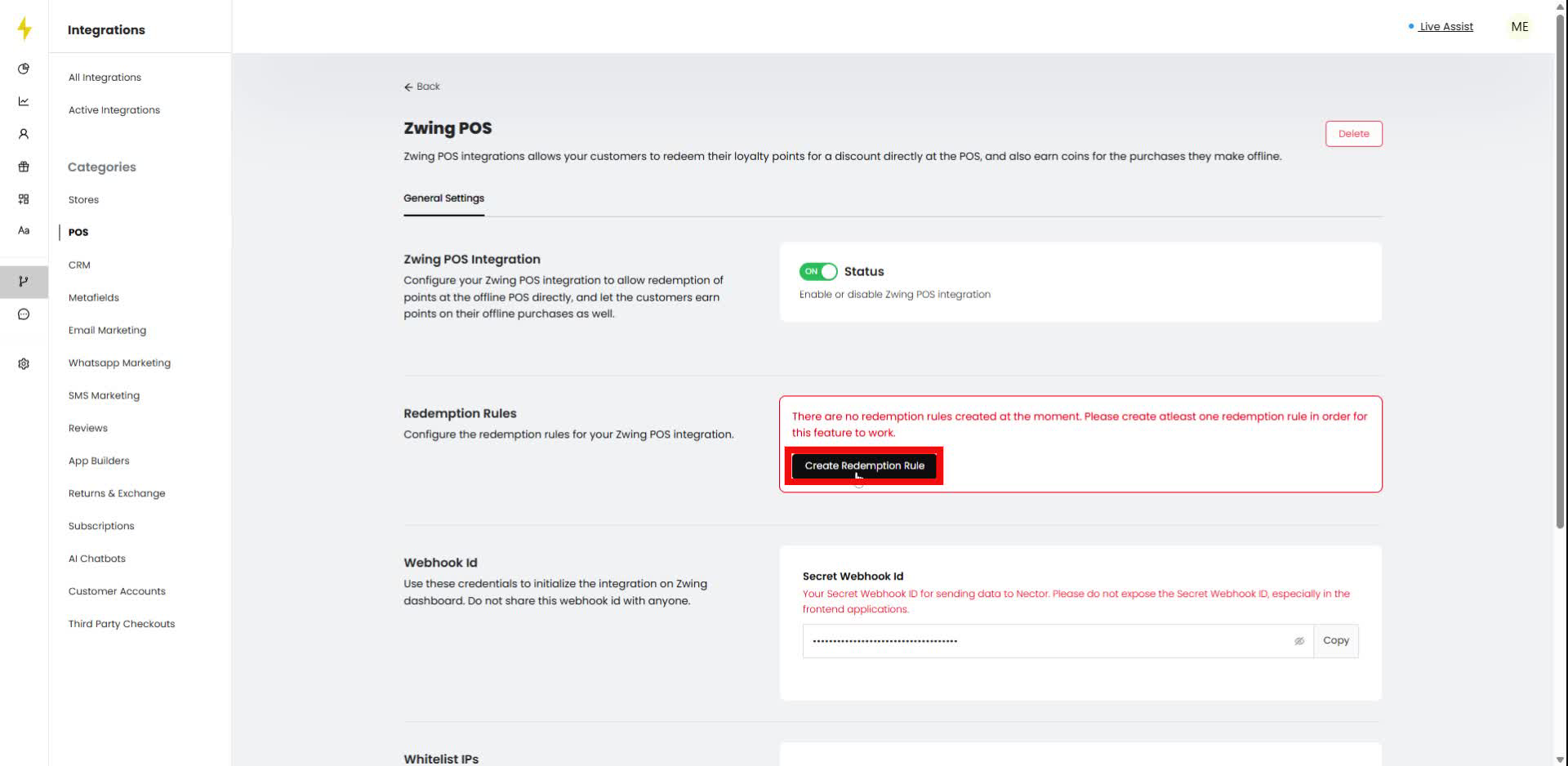
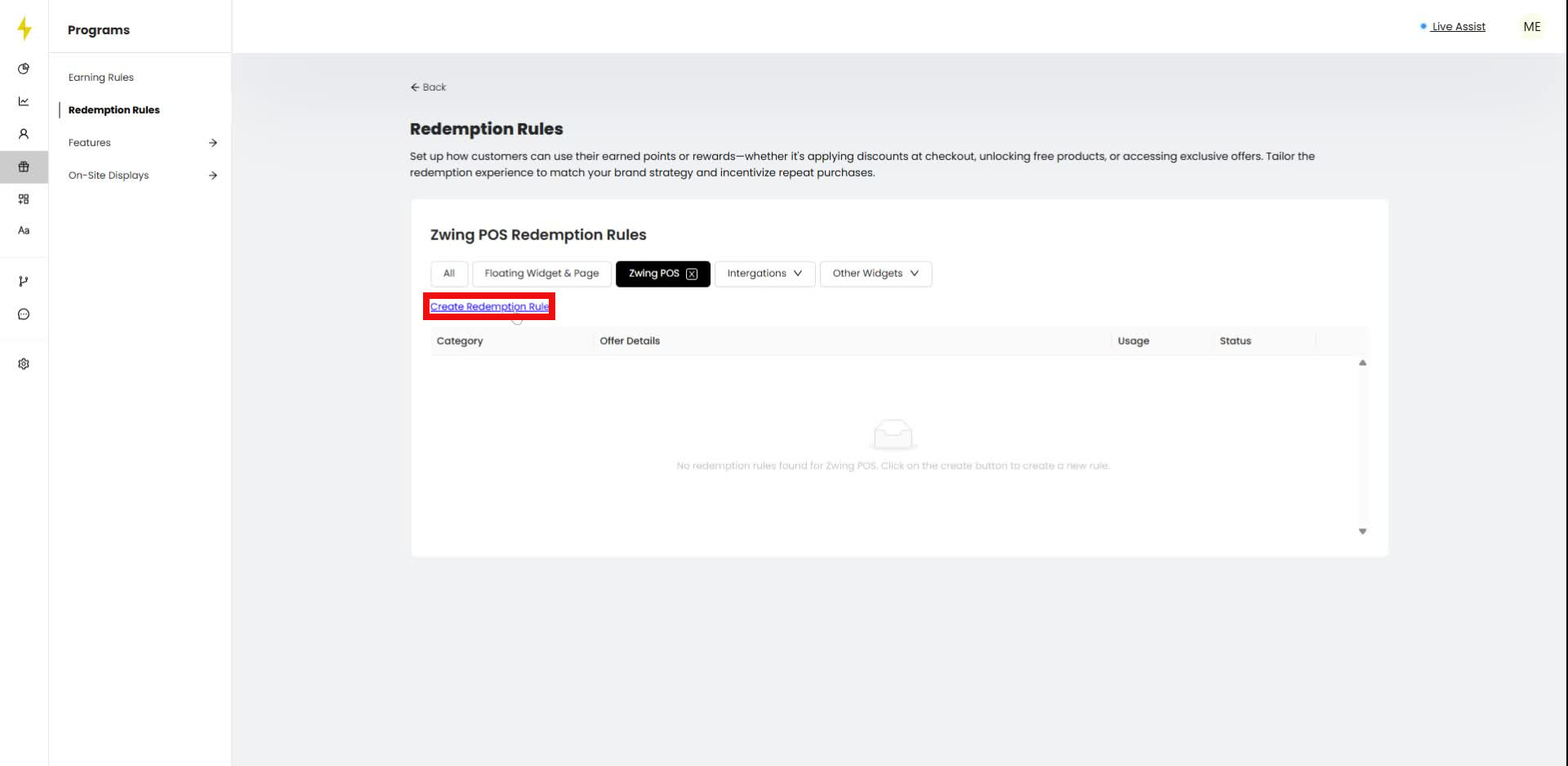
Click the "Create Redemption Rule" button in the Redemption Rules section.
Step 5
In the Redemption Rules page, click "Create Redemption Rule" again.
Step 6
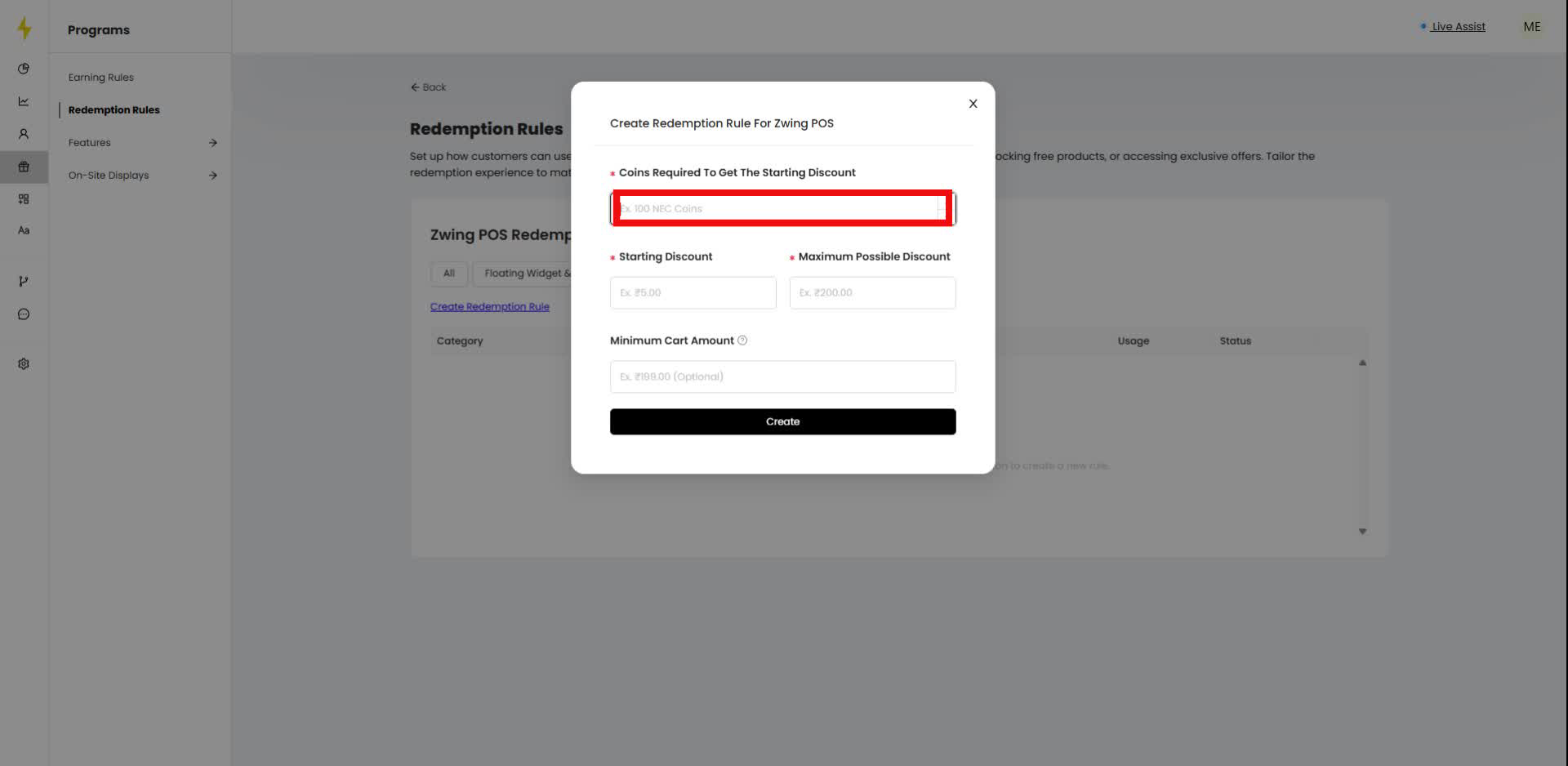
Enter "100" in the "Coins Required To Get The Starting Discount" field in the modal.
Step 7
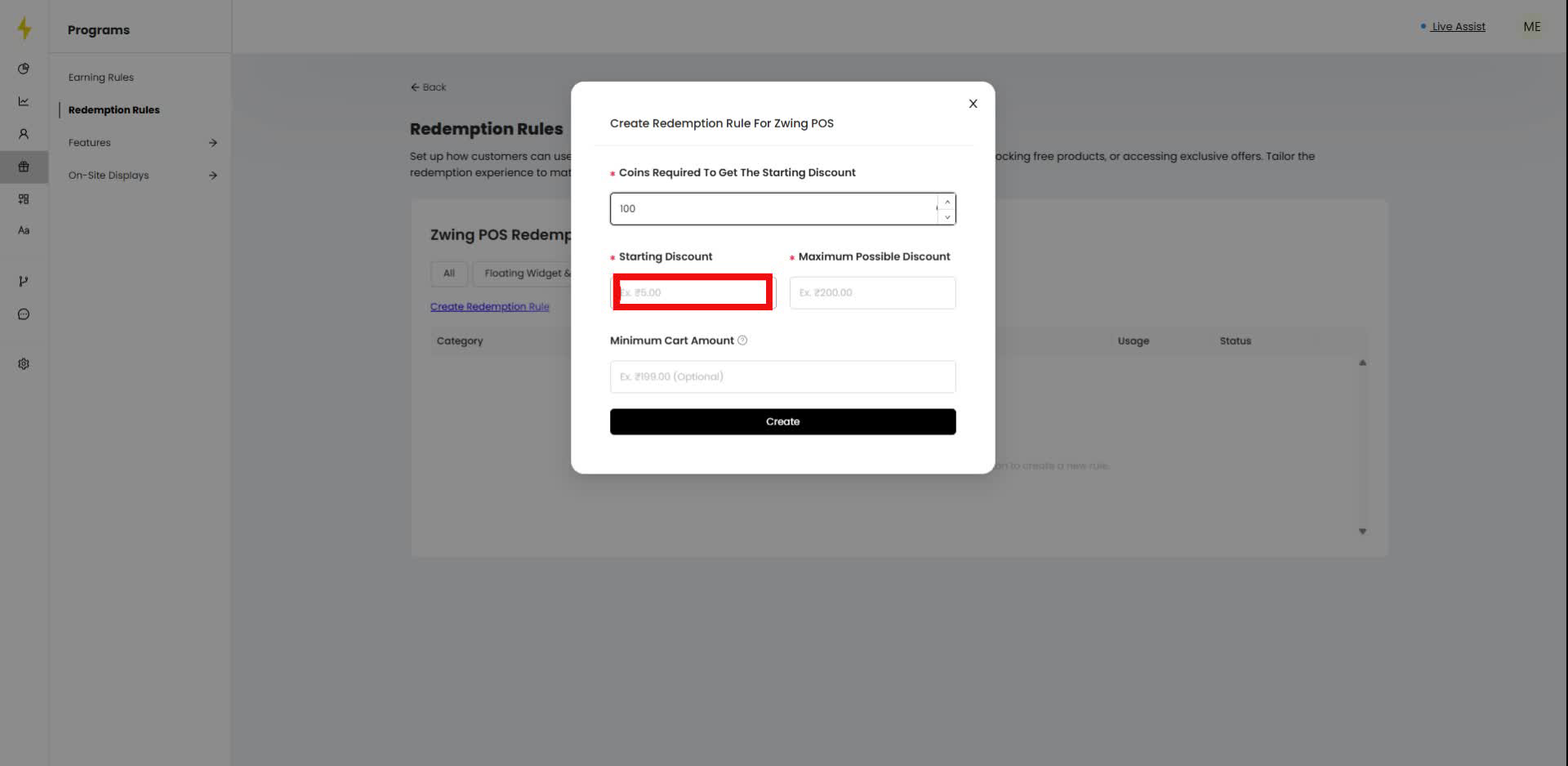
Enter "200" in the "Starting Discount" field in the modal.
Step 8
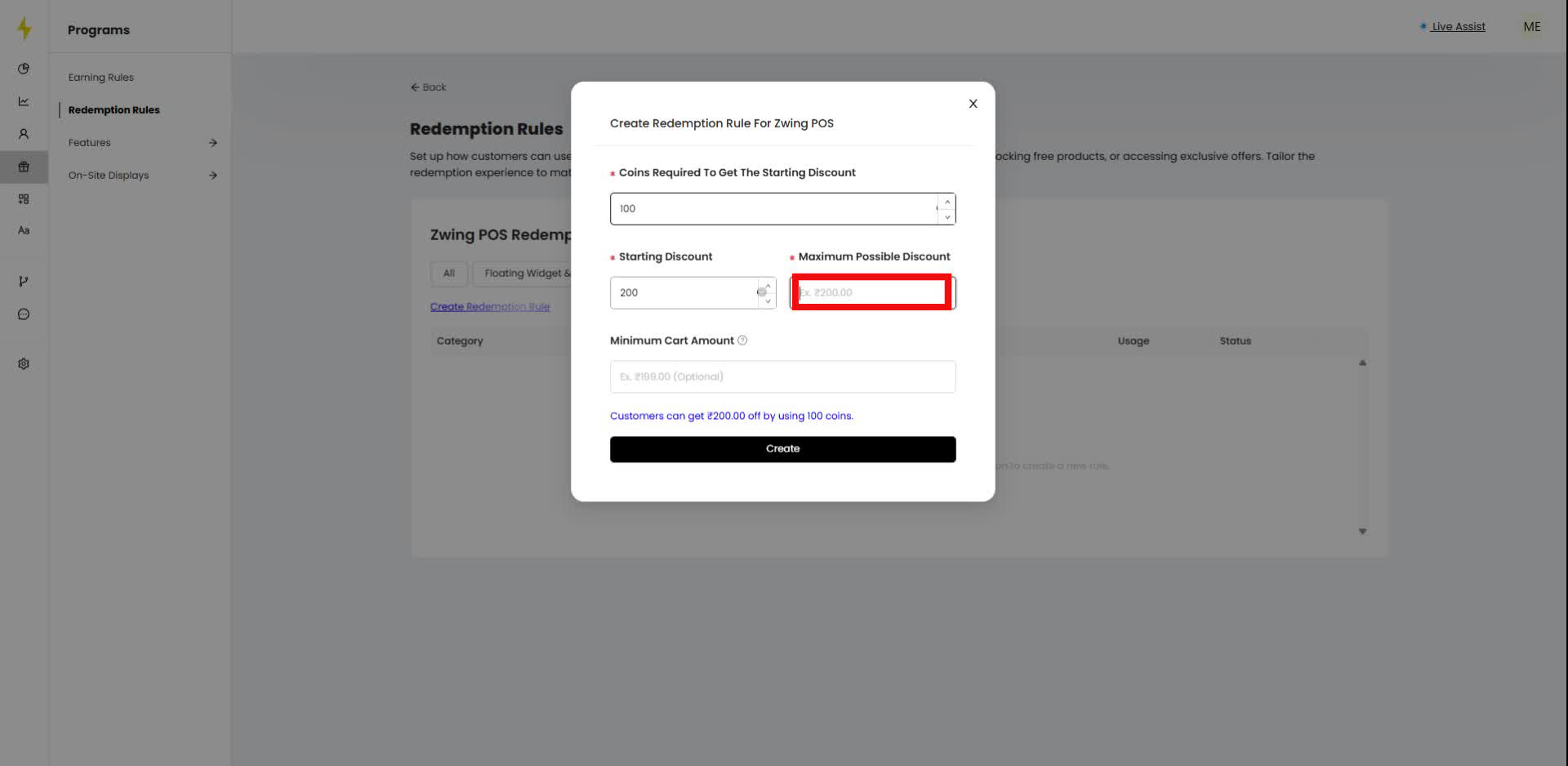
Enter "1000" in the "Maximum Possible Discount" field in the modal.
Step 9
Enter "300" in the "Minimum Cart Amount" field in the modal.
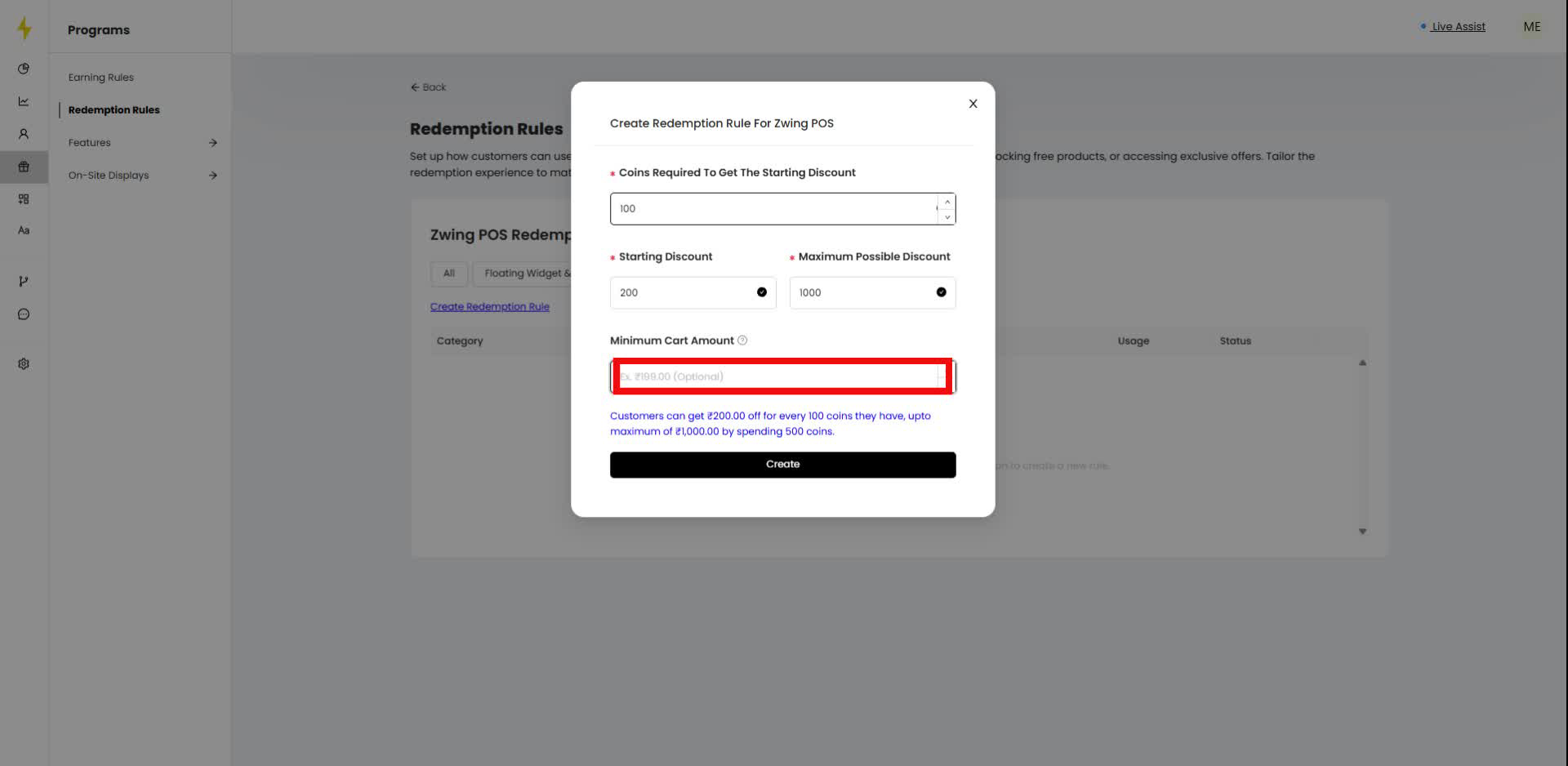
Step 10
Click the "Create" button in the modal.
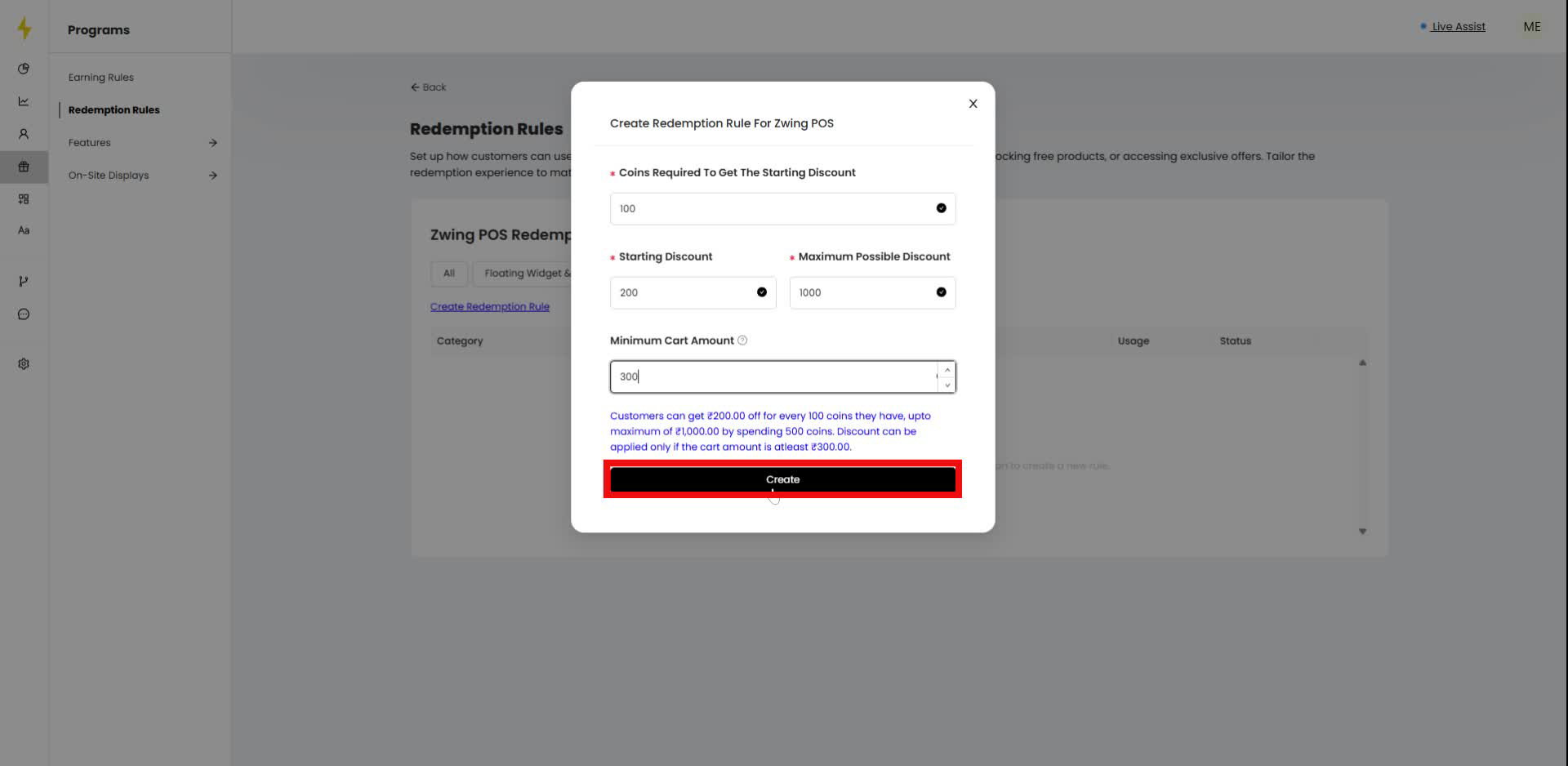
Step 11
Click the "Back" link in the navigation bar to return to the previous page.
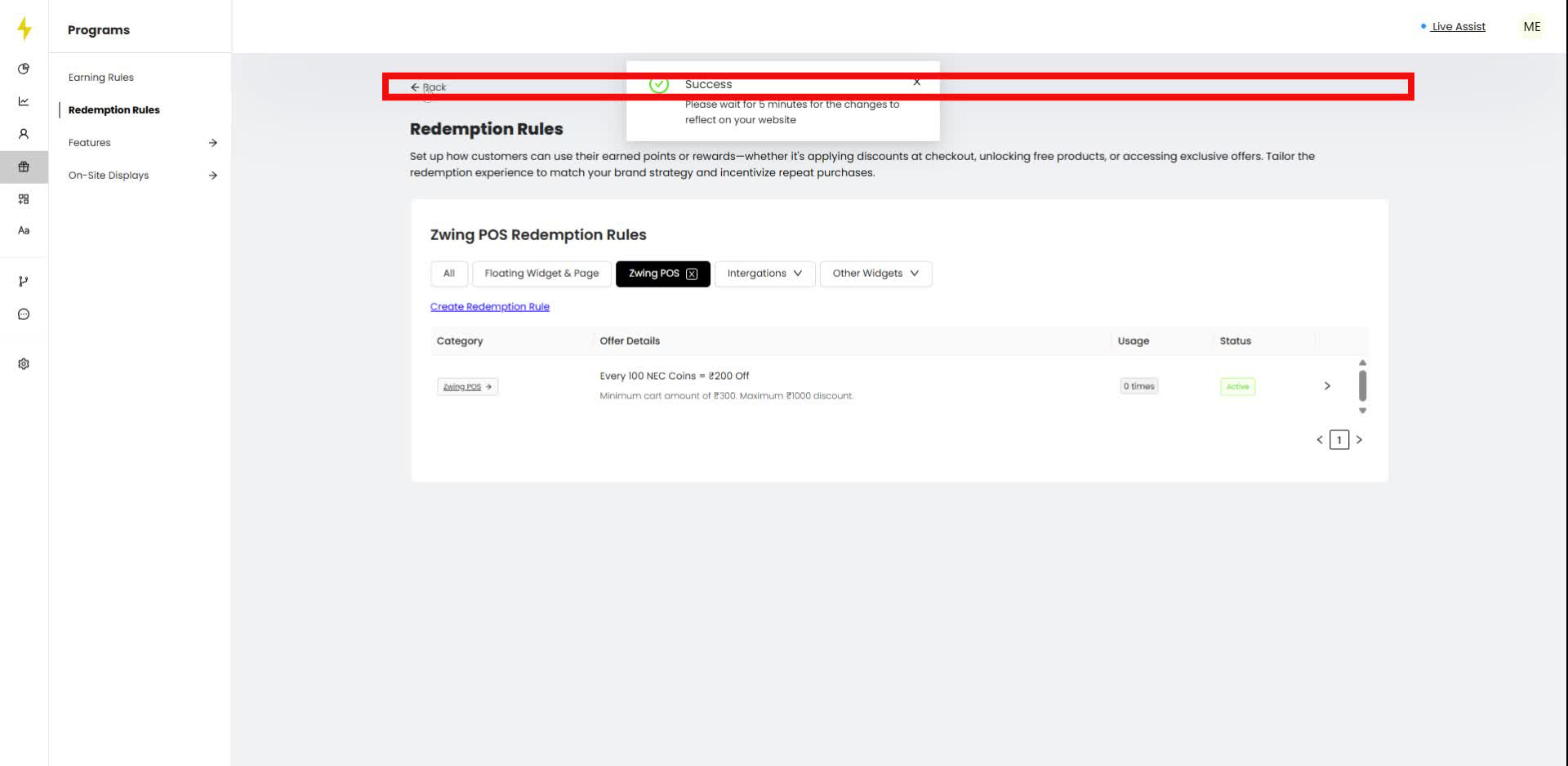
Step 12
In the Webhook Id section, click the "Copy" button next to the Secret Webhook Id to copy it.
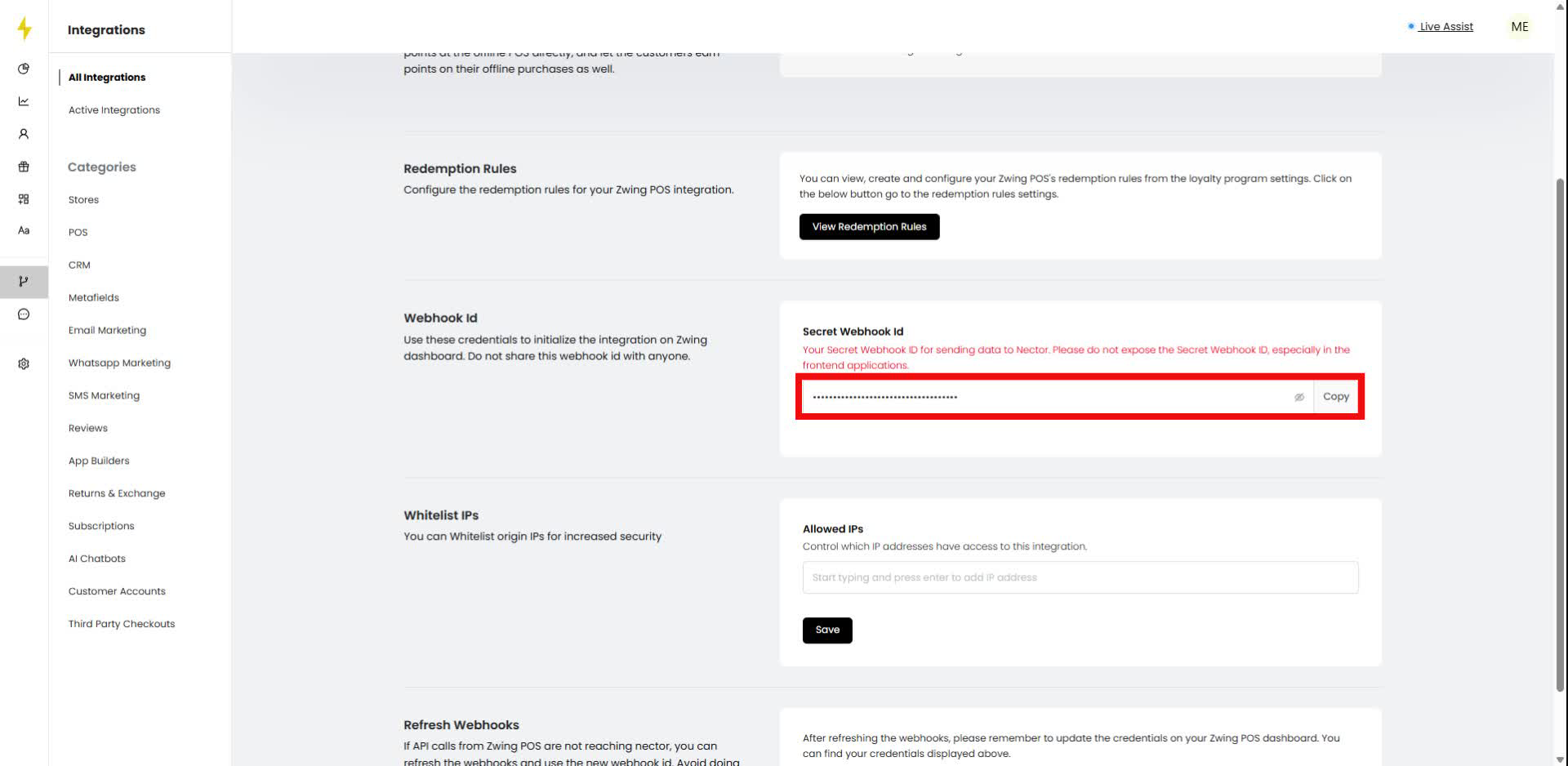
Step 13
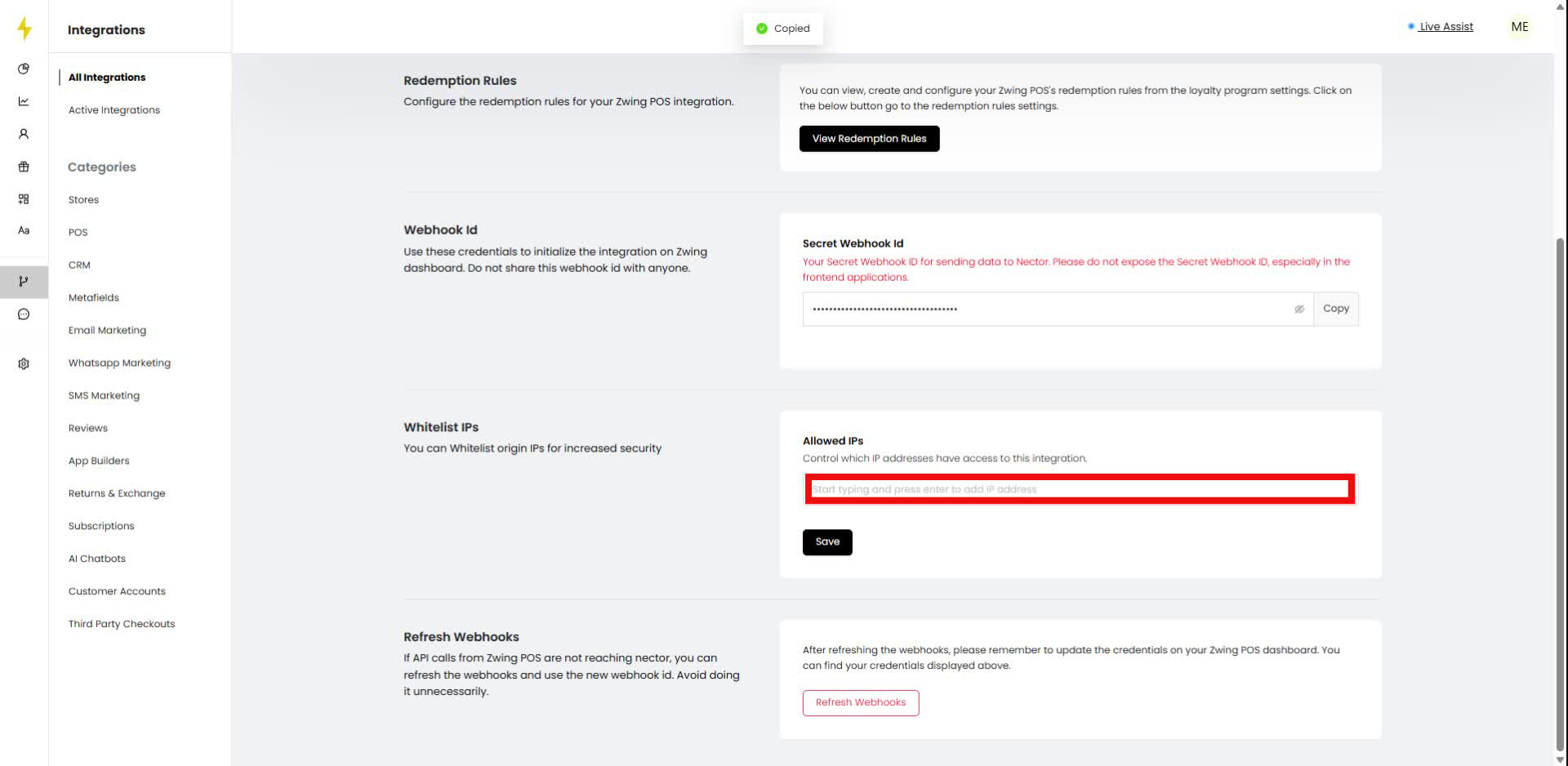
In the Whitelist IPs section, start typing in the "Allowed IPs" field to add an IP address.
Step 14
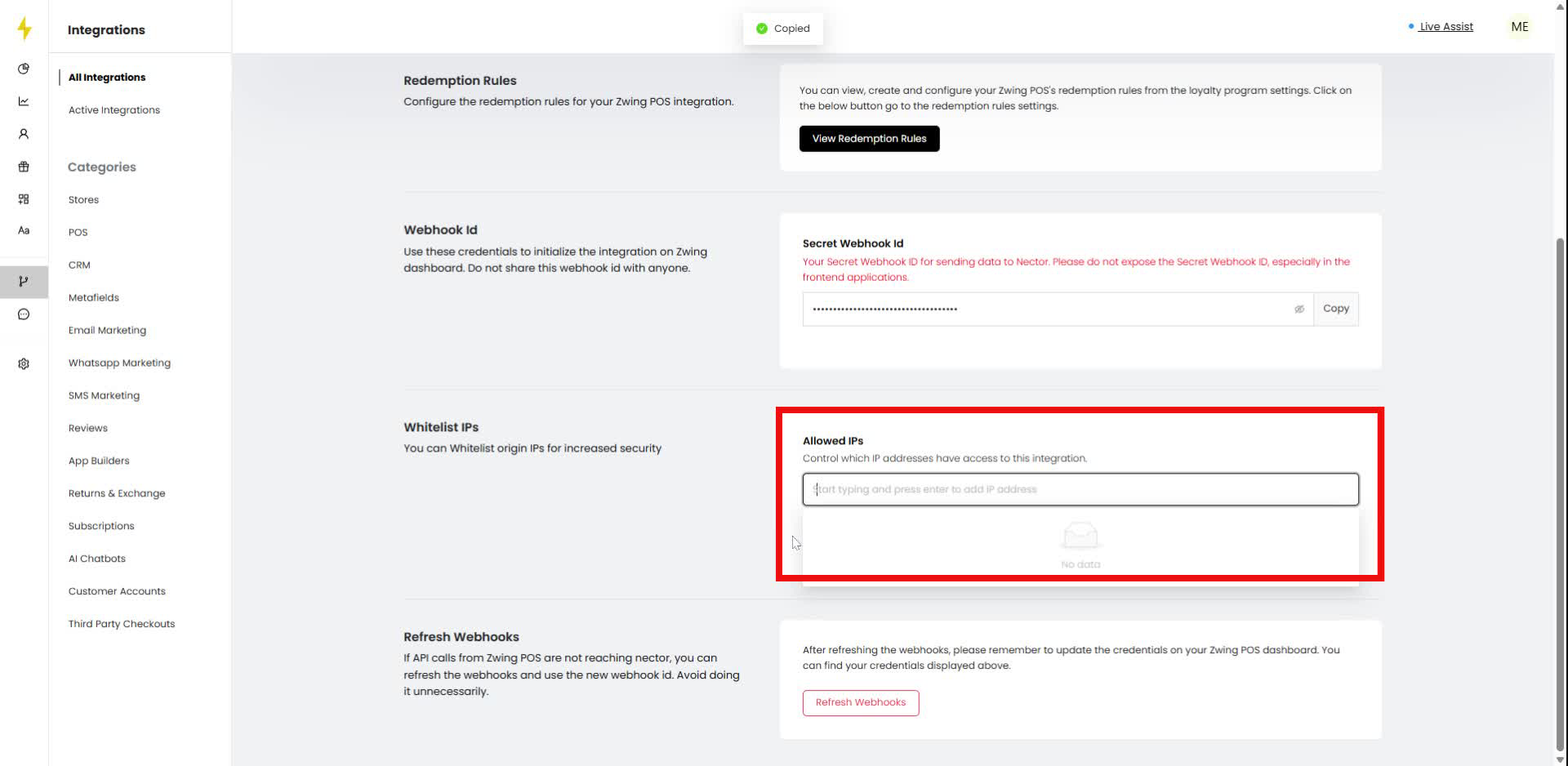
In the Whitelist IPs section, start typing an IP address to add it to the Allowed IPs list.
Step 15
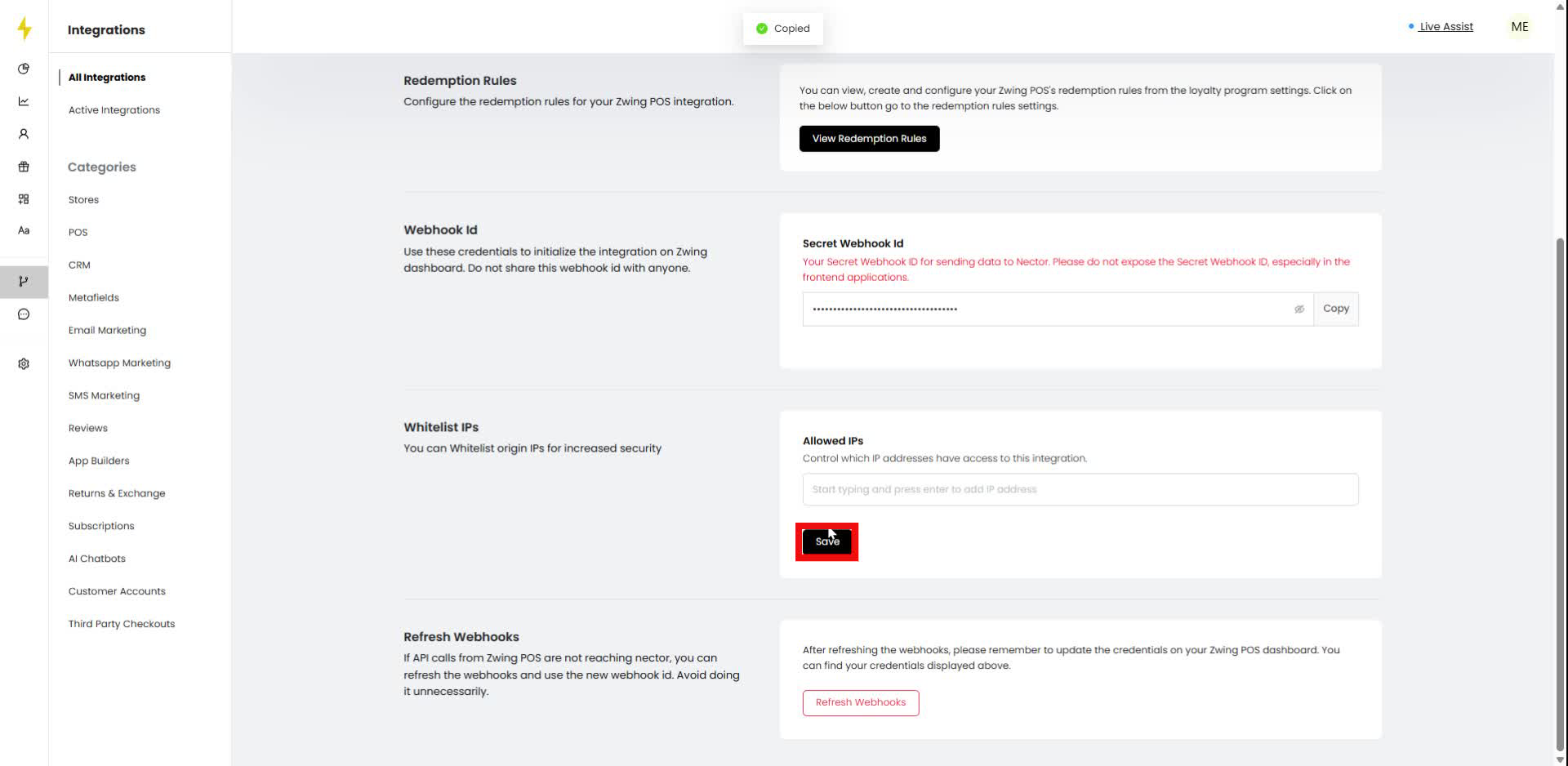
Click the Save button to confirm the changes in the Whitelist IPs section.
Step 16
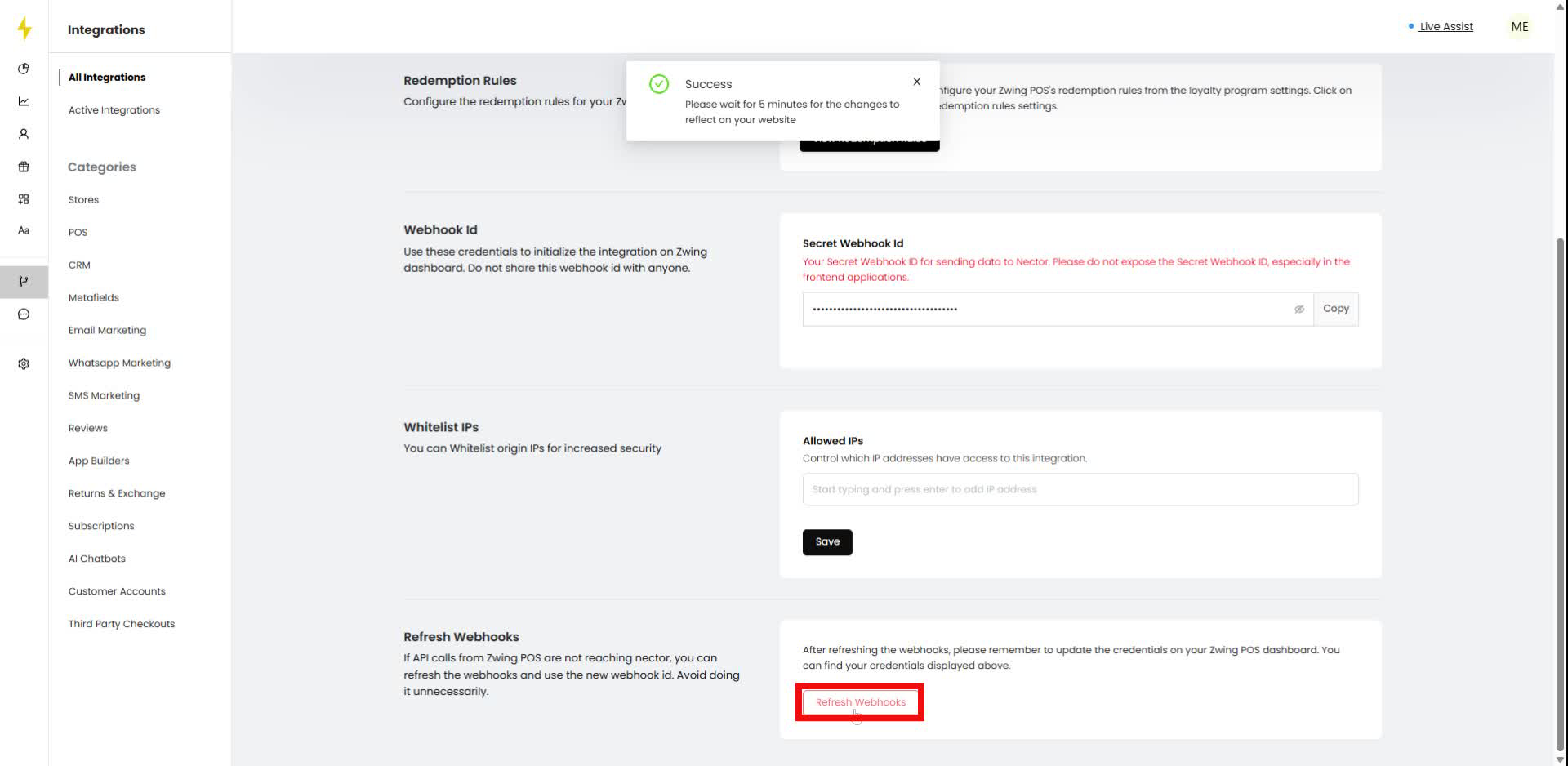
In the Refresh Webhooks section, click the Refresh Webhooks button to update the webhook credentials.
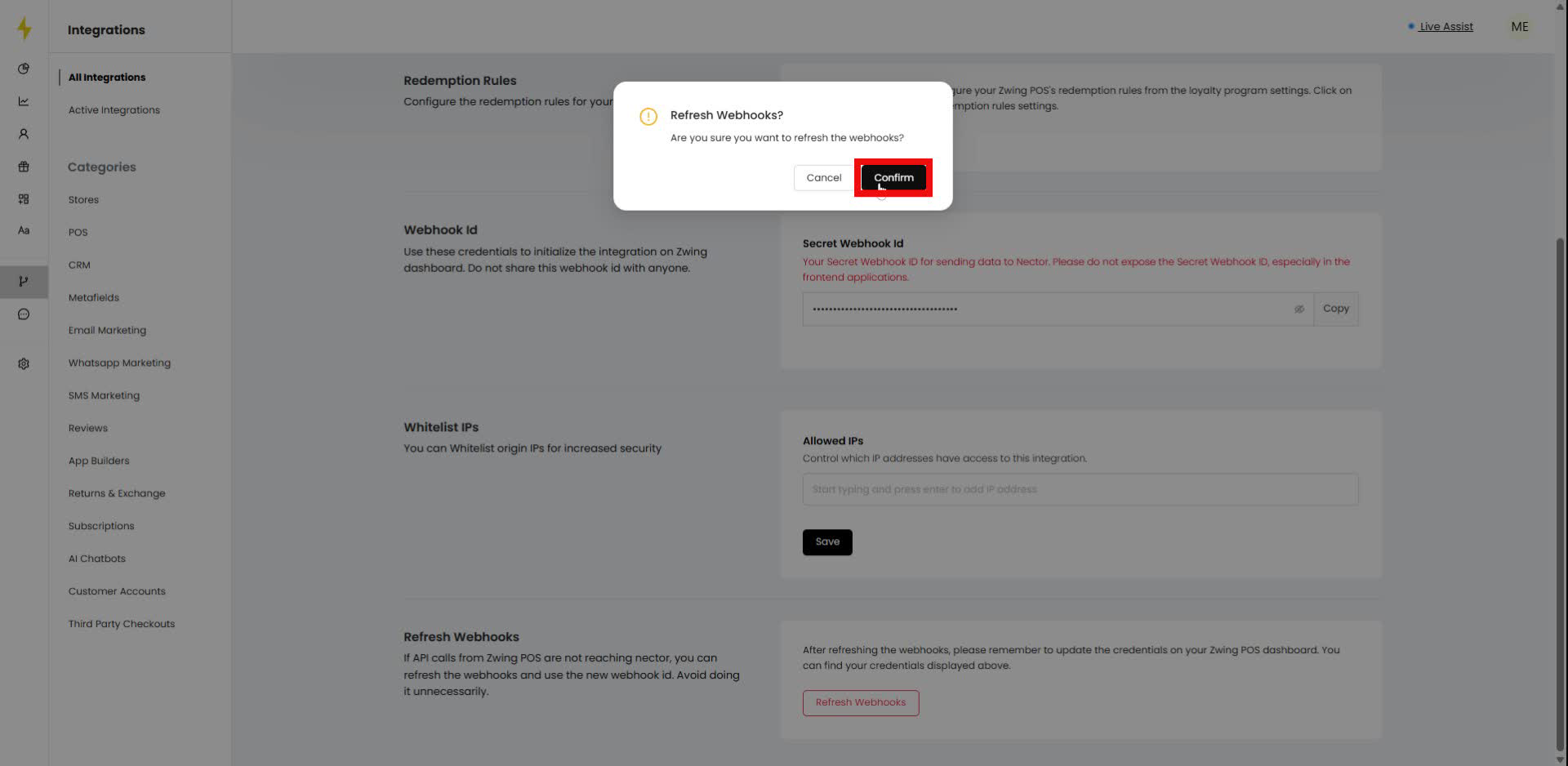
Step 17
In the modal, click the "Confirm" button to refresh the webhooks.
Updated on: 07/01/2026
Thank you!